
The MyQ Garage Door Opener app has revolutionized how we interact with our homes, offering unparalleled convenience and security. With features like remote access, real-time alerts, and even integration with smart home ecosystems, it’s a powerful tool for any homeowner.
However, like any piece of technology, users sometimes encounter situations where they need to adjust settings, and a common query is how to change the time displayed or used within the app. While the MyQ app itself doesn’t typically display a specific “time” that needs manual adjustment in the way a clock does, understanding how time factors into its operation, particularly concerning schedules, alerts, and historical logs, is crucial for maximizing its utility.
This guide will walk you through the nuances of time within the MyQ ecosystem, addressing common user intentions behind the question “How to change time on MyQ Garage Door Opener App. ” We’ll explore how the app utilizes your device’s time, how to manage schedules that are time-dependent, and how to interpret time-stamped events, ensuring you can leverage the full potential of your smart garage door opener.
Key Takeaways
- The MyQ app primarily uses your smartphone’s time settings for its operations, including schedules and alerts.
- There isn’t a direct setting within the MyQ app to change a “master clock” for the opener itself.
- Ensure your smartphone’s date and time are set to automatically sync with network time to avoid discrepancies.
- Scheduling features within MyQ rely on accurate time settings for timely operation of your garage door.
- Historical logs and activity feeds are time-stamped based on your device’s time and the MyQ server’s time, which generally align.
- Troubleshooting time-related issues often involves checking your smartphone’s settings rather than the MyQ app directly.
Understanding Time In The Myq Ecosystem
The MyQ Garage Door Opener app is designed for seamless integration with your smart home devices, and its functionality is intrinsically linked to accurate timekeeping. When users ask about changing the time on the app, they are often looking to resolve perceived discrepancies or configure time-sensitive features. It’s important to clarify that the MyQ app itself doesn’t maintain a standalone clock that you can manually adjust. Instead, it relies heavily on two primary time sources: your smartphone’s internal clock and the time synchronization maintained by the MyQ cloud servers.
The app uses your smartphone’s current time to display when events occurred, to trigger scheduled actions, and to manage notifications. If your smartphone’s time is incorrect, this can lead to confusion regarding activity logs, missed scheduled openings or closings, or alerts that appear out of sequence.
Therefore, the most common and effective way to “change the time” within the context of the MyQ app is to ensure your smartphone’s time settings are accurate and automatically synchronized.
Your Smartphone As The Timekeeper
Your smartphone acts as the primary interface for the MyQ app, and consequently, its time settings are paramount. Most modern smartphones, both iOS and Android, have a feature to automatically set the date and time based on your network provider or Wi-Fi connection.
This ensures that your device’s clock is consistently accurate, reflecting the local time zone and daylight saving adjustments. If this feature is disabled, or if your phone has lost network connectivity for an extended period, its clock could drift, leading to apparent timing issues within the MyQ app.
To verify and adjust your smartphone’s time settings:
- On iOS: Go to Settings > General > Date & Time. Ensure Set Automatically is toggled on.
- On Android: Go to Settings > System (or General Management) > Date & time. Ensure Automatic date and time and Automatic time zone are enabled.
By keeping these settings on automatic, you delegate the responsibility of accurate timekeeping to your device’s operating system, which is generally more reliable than manual adjustments.
The Role Of Myq Cloud Servers
While your smartphone’s clock is crucial for user-facing elements like activity logs and immediate app functions, the MyQ cloud infrastructure also plays a role in time synchronization. When you set up schedules or receive alerts, these actions are processed and confirmed by MyQ servers.
These servers operate on a standardized time, typically Coordinated Universal Time (UTC), and then adjust for your local time zone based on the information associated with your account.
In rare cases, a significant discrepancy between your device’s time and the server’s time could theoretically cause issues, though the automatic synchronization features in modern operating systems and the robust nature of cloud services make this uncommon. If you suspect a broader issue, checking for app updates and ensuring your account information (including your designated time zone) is correctly configured within the MyQ app or its web portal is advisable.
Configuring Time-based Schedules With Myq
One of the most significant ways time impacts the MyQ app’s functionality is through its scheduling features. The ability to program your garage door to open or close at specific times offers a layer of convenience and security. For instance, you might want your garage door to close automatically every night at 10 PM, or open at 7 AM on weekdays to allow easy exit.
The effectiveness of these schedules hinges entirely on the app accurately understanding and executing commands based on the current time.
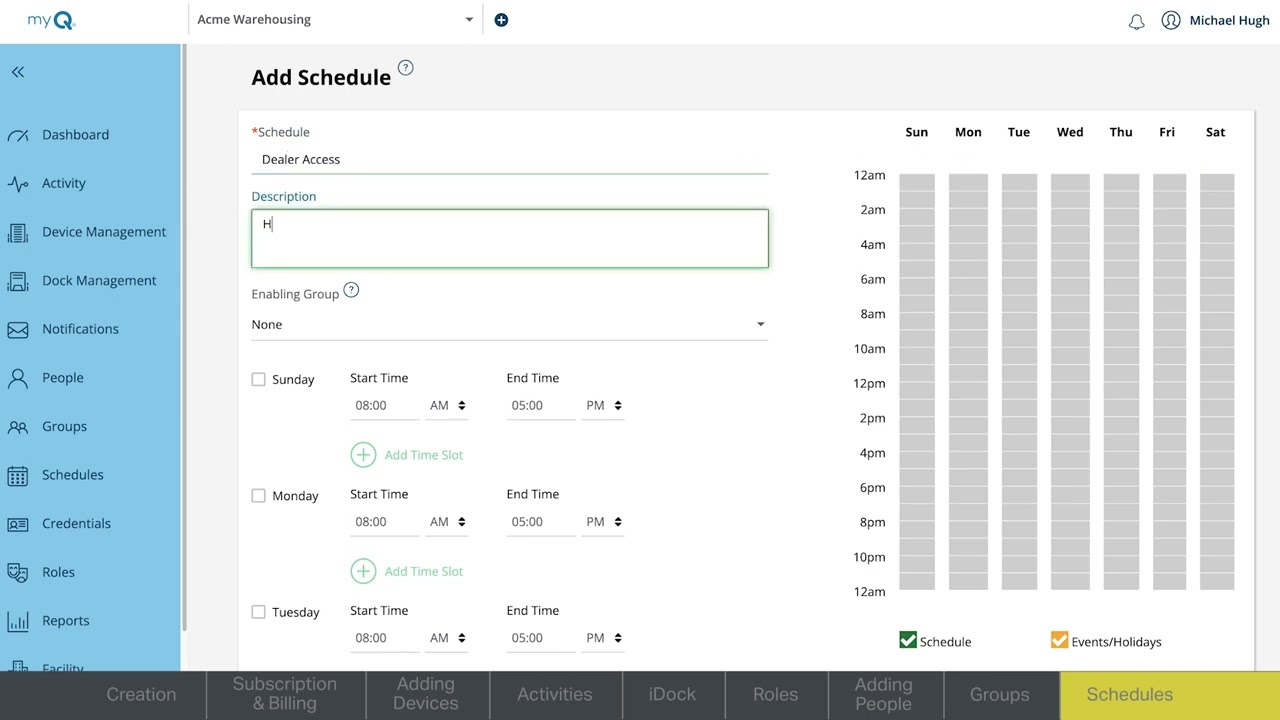
When setting up a schedule, the MyQ app will prompt you to specify a time and the desired action (open, close, or pause). This time is interpreted based on your smartphone’s clock and your account’s time zone settings. If your phone’s time is off, the schedule might trigger earlier or later than intended.
Setting Up A New Schedule
To create a new time-based schedule within the MyQ app:
- Open the MyQ app on your smartphone.
- Navigate to the MyQ Settings or Schedules section (the exact location may vary slightly depending on your app version).
- Tap on Add Schedule or a similar option.
- Select the device you want to schedule (e.g., your garage door opener).
- Choose the action: Open, Close, or Pause.
- Set the time: Use the time picker to select the desired hour and minute.
- Specify the days: Select which days of the week the schedule should be active.
- Confirm and save the schedule.
Pro Tip: Always double-check the time and days you select. It’s easy to accidentally set a schedule for AM instead of PM, or to miss selecting a crucial day.
Modifying Existing Schedules
If you need to change an existing schedule, such as adjusting the time it triggers or the days it runs, follow these steps:
- Open the MyQ app.
- Go to the Schedules section.
- Tap on the schedule you wish to modify.
- You should see options to Edit the time, days, or action.
- Make the necessary adjustments and Save your changes.
If a schedule isn’t working as expected, the first troubleshooting step should always be to verify that your smartphone’s time is accurate and set to update automatically. You can also try deleting the schedule and recreating it to ensure all parameters are set correctly.

Credit: allsecurityequipment.com
Interpreting Time-stamped Activity Logs
The MyQ app provides a valuable Activity Log or History that records all events related to your garage door opener. This includes when the door was opened, closed, when alerts were triggered, and any manual interventions. Each entry in this log is time-stamped, allowing you to review past activity and monitor usage patterns. Understanding how these timestamps are generated is key to accurately interpreting the log.
The timestamps in your Activity Log are a combination of your device’s local time and the server’s time. Generally, the app aims to display times that are consistent with your local time zone. If your smartphone’s time is correct, the log entries should accurately reflect when events occurred in your local time.
Factors Affecting Log Timestamps
- Smartphone Time Accuracy: As previously discussed, an incorrect time on your phone will directly result in incorrect timestamps in the Activity Log.
- Time Zone Settings: Ensure your smartphone’s time zone is correctly set. If you travel frequently, your phone should automatically update the time zone if “Set Automatically” is enabled. However, manual adjustments might be needed in some cases.
- MyQ Server Time: While less common, momentary network issues or server-side processing delays could theoretically introduce minor discrepancies. However, for practical purposes, assume the timestamps are based on your device’s synchronized time.
- Daylight Saving Time (DST): Automatic time synchronization on your smartphone should handle DST changes correctly. If you observe issues immediately following a DST change, verify your phone’s settings and consider if any schedules need adjustment.
Using The Activity Log Effectively
To make the most of your Activity Log:
- Regularly review entries: This helps you stay informed about who is accessing your garage and when.
- Investigate unusual activity: If you see an entry that doesn’t match your expectations, it could indicate a security concern or a scheduling error.
- Correlate with other events: Use the log to confirm if scheduled actions occurred as planned or to troubleshoot why a notification might have been missed.
If you notice consistent time discrepancies in your Activity Log, the primary troubleshooting step is to confirm your smartphone’s date, time, and time zone settings are accurate and set to automatic updates. For persistent issues, reaching out to MyQ support might be necessary, though this is rarely required if your phone’s clock is properly configured.
Credit: www.youtube.com
Troubleshooting Time-related Issues In Myq
Despite the robust nature of modern technology, users might occasionally encounter issues related to time within the MyQ app. These can range from schedules not triggering at the correct time to activity logs appearing inaccurate. Fortunately, most time-related problems are resolvable by focusing on the foundational elements: your smartphone’s settings and network connectivity.
Before diving into complex troubleshooting, always start with the simplest explanations. A quick check of your phone’s time settings can often resolve the issue immediately.
Common Time-related Problems And Solutions
- Schedules Not Triggering:
- Problem: A scheduled event (e.g., door closing at 10 PM) does not happen at the intended time.
- Solution:
- Verify your smartphone’s date, time, and time zone are set to automatic.
- Ensure the schedule is correctly configured within the MyQ app (correct time, AM/PM, days of the week).
- Check if the schedule is enabled or if it has been accidentally turned off.
- Confirm your phone has had active internet connectivity around the scheduled time.
- Delete and recreate the schedule.
- Activity Log Timestamps Incorrect:
- Problem: Events in the Activity Log show times that don’t match when they actually occurred.
- Solution:
- Confirm your smartphone’s date, time, and time zone are set to automatic.
- Restart your smartphone.
- Ensure your MyQ app is updated to the latest version.
- Log out of the MyQ app and log back in.
- Alerts Arriving Late or Early:
- Problem: Notifications about garage door activity are not timely.
- Solution:
- This is often a symptom of incorrect phone time. Verify your smartphone’s date, time, and time zone settings are automatic.
- Check your phone’s notification settings for the MyQ app to ensure they are enabled and not being delayed by battery optimization features.
- Ensure you have a stable internet connection.
When To Seek Further Assistance
If you have meticulously checked your smartphone’s time settings, verified schedules, and restarted your devices, and still experience persistent time-related issues, it might be time to consider other factors.
- App Cache: Sometimes, corrupted cache data within the MyQ app can cause unexpected behavior. You can try clearing the app’s cache via your phone’s settings (this process varies by device).
- MyQ Server Issues: While rare, there could be a temporary issue with MyQ’s servers. Checking online forums or MyQ’s official support channels for any reported outages might provide insight.
- Device Compatibility: Ensure your smartphone operating system and the MyQ app are compatible. Outdated OS versions can sometimes lead to integration problems.
- Contact MyQ Support: If all else fails, reaching out to Chamberlain/MyQ customer support is the next logical step. They can provide specific guidance based on your account and device model. You can find support options on the official MyQ support page.
Myq App Vs. Other Smart Home Time Management
Understanding how the MyQ app handles time within its specific context is helpful when comparing it to other smart home devices or platforms. While the core principle of relying on device and server synchronization remains consistent, the implementation and user-facing controls can differ significantly.
For example, some smart home hubs or individual smart devices might offer more granular control over time zones or even allow for manual time adjustments directly within their own interfaces. However, this often introduces complexity and a higher risk of user error.
Comparison Of Time Management Approaches
Let’s look at a few scenarios:
| Feature | MyQ Garage Door Opener App | Smart Thermostat App (e.g., Nest, Ecobee) | Smart Lighting System (e.g., Philips Hue) |
|---|---|---|---|
| **Primary Time Source** | Smartphone’s automatic date/time settings | Device’s internal clock, often synced via Wi-Fi/cloud | Hub’s clock or app settings, synced via cloud |
| **Manual Adjustment** | Not directly available within the app; relies on phone | May allow manual time setting, but auto-sync is preferred | Typically relies on app/hub sync; some manual overrides |
| **Scheduling** | Relies on phone’s time and account’s time zone | Schedules based on device’s perceived time | Schedules based on app/hub time |
| **Activity Log** | Time-stamped based on phone’s synchronized time | Event logs show time based on device’s clock | Event logs show time based on hub/app time |
| **Troubleshooting** | Primarily check smartphone time settings | Check device connection, app settings, and device clock | Check hub connection, app settings, and device time |
As the table illustrates, MyQ’s approach is heavily dependent on the user’s smartphone acting as the reliable time source. This simplifies the app’s interface but places the onus on the user to maintain accurate phone settings. Smart thermostats and lighting systems, which often have their own dedicated hubs or are designed for more independent operation, might manage time more internally.
Benefits Of Myq’s Time Synchronization Method
While it might seem like a limitation, relying on the smartphone’s automatic time settings offers several advantages:
- Simplicity: Users don’t need to worry about setting or adjusting a separate clock within the MyQ app.
- Accuracy: Leveraging the smartphone’s robust network-based time synchronization ensures high accuracy.
- Consistency: If your phone’s time is correct, the MyQ app’s time-based functions (schedules, logs) will generally be consistent with your local time.
- Reduced Maintenance: Less need for firmware updates or manual clock adjustments for the opener itself related to time.
The key takeaway is that for MyQ, ensuring your smartphone’s time is correctly set to update automatically is the most critical step for all time-related functions within the app.
Real-world Examples Of Time Management In Myq
To further illustrate how time management works within the MyQ app, let’s consider a couple of practical scenarios. These examples highlight common use cases and potential pitfalls related to time settings.
Example 1: The Weekday Morning Rush
Sarah uses her MyQ app to schedule her garage door to open at 7:00 AM every weekday. This allows her to leave for work without needing to manually press a button or use her remote.
- Scenario: One Tuesday morning, Sarah is running late. She checks her phone and notices that its time is 15 minutes behind the actual time because she recently traveled across time zones and forgot to let her phone automatically update.
- Outcome: The garage door does not open at 7:00 AM as scheduled. It eventually opens closer to 7:15 AM, based on her phone’s incorrect time. Sarah misses her planned departure time, causing a ripple effect in her morning commute.
- Lesson Learned: Sarah realizes the critical importance of ensuring her phone’s time zone and clock are always set to automatic updates. She checks her phone settings (Settings > General > Date & Time > Set Automatically on iOS, or equivalent on Android) and confirms it’s enabled. The following day, her schedule works perfectly.
Example 2: Vacation Home Security
Mark is going on vacation and wants to ensure his garage door closes automatically every night at 11:00 PM for added security, even though he won’t be home to monitor it. He sets this schedule in his MyQ app.
- Scenario: Mark’s home Wi-Fi goes down for a few hours overnight due to a local outage. His MyQ opener loses its connection to the cloud, and his smartphone, while still connected to cellular data, has its clock slightly drift due to lack of network time synchronization for a brief period.
- Outcome: The scheduled 11:00 PM closing does not occur precisely on time. It might happen later, or if the internet outage and time drift are significant enough, it might not happen at all until connectivity is restored and the phone resynchronizes.
- Lesson Learned: While the MyQ app relies on the phone’s time, a stable internet connection for both the opener and the phone is crucial for reliable execution of time-sensitive commands, especially those involving security. Mark learns that for critical functions like nightly closing, ensuring consistent power and internet connectivity at the garage location is as important as accurate time settings. He also considers setting a “fail-safe” reminder notification on his phone for a few minutes after the scheduled closing time, just to be alerted if it doesn’t occur.
These examples underscore that while the MyQ app itself doesn’t have a time setting to “change,” the accuracy and synchronization of your smartphone’s time and network connectivity are the true determinants of its time-based features functioning correctly.
Frequently Asked Questions
How Do I Ensure My Myq App Always Has The Correct Time?
The MyQ app relies on your smartphone’s internal clock for its timekeeping. To ensure accuracy, navigate to your smartphone’s Settings, find the Date & Time options, and make sure that “Set Automatically” (or a similar option like “Automatic Date and Time” and “Automatic Time Zone”) is enabled. This allows your phone to sync with network time, which is generally the most accurate method.
What Happens If My Phone’s Time Is Wrong?
If your smartphone’s time is incorrect, it will directly affect the MyQ app. Scheduled events (like opening or closing the garage door at specific times) may trigger earlier or later than intended. Additionally, the Activity Log entries will display inaccurate timestamps, making it difficult to review past events accurately. Alerts might also be delayed or appear out of sequence.
Can I Set A Specific Time Zone For The Myq App Independently Of My Phone?
No, the MyQ app does not offer a separate time zone setting independent of your smartphone. It uses the time zone configured on your mobile device. Ensure your phone’s automatic time zone setting is enabled to correctly reflect your current location, especially if you travel frequently.
How Do I Adjust A Schedule That Is Set For The Wrong Time?
To adjust a schedule, open the MyQ app, navigate to the Schedules section, tap on the specific schedule you wish to modify, and then edit the time, days, or action as needed. After making changes, be sure to Save them. If a schedule isn’t working, it’s often best to delete it and create a new one, ensuring all details are entered correctly.
My Scheduled Events Are Happening An Hour Off. What Could Be The Cause?
An hour-off discrepancy often points to an issue with Daylight Saving Time (DST) or an incorrect time zone setting. First, verify that your smartphone’s “Set Automatically” for both date/time and time zone is enabled. If the issue persists immediately after a DST change, check if your phone correctly applied the adjustment. If you are in a region that observes DST, ensure your phone’s settings are configured to handle it automatically. If the problem continues, consider manually setting the time zone to see if that resolves the hour offset.
The MyQ Garage Door Opener app is a sophisticated tool that enhances home convenience and security. While there isn’t a direct setting within the app to “change the time” in the traditional sense, understanding its reliance on your smartphone’s accurate date, time, and time zone settings is paramount.
By ensuring your mobile device is configured for automatic time synchronization, you guarantee that all time-based features, from scheduled operations to activity logs and alerts, function reliably and precisely as intended. This simple yet crucial step unlocks the full potential of your smart garage door opener, providing peace of mind and seamless integration into your daily life.