
The humming of your garage door opener is a familiar sound, a signal that your vehicle is safely tucked away or ready for its next journey. But what happens when that connection breaks? When you press the button on your MyQ device, or even your traditional remote, and nothing happens, it can be a moment of frustration and concern. A MyQ not connecting to the garage door opener is a common issue that many homeowners face, leading to a loss of convenience and potentially a security concern.
This situation can stem from a variety of causes, ranging from simple connectivity glitches to more complex hardware or software problems. Understanding these potential causes is the first step toward a swift resolution. Whether your MyQ app isn’t recognizing your opener, or the opener itself isn’t responding to MyQ commands, this comprehensive guide will walk you through the troubleshooting process.
We’ll cover everything from checking your Wi-Fi signal to resetting your device and opener, ensuring you can regain control of your garage door system.
Key Takeaways
- Wi-Fi Connectivity is Paramount: Ensure your home Wi-Fi network is stable and within range of your garage door opener’s MyQ hub.
- Power Cycle Everything: A simple restart of your router, modem, MyQ hub, and garage door opener can resolve many temporary glitches.
- App and Firmware Updates: Keep your MyQ app and the opener’s firmware up-to-date to benefit from bug fixes and performance improvements.
- Security and Pairing: Verify that the opener is properly paired with the MyQ device and that any security features are not interfering.
- Physical Obstructions: Check for any physical blockages or issues with the garage door itself that might prevent the opener from functioning.
- Device Compatibility: Confirm that your garage door opener model is compatible with the MyQ system you are using.
- Troubleshoot Systematically: Follow a step-by-step approach to identify and resolve the specific problem.
Understanding Your Myq System And Garage Door Opener
Before diving into troubleshooting, it’s crucial to understand the components involved. The MyQ system, developed by Chamberlain Group, acts as a smart bridge, allowing you to monitor and control your garage door opener remotely via a smartphone app or web portal. It typically consists of a MyQ-enabled garage door opener or a MyQ Smart Garage Hub that connects to an existing, compatible opener. The system relies on your home’s Wi-Fi network to communicate with the MyQ servers, which then relay commands from your app.
The garage door opener itself is the mechanical device that lifts and lowers your garage door. It has a motor, a drive system (chain, belt, or screw), and a logic board that receives signals from remotes, keypads, and the MyQ system.
When your MyQ isn’t connecting, it means the communication pathway between your smartphone, the MyQ cloud, your Wi-Fi, the MyQ hub/opener, and finally the opener’s logic board is disrupted. Identifying which link in this chain is broken is key to fixing the problem.
Components Of The Myq Ecosystem
- MyQ App: The mobile application (available for iOS and Android) that serves as your primary interface for controlling and monitoring your garage door.
- MyQ Smart Garage Hub (or integrated MyQ opener): This is the hardware that connects to your home Wi-Fi network and communicates with your garage door opener. If your opener isn’t MyQ-integrated, you’ll likely have a separate hub device.
- Garage Door Opener: The motor unit that operates the garage door. It needs to be compatible with MyQ technology.
- Wi-Fi Router: Your home’s internet gateway, which the MyQ hub or opener connects to.
- Internet Connection: A stable internet service is essential for MyQ cloud communication.
How Myq Connects To Your Opener
The connection process varies slightly depending on whether you have a MyQ-integrated opener or a separate Smart Garage Hub.
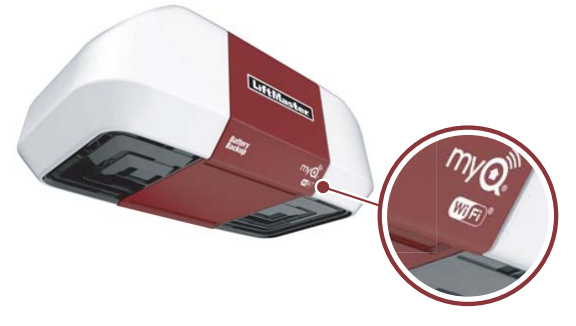
For MyQ-Integrated Openers: The Wi-Fi module is built directly into the opener unit. You typically connect it to your home Wi-Fi network using the MyQ app during initial setup. The opener then communicates directly with the MyQ cloud.
For MyQ Smart Garage Hubs: This device is usually installed in your garage near the opener. It connects to your Wi-Fi network. A small sensor is attached to the garage door itself to detect its open/closed status. The hub communicates wirelessly with the opener’s existing remote control frequency (usually via a small RF transmitter that mimics your remote). This allows it to send open/close commands without needing direct wiring to the opener’s logic board.
Credit: support.suretyhome.com
Common Reasons For Myq Connection Failure
When your MyQ system refuses to connect, it’s rarely a single, isolated incident. More often, it’s a confluence of factors that disrupt the communication flow. Understanding these common culprits can help you quickly pinpoint the source of the problem.
Wi-fi Network Issues
This is by far the most frequent cause of MyQ connectivity problems. The MyQ system relies entirely on a stable Wi-Fi connection to communicate with the MyQ cloud.
- Weak Signal Strength: The MyQ hub or integrated opener might be too far from your Wi-Fi router. Garage environments, with their metal doors and potential interference from other devices, can be particularly challenging for Wi-Fi signals. The average Wi-Fi signal strength required for reliable operation is typically around -67 dBm or stronger.
- Router Problems: Your router might be experiencing temporary glitches, have too many devices connected, or be set to a channel that is overcrowded by neighboring networks.
- Internet Outage: If your home’s internet service is down, the MyQ system won’t be able to connect to the cloud, even if your Wi-Fi is working locally.
- Network Configuration Changes: If you’ve recently changed your Wi-Fi password, network name (SSID), or router settings, the MyQ device will lose its connection and need to be reconfigured.
Power And Connectivity Glitches
Electronic devices, including garage door openers and smart hubs, can sometimes encounter temporary software or hardware hiccups that disrupt their functionality.
- Lack of Power: Ensure the MyQ hub (if applicable) and the garage door opener are both receiving power. Check that plugs are secure and circuit breakers haven’t tripped.
- Device Freezing: Like any computer, the logic board within your opener or the MyQ hub can sometimes freeze, requiring a reboot.
- Interference: Other electronic devices in or near the garage (e.g., cordless phones, older wireless doorbells, certain types of lighting) can sometimes interfere with the Wi-Fi signal or the opener’s radio frequency.
Myq App And Account Issues
Problems can also arise within the MyQ app itself or with your account credentials.
- Outdated App Version: An old version of the MyQ app might have compatibility issues with recent server updates or your opener’s firmware.
- Account Synchronization Errors: Sometimes, the link between your MyQ account and your connected devices can become desynchronized.
- Incorrect Credentials: While less common for connection issues, ensuring you’re logged into the correct MyQ account is a basic but important step.
Opener And Myq Device Pairing Problems
The MyQ system needs to be properly paired with your garage door opener to function. If this pairing is lost or was never established correctly, you’ll face connection issues.
- Lost Pairing: Power outages, firmware updates, or resets can sometimes cause the MyQ device to lose its connection to the opener.
- Incorrect Setup: During the initial setup, if the pairing process wasn’t completed correctly, the devices won’t communicate.
Compatibility And Hardware Failures
While less common, it’s possible that your opener is not compatible with the MyQ system, or that a hardware component has failed.
- Incompatible Opener: Not all garage door openers are MyQ-compatible. You need an opener with a yellow learn button (for Chamberlain, LiftMaster, Craftsman models 2010 and newer) or a specific MyQ logo. If you have a very old opener, it might not work.
- Faulty MyQ Hub/Opener: In rare cases, the MyQ hub itself or the integrated Wi-Fi module in the opener could be defective.
- Faulty Sensor (for Hubs): If you’re using a Smart Garage Hub, a malfunctioning door sensor could prevent the system from accurately reporting the door’s status, leading to perceived connection issues.

Credit: garagedoorblog.com
Troubleshooting Steps: A Systematic Approach
When your MyQ system isn’t connecting, it’s best to approach the problem methodically. Start with the simplest solutions and progressively move towards more complex ones.
Step 1: Check Basic Power And Connectivity
This is the foundation of all troubleshooting. Without power and a stable internet connection, nothing else will work.
- Verify Internet Service: Check if other devices in your home can access the internet. If not, contact your internet service provider.
- Check Router Power: Ensure your Wi-Fi router and modem are powered on and functioning correctly. Look for indicator lights that suggest a healthy connection.
- Power Cycle Your Network: Turn off your modem and router, wait for about 30 seconds, then turn the modem back on. Wait for it to fully boot up (usually indicated by stable lights), then turn on your router. Wait for it to boot up.
- Check MyQ Hub Power (if applicable): Ensure the MyQ Smart Garage Hub is plugged in and receiving power. Look for status indicator lights on the hub itself.
- Check Opener Power: Ensure your garage door opener unit is plugged into a working outlet and receiving power. Check your home’s circuit breaker panel if necessary.
Step 2: Assess Wi-fi Signal Strength
A weak or unstable Wi-Fi signal is a primary reason for MyQ connection failures.
- Move the Router (Temporarily): If possible and safe, try moving your Wi-Fi router closer to the garage to see if signal strength improves. This is a diagnostic step; you likely won’t keep it there permanently.
- Use a Wi-Fi Extender/Booster: If distance is the issue, consider a Wi-Fi extender or a mesh Wi-Fi system to improve coverage in the garage.
- Check Signal on Your Phone: Use your smartphone within the garage to check the Wi-Fi signal strength. Apps like ‘WiFi Analyzer’ (Android) or similar network utility tools can provide a more precise reading (aim for at least -67 dBm).
- Reduce Interference: Temporarily turn off or move potential sources of interference (microwaves, cordless phones, Bluetooth devices) located near the MyQ hub or opener.
Step 3: Reboot Your Myq Devices
A simple reboot can often resolve temporary software glitches.
- Reboot the MyQ Hub/Opener:
- For Smart Garage Hubs: Unplug the hub from the power outlet. Wait 30 seconds, then plug it back in.
- For MyQ Integrated Openers: Unplug the opener from the power outlet. Wait 30 seconds, then plug it back in. Some openers may have a specific reset button sequence; consult your opener’s manual.
- Reboot Your Smartphone: Sometimes, the issue lies with the mobile device running the MyQ app. A simple restart can clear temporary app-related issues.
Step 4: Update Myq App And Opener Firmware
Outdated software is a common source of compatibility problems.
- Update the MyQ App: Go to your smartphone’s app store (Google Play Store or Apple App Store) and check for any available updates for the MyQ app. Install them.
- Check for Opener Firmware Updates: Some MyQ-enabled openers can receive firmware updates over-the-air. Check the MyQ app settings or Chamberlain’s support website for instructions on how to check and initiate firmware updates for your specific opener model. This process usually requires the opener to be connected to Wi-Fi.
Step 5: Re-establish Wi-fi Connection For Myq
If your Wi-Fi network name or password has changed, you’ll need to reconnect your MyQ device.
- Access Wi-Fi Settings in MyQ App: Open the MyQ app, go to the settings for your garage door opener or hub, and look for an option to ‘Change Wi-Fi Network’ or ‘Reconnect to Wi-Fi’.
- Follow On-Screen Prompts: The app will guide you through the process of selecting your network and entering the correct password. This might involve putting the MyQ device into a pairing or setup mode.
- Consult Manual: If you’re unsure how to initiate this on your specific device, refer to the user manual or the Chamberlain/LiftMaster support website.
Step 6: Re-pair Myq Device With Opener
If the Wi-Fi connection seems fine but the opener still isn’t responding, the pairing between the MyQ system and the opener might be lost.
- Check Opener Compatibility: Ensure your opener is indeed MyQ compatible. Look for a yellow, orange, purple, or red learn button on the motor unit. Models with a yellow learn button are typically MyQ compatible (Chamberlain, LiftMaster, Craftsman from 2010 onwards). A purple learn button indicates Security+ 3.0 and MyQ capability. Red/Orange often indicates Security+ 2.0 and MyQ capability. Green or Blue buttons usually indicate older systems that are *not* MyQ compatible.
- Initiate Pairing Mode:
- For Smart Garage Hubs: Follow the instructions in the MyQ app to put the hub into pairing mode. This usually involves pressing a button on the hub. The hub will then attempt to learn the signal from your opener’s remote. You might need to press the program button on your existing garage door remote.
- For MyQ Integrated Openers: The pairing process is often managed directly through the MyQ app’s setup wizard. It may involve pressing the ‘Learn’ button on the opener motor unit itself, followed by specific actions within the app.
- Test the Connection: After re-pairing, try operating the garage door through the MyQ app.
Pro Tip: If you have a Chamberlain or LiftMaster opener with a yellow, purple, or red/orange learn button, consult the specific programming instructions for your model. Sometimes, you need to press the learn button, then immediately press and hold a button on your remote or within the app.
Step 7: Resetting Your Myq System And Opener
If the above steps haven’t resolved the issue, a more thorough reset might be necessary. This will erase existing settings and require you to set up the system again from scratch.
- Reset the MyQ Hub/Opener’s Wi-Fi Settings:
- Smart Garage Hub: Often, there’s a small reset button on the hub itself. You might need to press and hold it for 10-15 seconds until an indicator light changes or flashes. Consult your hub’s manual for the exact procedure.
- MyQ Integrated Opener: Look for a ‘Settings’ or ‘Wi-Fi’ menu within the opener’s built-in display (if it has one) or access Wi-Fi settings through the MyQ app. There should be an option to ‘Forget Network’ or ‘Reset Wi-Fi’.
- Reset the Garage Door Opener Logic Board: For some models, you can perform a full reset of the opener’s logic board. This is often done by unplugging the opener, then pressing and holding the power button on the wall control (or the opener itself) for about 10-15 seconds. This clears all programmed remotes and settings, so you’ll need to reprogram them afterward. Refer to your opener’s manual for the specific reset procedure.
- Re-Setup MyQ: After resetting, you will need to go through the entire setup process within the MyQ app again, including connecting to your Wi-Fi network and pairing with the opener. You can find detailed guides on how to reset your garage door opener.
Step 8: Check Physical Door Operation And Safety Sensors
Sometimes, the problem isn’t with the MyQ connection at all, but with the garage door opener’s ability to physically move the door.
- Disengage the Opener: Pull the emergency release cord (usually a red handle hanging from the opener’s rail) to disengage the opener from the door.
- Manually Operate the Door: Try lifting and lowering the garage door manually. It should move smoothly and stay open when partially lifted. If it’s heavy, unbalanced, or binds up, you have a garage door issue, not an opener issue. You may need to lubricate rollers or adjust springs. You can learn more about how to lube garage door rollers.
- Check Opener Safety Sensors: If the door only moves slightly and then stops, or reverses immediately, the safety sensors at the bottom of the track might be misaligned, obstructed, or faulty. Ensure they are clean, aligned (indicator lights on both sensors should be steady), and not blocked by debris.
- Re-engage the Opener: Once you’ve addressed any manual door issues, re-engage the opener by following the instructions on the release cord.
Step 9: Contact Support Or A Professional
If you’ve exhausted all troubleshooting steps and your MyQ system still won’t connect, it’s time to seek further assistance.
- Consult Chamberlain/LiftMaster Support: Visit the official Chamberlain Group website (which includes LiftMaster and MyQ support) for model-specific troubleshooting guides, FAQs, and contact information. They can provide insights into known issues with your particular opener or hub.
- Contact a Garage Door Professional: If you suspect a hardware failure with the opener or MyQ components, or if you’re uncomfortable performing advanced troubleshooting, it’s best to call a qualified garage door technician. They have the tools and expertise to diagnose and repair complex issues. The cost of a professional repair can vary, but understanding the potential expenses is helpful; you can research how much for a garage door repair.

Credit: support.chamberlaingroup.com
Troubleshooting Specific Error Messages Or Lights
Sometimes, your MyQ hub or opener will provide visual cues about the problem.
Indicator Lights On The Myq Hub
The Smart Garage Hub typically has LED indicator lights that signify its status.
- Solid Blue Light: Usually indicates a successful connection to the Wi-Fi network and the MyQ cloud.
- Flashing Blue Light: Often means it’s attempting to connect to Wi-Fi or is in setup mode.
- Solid Red Light: Typically indicates a failure to connect to Wi-Fi or the MyQ cloud.
- Flashing Red Light: Can signify an error state, possibly related to Wi-Fi credentials or network issues.
- No Light: Check power connection.
Consult your specific Smart Garage Hub model’s manual for the exact meaning of its indicator lights.
Error Messages In The Myq App
The MyQ app may display specific error messages that can help diagnose the problem:
- “Device Offline”: This is a general message indicating the app cannot communicate with your opener/hub. It usually points to Wi-Fi, power, or internet issues.
- “Unable to Connect to Server”: This suggests a problem with the MyQ cloud service or your internet connection to it.
- “Pairing Failed”: Indicates an issue during the process of connecting the MyQ device to your garage door opener.
- “Sensor Error” (for Hubs): Suggests a problem with the door position sensor.
Comparison: Myq Troubleshooting Vs. Traditional Opener Issues
While the core issue might be a “MyQ not connecting,” it’s important to differentiate this from general garage door opener malfunctions.