
The humble garage door opener has evolved from a simple convenience into a connected hub for your home. LiftMaster, a leading name in garage door technology, has integrated its MyQ® system, allowing you to monitor and control your garage door from virtually anywhere using your smartphone.
This connectivity offers enhanced security, convenience, and peace of mind. However, the process of connecting your LiftMaster opener to the MyQ app can sometimes feel like deciphering a complex manual. This guide aims to demystify the process, providing a clear, step-by-step approach to seamlessly integrate your garage door into your smart home ecosystem.
Whether you’re looking to receive alerts when your garage door is opened, grant temporary access to family or friends, or simply ensure you closed the door before leaving for vacation, understanding how to connect your LiftMaster opener to MyQ is the crucial first step.
Key Takeaways
- Compatibility is Key: Ensure your LiftMaster garage door opener model is MyQ-enabled or compatible with a MyQ Smart Garage Hub.
- Download the App: The MyQ app is essential for setup and daily operation, available on both iOS and Android.
- Hub vs. Built-in: The setup process differs slightly depending on whether your opener has built-in MyQ or requires a separate Smart Garage Hub.
- Wi-Fi Connection: A stable 2.4 GHz Wi-Fi network is necessary for the MyQ system to communicate.
- Safety First: Always disconnect power before performing any physical installations or adjustments.
- Troubleshooting: Common issues often involve Wi-Fi connectivity, incorrect password entry, or opener compatibility.
- Security Features: Leverage MyQ for alerts, remote access, and integration with other smart home devices.
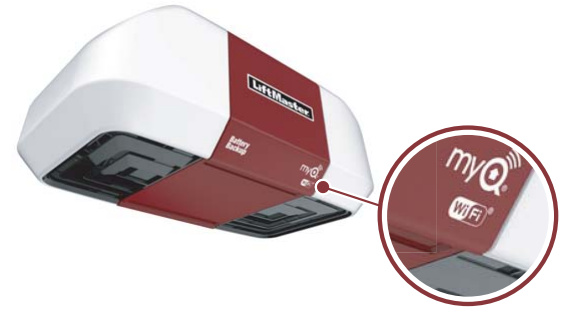
Credit: support.suretyhome.com
Understanding Liftmaster And Myq Technology
LiftMaster has been a dominant force in the garage door opener market for decades, known for its reliability and innovation. The introduction of the MyQ® Smart Garage Control technology represents a significant leap forward, transforming a traditional garage door into an intelligent part of your home network. MyQ essentially acts as a bridge, allowing your garage door opener to communicate wirelessly with your home Wi-Fi network and, consequently, with your smartphone via the MyQ app. This connection enables a suite of features designed to enhance security, convenience, and efficiency.
The core principle behind MyQ is remote access and monitoring. Once connected, you can check the status of your garage door (open or closed) from anywhere with an internet connection. You can also receive real-time alerts, for instance, if the door is opened or closed, or if it’s left open for an extended period. This proactive notification system can prevent potential security breaches and save you from the anxiety of wondering if you remembered to close the garage.
Beyond monitoring, MyQ facilitates remote control. You can open or close your garage door using the MyQ app, which is particularly useful if you’re expecting a delivery and want to grant temporary access to a trusted individual or if you’re on your way home and want to open the door in advance. This capability eliminates the need for traditional remote controls when you’re away from home.
Furthermore, MyQ is designed to integrate with other smart home platforms, such as Amazon Alexa, Google Assistant, and Apple HomeKit (depending on the specific opener model and hub). This interoperability allows for voice control of your garage door and enables routines where your garage door can be part of a larger smart home automation sequence, like “Goodnight” routines that ensure the garage door is closed.
The technology itself relies on a secure, encrypted connection between your opener (or the MyQ Hub), your home router, and the MyQ cloud servers, which then communicate with the MyQ app on your mobile device. Understanding this basic architecture is fundamental to troubleshooting any connectivity issues that might arise during the setup process.
Myq-enabled Openers Vs. Smart Garage Hubs
LiftMaster offers two primary pathways to MyQ connectivity: openers with built-in MyQ technology and the MyQ Smart Garage Hub. The method you use to connect will depend on which type of system you have.
Openers with Built-in MyQ: Many newer LiftMaster models come with MyQ functionality integrated directly into the motor unit. These openers typically have a yellow, purple, or orange learn button on the back or side, often accompanied by an antenna. When connecting these openers, the process primarily involves programming the opener to connect to your home Wi-Fi network. You’ll be guiding the opener itself to establish a wireless connection.
MyQ Smart Garage Hub: For older LiftMaster openers that do not have built-in MyQ, or even openers from other brands (though this guide focuses on LiftMaster), the MyQ Smart Garage Hub (often referred to as the MyQ Garage Hub or Chamberlain MyQ Garage Hub) is the solution. This is a separate device, typically a small box that plugs into a power outlet near your garage door opener. It includes a door sensor that attaches to your garage door and communicates the door’s status to the hub. The hub then connects to your home Wi-Fi network. The setup here involves pairing the hub with your Wi-Fi and then programming your existing garage door opener to recognize the hub’s signal.
The choice between these two depends on your existing equipment. If you have a newer LiftMaster opener, check its specifications or look for the tell-tale learn button colors. If not, the Smart Garage Hub is your gateway to MyQ smarts. Regardless of the path, the goal is the same: to enable remote control and monitoring through the MyQ app.

Credit: www.youtube.com
Pre-connection Checklist: What You’ll Need
Before you begin the process of connecting your LiftMaster garage door opener to MyQ, it’s crucial to ensure you have everything in place. This preparation will make the setup smoother and prevent frustrating interruptions. Think of this as gathering your tools and ingredients before starting a recipe.
1. Compatible Liftmaster Garage Door Opener
The most fundamental requirement is a compatible LiftMaster garage door opener. As discussed, this means either an opener with built-in MyQ technology or an older model that can work with the MyQ Smart Garage Hub.
- Built-in MyQ: Look for a yellow, purple, or orange learn button on your opener unit. These colors often indicate Wi-Fi capability. Check your opener’s manual or the LiftMaster website for your specific model number to confirm MyQ compatibility.
- Smart Garage Hub: If your opener lacks built-in MyQ, you’ll need the MyQ Smart Garage Hub. This accessory works with most major garage door opener brands, including LiftMaster, Chamberlain, and Craftsman, manufactured after 1993.
2. Myq App And Account
You will need to download the MyQ app onto your smartphone or tablet. It’s available for free on both the Apple App Store and Google Play Store. Once downloaded, you’ll need to create a MyQ account. This account links your smart garage devices to your personal profile and allows you to manage them.
3. Home Wi-fi Network Information
A stable 2.4 GHz Wi-Fi network is essential for the MyQ system to function. You’ll need:
- Wi-Fi Network Name (SSID): The name of your home wireless network.
- Wi-Fi Password: The password for your network.
Important Note: Most MyQ devices do not support 5 GHz Wi-Fi networks. If you have a dual-band router that broadcasts both 2.4 GHz and 5 GHz, ensure you are connecting to the 2.4 GHz band. You might need to temporarily disable the 5 GHz band or create a separate network name (SSID) for the 2.4 GHz band if your router doesn’t clearly distinguish them.
4. Smartphone Or Tablet
You’ll use your smartphone or tablet, running the MyQ app, to guide the setup process and to control your garage door once connected. Ensure your device is connected to the same Wi-Fi network you intend to use for the MyQ system during the initial setup.
5. Ladder And Tools (for Smart Garage Hub Installation)
If you are using the MyQ Smart Garage Hub, you will need a ladder to safely reach your garage door opener and the garage door itself. You’ll also likely need a screwdriver to attach the door sensor to the garage door.
6. Power Source
Both the garage door opener and the MyQ Smart Garage Hub (if used) require a functioning power outlet. Ensure the outlet near your opener is working and accessible.
7. Safety Precautions
- Disconnect Power: It’s always a good practice to disconnect the power to your garage door opener before starting any physical installation or programming steps. This can be done by unplugging the opener from the outlet or by flipping the circuit breaker.
- Secure Ladder: If using a ladder, ensure it is placed on a stable, level surface.
Having all these items ready will significantly streamline the connection process, allowing you to enjoy the benefits of a connected garage sooner.

Credit: www.youtube.com
Connecting Liftmaster Openers With Built-in Myq
This section details the process for LiftMaster garage door openers that have integrated MyQ technology. These openers typically feature a learn button (often yellow, purple, or orange) and may have an antenna. The core of this setup involves teaching your opener to connect directly to your home Wi-Fi network.
Step 1: Download The Myq App And Create An Account
If you haven’t already, download the MyQ app from your device’s app store. Open the app and follow the on-screen prompts to create a new MyQ account or log in if you already have one. This account will be the central hub for managing your connected devices.
Step 2: Put The Garage Door Opener Into Wi-fi Setup Mode
This is a critical step and can vary slightly depending on your specific LiftMaster model. Generally, you need to activate the Wi-Fi setup mode on the opener itself.
- Locate the Learn Button: Find the Learn button on your garage door opener motor unit. It’s usually located near the antenna or on the back panel. As mentioned, the color of this button (yellow, purple, or orange) is often an indicator of MyQ compatibility.
- Press and Hold the Learn Button: Press and hold the Learn button for approximately 10 seconds. The opener’s indicator light should turn on, and then turn off. Release the button.
- Press the Learn Button Again: Within 30 seconds of releasing the button, press and release the Learn button again. The indicator light on the opener should start blinking, signifying that it’s in Wi-Fi setup mode.
Pro Tip: Consult your specific LiftMaster model’s manual if you’re unsure about the exact procedure for entering Wi-Fi setup mode. The sequence of button presses can differ.
Step 3: Connect To Your Wi-fi Network Via The Myq App
Now, you’ll use the MyQ app on your smartphone to find and connect your opener to your home Wi-Fi.
- Navigate to Add Device: In the MyQ app, look for an option to “Add Device” or a similar “+” icon.
- Select Garage Door Opener: Choose the option for “Garage Door Opener” or “MyQ-enabled Garage Door Opener. “
- Follow In-App Instructions: The app will guide you through the process. It will likely prompt you to:
- Select your Wi-Fi Network: Choose your 2.4 GHz home Wi-Fi network from the list of available networks.
- Enter Wi-Fi Password: Carefully enter your Wi-Fi password. Double-check for accuracy, as this is a common point of failure.
- Connect: The app will attempt to connect the opener to your network. You might see the opener’s indicator light change from blinking to solid, or a specific pattern, indicating a successful connection.
Step 4: Test The Connection
Once the app indicates a successful connection, it’s time to test.
- Close the Garage Door: Ensure the garage door is closed.
- Use the App: In the MyQ app, tap the icon representing your garage door and select the “Close” or “Open” command.
- Verify Operation: The garage door should operate as expected. The app should also update its status to reflect the door’s current position.
If the connection fails, don’t worry. Common issues include incorrect Wi-Fi passwords, weak Wi-Fi signal strength, or attempting to connect to a 5 GHz network. Refer to the troubleshooting section for further guidance.
Connecting With The Myq Smart Garage Hub
If your LiftMaster opener does not have built-in MyQ technology, you’ll use the MyQ Smart Garage Hub. This device acts as an intermediary, allowing older openers to communicate with the MyQ system. The setup involves installing the hub and its sensor, then pairing them with your opener and your Wi-Fi network.
Step 1: Install The Myq Smart Garage Hub And Door Sensor
Safety first! Unplug your garage door opener from the power outlet or switch off the corresponding circuit breaker.
- Position the Hub: Find a suitable location for the Smart Garage Hub near your garage door opener and within range of your Wi-Fi router. It needs to be plugged into a power outlet.
- Mount the Door Sensor: The door sensor is a small device that attaches to the garage door itself. Clean the surface of the garage door where you intend to mount it. Use the provided adhesive or screws to securely attach the sensor. Ensure it’s positioned so that it aligns correctly with the hub when the door is closed, and separates when the door opens. The sensor’s purpose is to detect the door’s position.
- Connect the Hub to Power: Plug the Smart Garage Hub into a nearby power outlet. The status LED on the hub should illuminate.
Step 2: Download The Myq App And Create An Account
As with the built-in MyQ setup, you’ll need the MyQ app installed on your smartphone or tablet. Download it from your device’s app store and either create a new MyQ account or log in to your existing one.
Step 3: Connect The Smart Garage Hub To Your Wi-fi Network
This step involves getting the hub online.
- Add Device in App: Open the MyQ app and navigate to the “Add Device” section.
- Select Smart Garage Hub: Choose the option for “Smart Garage Hub” or “Internet Gateway. “
- Follow In-App Instructions: The app will guide you through connecting the hub to your 2.4 GHz Wi-Fi network. This typically involves:
- Putting the hub into pairing mode (often by pressing a button on the hub).
- Selecting your home Wi-Fi network (SSID).
- Entering your Wi-Fi password.
- Waiting for the hub to establish a connection. The LED on the hub should indicate a successful connection (e.g., solid green light).
Step 4: Pair The Smart Garage Hub With Your Garage Door Opener
Now, you need to link the Smart Garage Hub to your existing LiftMaster opener.
- Access Pairing Mode on Opener: Go to your garage door opener motor unit. Locate the Learn button (again, typically yellow, purple, or orange).
- Press the Learn Button: Press and release the Learn button on the opener. The LED next to the button should illuminate.
- Use the App to Send the Signal: Immediately switch back to the MyQ app. The app should prompt you to send a signal to pair the opener. Tap the button or follow the on-screen instruction to “Send Signal” or “Pair. “
- Test the Connection: The garage door opener should activate briefly (move slightly or the light might flash). This indicates successful pairing. The app will confirm the pairing.
- Plug Opener Back In: Once pairing is confirmed, you can plug your garage door opener back into the power outlet or turn the circuit breaker back on.
Step 5: Test The System
Finally, test the full functionality.
- Check Door Sensor: Ensure the door sensor is correctly detecting the garage door’s position.
- Use the App: In the MyQ app, attempt to open and close your garage door remotely.
- Verify Status: Confirm that the app accurately reflects whether the door is open or closed.
If you encounter issues, review the troubleshooting steps. The most common challenges involve Wi-Fi connectivity, sensor placement, or ensuring the correct opener was paired.
Troubleshooting Common Myq Connection Issues
Even with the best preparation, you might encounter hiccups when connecting your LiftMaster opener to MyQ. Fortunately, most issues are common and have straightforward solutions. Here’s a breakdown of frequent problems and how to resolve them.
Wi-fi Connectivity Problems
This is arguably the most common area of difficulty.
- Incorrect Wi-Fi Password: A simple typo is often the culprit. Carefully re-enter your Wi-Fi password, paying close attention to uppercase/lowercase letters and special characters.
- Wrong Wi-Fi Band (2.4 GHz vs. 5 GHz): MyQ devices generally only work on 2.4 GHz networks. If your router broadcasts both, ensure you select the 2.4 GHz network during setup. Some routers combine these under one name; you may need to access your router’s settings to separate them or ensure the 2.4 GHz band is active.
- Weak Wi-Fi Signal: The garage can be a challenging location for Wi-Fi signals due to distance and building materials.
- Test Signal Strength: Use your smartphone to check the Wi-Fi signal strength near the opener or Smart Garage Hub.
- Relocate Router/Hub: If the signal is weak, consider moving your Wi-Fi router closer to the garage or using a Wi-Fi range extender or mesh system.
- Hub Placement: For the Smart Garage Hub, try placing it closer to the router if possible, while still maintaining proximity to the opener.
- Router Settings: Advanced router settings like firewalls, MAC address filtering, or parental controls can sometimes block the MyQ device. Temporarily disabling these settings during setup can help identify if they are the cause. Consult your router’s manual for instructions. You may need to add the MyQ device’s MAC address (usually found on the device itself) to your router’s approved list.
Pairing And Device Recognition Issues
Problems with the opener recognizing the app or hub.
- Incorrect Learn Button Color: Ensure you are using the correct procedure for your opener’s learn button color. Refer to your LiftMaster manual.
- Timing Out: The pairing process often has a time limit (e.g., 30 seconds) between pressing the learn button and initiating the action in the app. Ensure you complete the steps promptly.
- Multiple Openers: If you have multiple garage doors, ensure you are attempting to pair the correct opener with the corresponding device in the app.
- Opener Needs Reset: Sometimes, the opener’s memory might be full or corrupted. Try resetting the garage door opener’s memory. This process varies by model; consult your manual. For example, you might need to press and hold the Learn button for an extended period (e.g., 30 seconds) until the indicator light goes out. After resetting, you’ll need to reprogram any existing remotes and then attempt the MyQ connection again. You can find guidance on similar procedures at how to reset your garage door opener.
Sensor Malfunctions (smart Garage Hub)
If using the Smart Garage Hub, sensor issues can prevent accurate status updates.
- Battery Level: Check the battery in the door sensor. If it’s low, replace it with a new one.
- Sensor Alignment: Ensure the door sensor is securely mounted and properly aligned with the hub when the door is closed. Obstructions or misalignment can prevent it from detecting the door’s position accurately.
- Interference: Other devices emitting radio frequencies could potentially interfere with the sensor’s signal to the hub. Try to minimize potential sources of interference.
App-specific Issues
- App Not Responding: Try closing and reopening the MyQ app, or force-closing it and relaunching.
- Outdated App: Ensure you have the latest version of the MyQ app installed. Check your device’s app store for updates.
- Account Syncing: Sometimes, simply logging out of your MyQ account within the app and logging back in can resolve syncing issues.
General Troubleshooting Steps
- Reboot Devices: Try rebooting your Wi-Fi router, your smartphone, and the MyQ device (opener or hub) by unplugging them from power for about 30 seconds and plugging them back in.
- Check LiftMaster Support: Visit the official LiftMaster support website for model-specific troubleshooting guides and FAQs. They often have detailed resources for common issues.
- Contact Customer Support: If you’ve exhausted all other options, don’t hesitate to contact LiftMaster customer support for further assistance.