
Now Reading: How Do I Open My Garage Door With Myq App: Easy Guide
- 01
How Do I Open My Garage Door With Myq App: Easy Guide

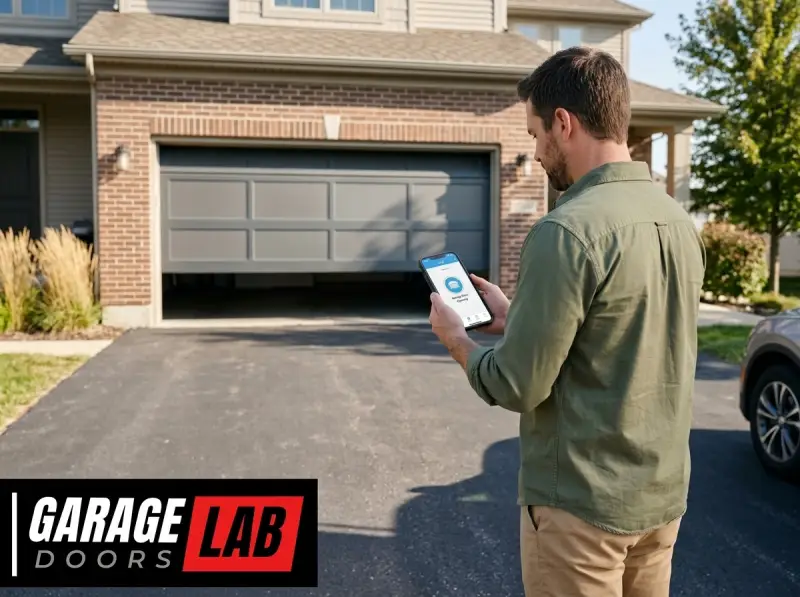
The modern garage door opener has evolved far beyond a simple remote control. With the advent of smart home technology, you can now control your garage door with a few taps on your smartphone, thanks to applications like MyQ. This connectivity offers unparalleled convenience, enhanced security, and peace of mind, allowing you to manage one of the largest entry points to your home from virtually anywhere.
Understanding how to harness the power of the MyQ app is key to unlocking these benefits.
This comprehensive guide will walk you through the entire process of opening your garage door using the MyQ app. We’ll cover everything from initial setup and account creation to troubleshooting common issues, ensuring you can confidently operate your garage door with this sophisticated smart technology.
Whether you’re tech-savvy or new to smart home devices, this guide aims to demystify the process and empower you to make the most of your MyQ-enabled garage door opener.
Key Takeaways
- MyQ App Functionality: The MyQ app allows remote control of compatible garage door openers, enabling users to open, close, and monitor their garage doors from a smartphone or tablet.
- Initial Setup is Crucial: Successful app usage hinges on correctly connecting your garage door opener to your home Wi-Fi network and linking it to your MyQ account.
- Core Features: Beyond basic operation, MyQ offers features like real-time notifications, activity logs, and the ability to grant temporary access to others.
- Connectivity is Key: A stable Wi-Fi connection for both your opener and your mobile device is essential for reliable app performance.
- Troubleshooting Common Issues: Many problems, such as connectivity loss or unresponsive doors, can be resolved by checking Wi-Fi, restarting devices, or re-linking accounts.
- Security Considerations: While convenient, it’s important to practice good digital hygiene, such as strong passwords and enabling two-factor authentication, to protect your connected garage.
Credit: www.myq.com
Understanding Your Myq Enabled Garage Door Opener
The MyQ system, developed by Chamberlain Group, is a proprietary smart home technology that integrates with a wide range of garage door openers and gate operators. At its core, MyQ provides a wireless connection between your garage door opener and your home’s Wi-Fi network.
This connection is then managed through the MyQ mobile application, available for both iOS and Android devices. The primary function of this system is to grant you remote access and monitoring capabilities.
This technology transforms a traditional, often cumbersome, garage door into a smart device. Instead of relying solely on physical remotes or wall buttons, you gain a digital interface. This interface allows you to check if your garage door is open or closed, receive alerts when it’s operated, and, most importantly, open or close it remotely.
This is particularly useful if you’re away from home and need to let a delivery person in, or if you’ve forgotten to close the door and want to secure your home. The system is designed with security in mind, utilizing encryption protocols to protect your connection.
How Myq Technology Works
The magic behind the MyQ app lies in its communication pathway. Your MyQ-enabled garage door opener has a built-in Wi-Fi module or is connected to a separate MyQ gateway device. This module or gateway establishes a connection with your home’s wireless router.
Once connected to your local network, it can communicate with the MyQ cloud servers. When you use the MyQ app on your smartphone, your command is sent from your device, over the internet, to the MyQ cloud. The cloud server then relays this command to your garage door opener via your home Wi-Fi network, triggering the opener to act.
The process is reversed for monitoring. Your garage door opener sends its status (open or closed) to the MyQ cloud, which then updates the status displayed in your MyQ app. This bidirectional communication is what enables real-time control and monitoring.
The system is designed to be robust, but it heavily relies on a stable internet connection for both your home network and your mobile device. A common misconception is that the app communicates directly with the opener; in reality, it’s a cloud-mediated process, ensuring that you can control your garage even when you’re not within Bluetooth or Wi-Fi range of your home.
Compatibility And Device Types
Not all garage door openers are MyQ enabled out of the box. Chamberlain Group produces openers under several brands, including LiftMaster, Chamberlain, and Craftsman. Many of their newer models come equipped with built-in MyQ connectivity. For older garage door openers that are not natively MyQ compatible, there’s often an upgrade path.
This typically involves purchasing a separate MyQ gateway device, such as the MyQ Smart Garage Hub. This hub acts as a bridge, connecting your existing opener to your Wi-Fi network and enabling app control.
To determine if your garage door opener is compatible, you can check the manufacturer’s specifications, look for the MyQ logo on the unit, or consult the MyQ compatibility checker on the official Chamberlain Group website. The system is designed to work with a vast majority of residential garage door openers manufactured after 1993, provided they use safety sensors.
The MyQ Smart Garage Hub, in particular, is a versatile solution that can add smart capabilities to older, non-connected openers.
Setting Up Your Myq Account And App
Before you can open your garage door with your phone, you need to get your MyQ account and app set up. This initial phase involves downloading the app, creating your user profile, and then linking your garage door opener to your account.
This process is crucial for establishing the secure connection that allows remote operation.
Downloading And Installing The Myq App
The first step is to download the MyQ app onto your smartphone or tablet. The app is available for free on both the Apple App Store for iOS devices and the Google Play Store for Android devices. Search for “MyQ” and look for the official app developed by Chamberlain Group.
Once you find it, tap “Install” or “Get” to download and install it on your device. Ensure your device has sufficient storage space and is connected to Wi-Fi or a strong cellular signal for a smooth download.
After installation, open the app. You’ll be greeted with a welcome screen, and the app will guide you through the initial setup process. This typically involves granting necessary permissions, such as location services and notifications, which are important for the app’s functionality, like geofencing (automatically opening the door when you arrive home).
Creating Your Myq Account
Upon launching the app for the first time, you’ll need to create a MyQ account. Tap on the “Create Account” or “Sign Up” option. You will be prompted to enter your email address, create a secure password, and provide some basic personal information.
It’s vital to choose a strong, unique password for your MyQ account, as it secures access to your garage. Consider using a password manager to generate and store complex passwords.
Once you’ve filled in the required fields, you’ll likely need to agree to the terms of service and privacy policy. After submitting your information, you may receive a verification email. Open your email client, find the verification message from MyQ, and click the provided link to confirm your email address and activate your account.
This step is essential for account security and for enabling all features of the app.
Connecting Your Garage Door Opener To The App
This is the most critical step in enabling app control. The process varies slightly depending on whether your opener has built-in MyQ or if you’re using a MyQ Smart Garage Hub.
For openers with built-in MyQ:
- Access Pairing Mode: On your garage door opener motor unit, locate the “Learn” or “Program” button. This is often found near the antenna or on the back panel. Press and hold this button for a few seconds until an indicator light flashes or the LED lights up.
- Follow App Instructions: Open the MyQ app and navigate to the “Add Device” or “Connect Garage Door Opener” section. The app will guide you through finding your opener. You might be asked to press the button on the opener again or to enter a code displayed on the opener’s screen.
- Wi-Fi Connection: The app will then prompt you to connect your opener to your home Wi-Fi network. You’ll need to select your network name (SSID) and enter your Wi-Fi password. Ensure you are connecting to a 2.4 GHz network, as most smart home devices, including MyQ, do not support 5 GHz networks.
- Confirmation: Once connected, the app will confirm that your garage door opener has been successfully added to your account. You’ll then be able to name your garage door (e.g., “Main Garage”) and assign it to a location.
For openers using the MyQ Smart Garage Hub:
- Hub Setup: First, set up the MyQ Smart Garage Hub itself. Plug it into a power outlet near your garage door opener and your Wi-Fi router. Download the MyQ app and follow the instructions to connect the Hub to your Wi-Fi network.
- Door Sensor Installation: The Hub comes with a door sensor. Follow the app’s instructions to mount this sensor securely on your garage door. This sensor is what tells the Hub whether the door is open or closed.
- Linking Hub to Opener: In the MyQ app, add the Smart Garage Hub. The app will then guide you through linking the Hub to your existing garage door opener. This usually involves pressing the “Learn” button on your opener and then pressing a button on the Hub or within the app to establish communication.
- Confirmation: Similar to the built-in method, the app will confirm when the Hub is successfully linked to your opener and functioning.
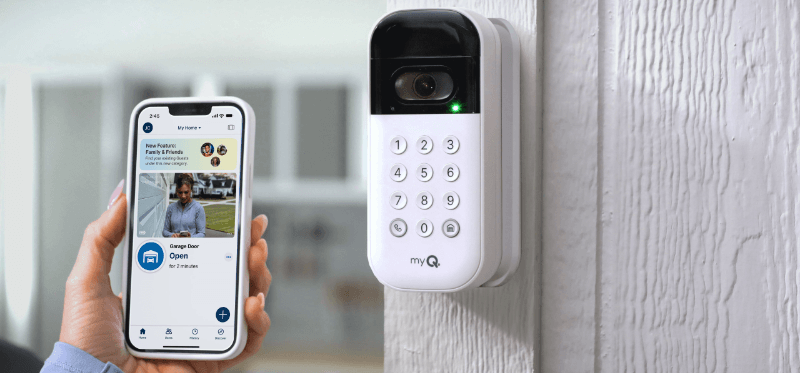
Credit: a1garage.com
Operating Your Garage Door With The Myq App
Once your MyQ system is set up, operating your garage door becomes a simple and intuitive process. The app is designed for ease of use, allowing you to perform essential functions with just a few taps.
Opening And Closing Your Garage Door
The primary function of the MyQ app is to open and close your garage door remotely.
- Launch the App: Open the MyQ app on your smartphone or tablet.
- Select Your Garage Door: If you have multiple devices connected, select the specific garage door you wish to operate from the main dashboard.
- Tap the Control Button: You will see prominent icons or buttons for “Open” and “Close” (or similar). Tap the desired action. For security, some systems may require a secondary confirmation, like a swipe or a passcode, before executing the command.
- Monitor Status: After tapping the button, the app will display the action being performed and then update to reflect the door’s new status (e.g., “Opening,” “Closing,” “Open,” “Closed”). You’ll also typically hear your garage door opener engage, just as it would with a physical remote.
This remote control capability is invaluable. For instance, if you’re at the grocery store and realize you forgot to close the garage, you can simply open the app and close it. Or, if you’re expecting a delivery and won’t be home, you can open the door for the driver and then close it once they’ve left, all from your phone.
Checking Garage Door Status And Activity Log
Beyond just opening and closing, the MyQ app provides valuable insights into your garage’s activity.
- Real-time Status: The main dashboard of the MyQ app will always display the current status of your garage door, whether it’s open or closed. This visual cue offers immediate peace of mind.
- Activity Log: Most MyQ systems maintain an activity log. This log records every instance the garage door was operated, including the time, date, and method of operation (e.g., via app, remote, or manual). This is an excellent security feature, allowing you to review who accessed your garage and when. To access the log, navigate to the specific garage door in the app and look for an option like “Activity Log,” “History,” or “Journal.”
Receiving Notifications And Alerts
One of the most significant benefits of the MyQ system is its notification capabilities. You can configure the app to send alerts to your smartphone for various events.
- Door Open/Close Alerts: Receive instant notifications when your garage door opens or closes. This is crucial for security, informing you immediately if the door is operated unexpectedly.
- Geofencing Alerts: Set up alerts based on your location. For example, you can receive a notification if you leave home and the garage door is still open.
- Maintenance Alerts: Some MyQ systems can even provide alerts for routine maintenance, such as when it’s time to lubricate your garage door rollers or check the opener’s chain. This proactive maintenance can prevent future issues.
To set up notifications, go to the settings section within the MyQ app, usually found by tapping on your garage door device or within the general app settings menu. You can customize which alerts you want to receive and how you want to be notified (e.
g. , push notifications, email).
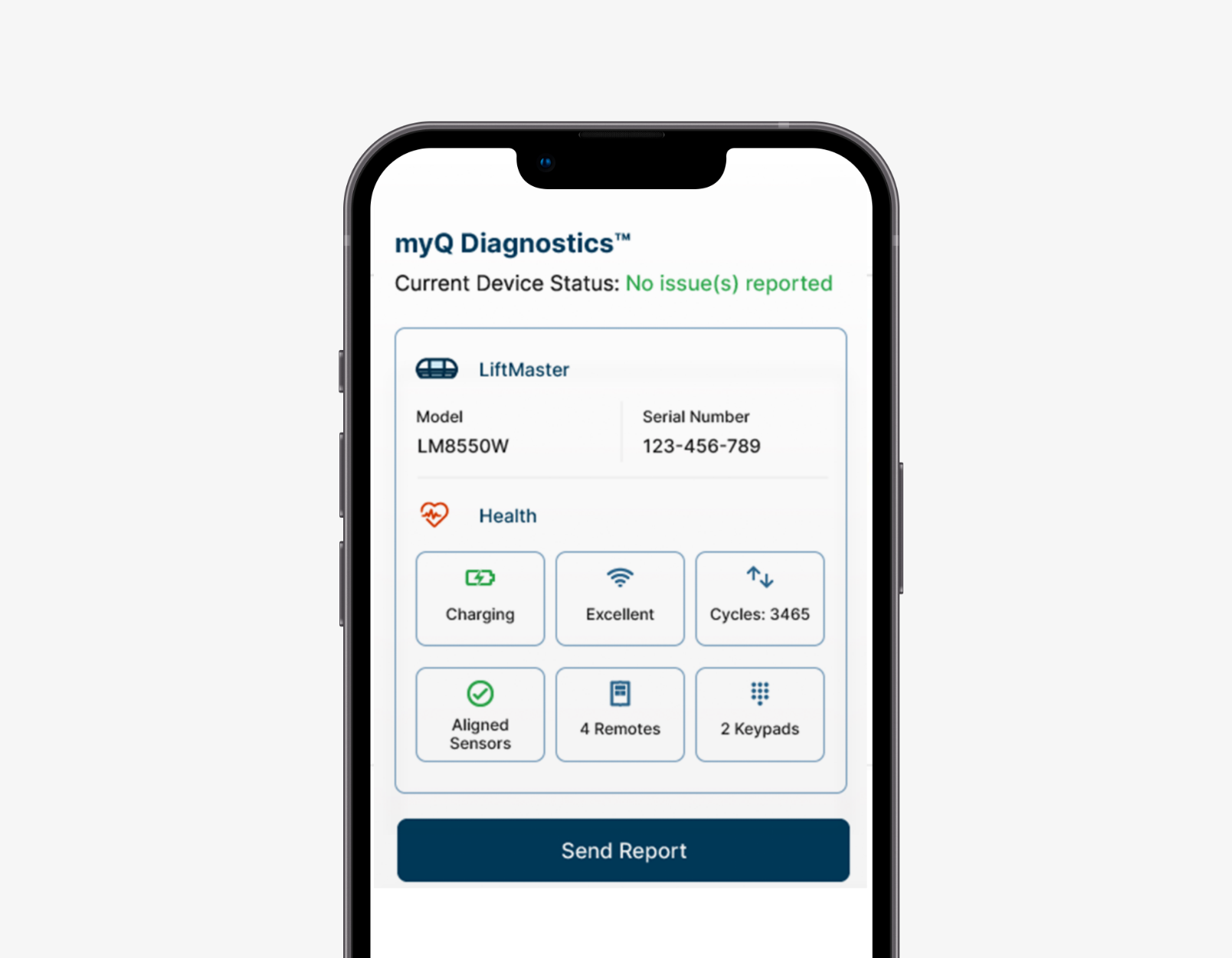
Credit: www.myq.com
Advanced Features And Customization
The MyQ app offers more than just basic remote control. Several advanced features can enhance convenience and security, allowing you to tailor the system to your specific needs.
Granting Access To Others
MyQ allows you to grant temporary or recurring access to your garage door for family members, friends, or service providers.
- Adding Users: Within the app, you can invite other users to share access to your garage door. They will need to download the MyQ app and create their own accounts.
- Access Levels: You can often assign different access levels. For instance, you might give a family member full control, while a dog walker might only have permission to open the door during specific hours.
- Revoking Access: You can easily revoke access for any user at any time through the app, ensuring you always maintain control over who can operate your garage door. This is a significant improvement over sharing physical remote controls.
Integrating With Smart Home Ecosystems
MyQ is designed to be part of a broader smart home ecosystem. It can often integrate with popular platforms like Amazon Alexa, Google Assistant, and Apple HomeKit (though HomeKit integration may require a specific MyQ Home Bridge accessory and can be complex to set up).
- Voice Control: Once integrated, you can use voice commands to operate your garage door. For example, you could say, “Alexa, open the garage door,” or “Hey Google, is the garage door closed?”
- Automation and Routines: Integrate MyQ with routines in your smart home system. For instance, you could create a “Goodnight” routine that closes the garage door, turns off lights, and locks your doors simultaneously.
Integration setup varies by platform but typically involves linking your MyQ account within the respective smart home app (e. g. , the Alexa app, Google Home app).
Setting Up Schedules And Automation
The MyQ app allows for some level of automation and scheduling, further enhancing convenience.
- Automatic Closing: You can set your garage door to close automatically after a certain period of being open. This is a great safety feature to ensure the door doesn’t remain open for extended periods, especially if you forget to close it manually.
- Scheduled Operation: In some cases, you might be able to schedule the garage door to open or close at specific times, though this feature is less common for security reasons and often requires explicit user confirmation for each operation.
These automated features can be configured within the app’s settings or automation sections, allowing you to fine-tune the system’s behavior to match your daily routines.
Troubleshooting Common Myq Issues
Even with advanced technology, you might encounter occasional hiccups with your MyQ system. Fortunately, most common issues are relatively easy to resolve with a systematic approach.
Connectivity Problems
The most frequent issues revolve around connectivity. If your app shows your garage door as “Offline” or unresponsive, here’s what to check:
- Wi-Fi Signal Strength: Ensure your home Wi-Fi network is working correctly. Check if other devices in your home can connect to the internet. If the signal is weak near the garage door opener or MyQ Hub, consider moving your router closer, using a Wi-Fi extender, or upgrading to a mesh network.
- Opener/Hub Power: Verify that the garage door opener motor unit or the MyQ Hub is receiving power. Check the power cord and the outlet.
- Router Settings: Some router settings, like firewalls or MAC address filtering, can interfere with the MyQ connection. Ensure your router is not blocking the MyQ device. You might need to consult your router’s manual or ISP for assistance.
- 2.4 GHz Network: Confirm that your opener or Hub is connected to a 2.4 GHz Wi-Fi band, not a 5 GHz band. Many smart devices are not compatible with 5 GHz networks.
- Reboot Devices: Try power cycling your modem, router, and the MyQ device (opener or Hub). Unplug them, wait about 30 seconds, and plug them back in. This can often resolve temporary network glitches.
App Not Responding Or Crashing
If the MyQ app itself is misbehaving:
- Close and Reopen: Force close the app and reopen it.
- Update the App: Ensure you have the latest version of the MyQ app installed. Check the App Store or Google Play Store for updates.
- Restart Your Phone: Sometimes, a simple restart of your smartphone can resolve app issues.
- Clear Cache (Android): On Android devices, you can try clearing the app’s cache through your phone’s settings.
- Reinstall the App: As a last resort, uninstall the MyQ app and reinstall it. You will need to log back into your account.
Door Not Opening/closing From App
If the app seems connected but the door doesn’t respond:
- Check Opener Status: Ensure the opener’s motor unit has power and its indicator lights are normal.
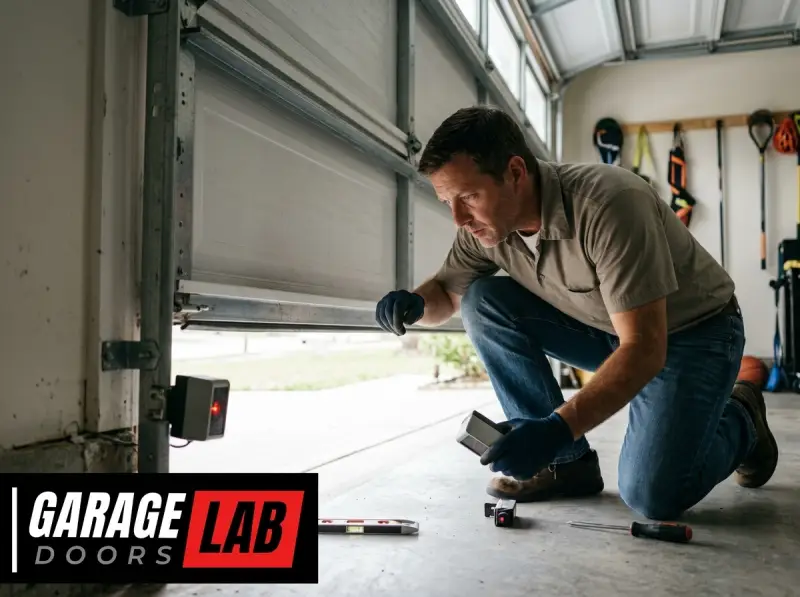
- Safety Sensors: Verify that the safety sensors at the bottom of the garage door tracks are aligned and unobstructed. If they are misaligned, the opener will not close the door.
- Manual Operation: Try operating the door with a physical remote or the wall button. If these also don’t work, the issue might be with the opener itself, not the MyQ system. You might need to check how to reset your garage door opener or consult a professional.
- Re-link Device: In the MyQ app, try unlinking and then re-linking your garage door opener. This can sometimes re-establish a lost connection. You may need to repeat the Wi-Fi setup process.
Error Messages In The App
Pay attention to specific error messages displayed in the app. These often provide clues about the problem. For example, an error related to “authentication” might indicate an issue with your account login, while an error about “device not found” points to a connectivity problem.
Search online for the specific error code or message for targeted solutions.
Security Best Practices For Myq Users
While the convenience of the MyQ app is undeniable, it’s crucial to implement strong security measures to protect your connected garage.
Secure Your Myq Account
- Strong, Unique Password: As mentioned earlier, use a complex password that is difficult to guess and is not used for any other online account. Consider using a passphrase (a sequence of words).
- Enable Two-Factor Authentication (2FA): If MyQ offers 2FA, enable it. This adds an extra layer of security by requiring a code from your phone or an authenticator app in addition to your password when logging in from a new device.
- Regularly Review Linked Devices: Periodically check the list of devices logged into your MyQ account and remove any you don’t recognize.
Secure Your Home Wi-fi Network
- Strong Wi-Fi Password: Use a robust password for your home Wi-Fi network (WPA2 or WPA3 encryption).
- Guest Network: If possible, connect your MyQ device to a dedicated guest network rather than your main home network. This isolates the device and limits potential damage if it were compromised.
- Router Security Updates: Keep your router’s firmware updated to the latest version to patch security vulnerabilities.
Manage Shared Access Carefully
- Grant Access Sparingly: Only grant access to trusted individuals.
- Use Time Restrictions: If available, utilize time-limited access for service providers.
- Revoke Access Promptly: Remove access for anyone who no longer needs it.
By following these security practices, you can enjoy the benefits of smart garage door control while minimizing the risks associated with connected devices. Remember that your garage door is a significant entry point to your home, and securing it should be a priority.
Real-world Examples And Use Cases
The MyQ app’s utility becomes clear when looking at practical scenarios where it shines.
Example 1: The Busy Parent
Sarah, a mother of two, often finds herself juggling groceries, kids, and car keys. With MyQ, she no longer needs to fumble for a remote. As she approaches home, her phone’s geofencing can trigger the door to open, or she can simply tap the app while still in the car.
If a child forgets their house key, Sarah can open the garage door remotely, allowing them to enter and wait safely inside until she arrives. She also receives alerts if the garage door is left open after dark, giving her peace of mind.
Example 2: The Frequent Traveler
Mark travels frequently for work. Before MyQ, he always worried if he’d remembered to close