
Resetting a garage door opener is a task many homeowners face, especially when remotes stop working, you move into a new home, or you want to update your security. Chamberlain garage door openers are popular for their reliability and smart features, but even the best systems sometimes need a reset. While the process might look simple, there are important steps and safety checks you should not overlook. If you’re not careful, you may lock yourself out or cause the opener to malfunction. This guide explains how to reset a Chamberlain garage door opener, covering every detail you need to do the job right, avoid common mistakes, and get your garage back to smooth operation.
You’ll learn why resets are needed, how to prepare, the differences between models, and step-by-step instructions for every scenario. By the end, you’ll feel confident handling resets, programming remotes, and troubleshooting common issues. Let’s get your garage door opener working like new again.
Why Reset A Chamberlain Garage Door Opener?
Many people reset their Chamberlain opener for good reasons. Understanding these reasons helps you decide if you really need a reset or if a different solution is better. Here are the most common situations:
- Lost or stolen remotes: If someone else has a remote that can open your garage, resetting clears all remotes and protects your home.
- New home: After buying a new house, always reset the opener so previous owners can’t access it.
- Remote control problems: When remotes stop working or won’t sync, a reset often solves the problem.
- Adding or removing remotes: Resetting is the best way to start fresh if you want to add or remove several remotes.
- Wi-Fi and smart system errors: Some Chamberlain models have smart features. If these stop working, a reset may help.
- Factory reset after malfunction: If the opener acts strange, a full reset can clear out glitches or bugs.
A key insight: Resetting wipes all programmed remotes and keypads. You must reprogram each remote and keypad after a reset, so keep them handy.
Understanding Chamberlain Opener Models
Before you reset, it’s important to know which Chamberlain model you have. Different models have small differences in reset steps. Look for your model number on the motor unit in your garage, or in the manual.
Main types of Chamberlain openers:
- Classic models (with yellow, red, purple, or green “Learn” buttons)
- MyQ smart openers (with Wi-Fi features)
- Security+ 2.0 models (usually after 2011)
Here’s a quick way to identify the color of your Learn button and what it means:
| Learn Button Color | Model Year | Remote Frequency |
|---|---|---|
| Yellow | 2011–present | Security+ 2.0 (315 MHz & 390 MHz) |
| Purple | 2005–2011 | 315 MHz |
| Red/Orange | 1997–2005 | 390 MHz |
| Green | 1993–1997 | 390 MHz |
Why does this matter? The color tells you the right reset and programming steps. Using the wrong steps may not work, and you might think your opener is broken when it’s not.
Safety First: Preparation Before Resetting
Garage door openers are powerful machines. Before you start, follow these simple but important safety tips:
- Close the garage door fully before working.
- Disconnect power if you need to open the unit. Unplug the opener or turn off the breaker.
- Keep remotes and keypads nearby for reprogramming after the reset.
- Have a ladder ready if your opener is ceiling-mounted.
- Check for clear access. Remove any objects near the opener or door.
A common mistake: Standing under the door during testing. Stay clear while operating the door after a reset.
How To Reset A Chamberlain Garage Door Opener: Step-by-step
The main reset process involves the Learn button on the opener’s motor unit. Here’s how to do a basic reset for most Chamberlain models:
1. Locate The Learn Button
Find the Learn button on the back or side of the motor unit. It’s usually near the antenna wire and may be behind a light cover. The button color (yellow, red, purple, green) tells you your model type.
2. Clear All Remote Controls And Keypads
Press and hold the Learn button for about 6 to 10 seconds. The indicator light will turn off (or blink, depending on model). This step erases all remote codes. When the light goes out, all remotes and keypads are erased.
- For Security+ 2.0 (yellow button): Hold until the LED turns off (about 6 seconds).
- For older models: Hold until the LED goes out (usually less than 10 seconds).
Tip: If you release the button too early, you may only erase one remote, not all.
3. Reprogram Remotes And Keypads
After the reset, no remotes will work. You must program each one again.
- Press the Learn button (don’t hold—just press and release).
- Within 30 seconds, press and hold the button on your remote you want to program.
- The opener light will blink or you’ll hear a click. That means the remote is programmed.
Repeat for each remote and keypad.
Non-obvious insight: Many users forget to reprogram their wireless keypad. Each keypad needs to be programmed after a reset, or you’ll be locked out.
4. Test The System
Try each remote and keypad to make sure they work. If a remote doesn’t work, repeat the programming step.
If you have a MyQ smart opener: You may need to re-connect to Wi-Fi and re-add the device in the MyQ app.
Factory Reset For Chamberlain Myq Smart Openers
If you have a Chamberlain MyQ or smart garage door opener, you may need a full factory reset to solve Wi-Fi problems, app issues, or to remove all device data.
Steps For A Factory Reset
- Unplug the opener from power for 30 seconds.
- Plug it back in and wait for the opener to power up.
- Press and hold the Learn button for about 6–10 seconds until the LED light turns off.
- Release the button. This erases all codes, remotes, and Wi-Fi settings.
- Reconnect to Wi-Fi using the MyQ app:
- Open the app and add a new device.
- Follow the in-app instructions to connect to your home network.
Pro tip: After a factory reset, you must set up the opener in the app as if it’s new. Be ready with your Wi-Fi password.
Note: A factory reset is different from just clearing remotes. It wipes all Wi-Fi and app connections.
Resetting After Power Surges Or Outages
Sometimes a power outage or surge can confuse the opener’s electronics. Symptoms include the door not responding, lights blinking, or remotes not working.
What to do:
- Unplug the opener for 1–2 minutes.
- Plug it in again and test.
- If problems continue, do a standard reset using the Learn button as described above.
Unexpected insight: After severe power surges, the opener’s circuit board can fail. If resets don’t help, check for a blown fuse or call a professional.
How To Reset A Wireless Keypad
Chamberlain keypads outside the garage are convenient but often cause problems after a reset. Here’s how to reprogram or reset them:
For Most Chamberlain Keypads
- Press and release the Learn button on the opener.
- Within 30 seconds, enter your 4-digit code on the keypad.
- Press and hold the Enter button until the opener light blinks.
If you want to change the PIN:
- Enter your current PIN, then press and hold the # until the light on the keypad blinks.
- Enter your new 4-digit PIN and press Enter.
- Test the new PIN.
Tip: If your keypad doesn’t work after resetting, the battery may be weak or the keypad may need cleaning.
Resetting Chamberlain Remotes: Model Differences
Programming remotes is not the same for every Chamberlain remote. Here’s a comparison to help you find the correct method for your remote style:
| Remote Style | Programming Method | Common Mistake |
|---|---|---|
| Visor Clip (mainline remote) | Press Learn button, then remote button | Holding Learn button too long |
| Mini Keychain Remote | Same as above | Wrong button pressed on remote |
| Universal Remote | Use Learn button or follow included instructions | Programming the wrong brand mode |
| MyQ App | Follow app instructions | Not resetting Wi-Fi first |
Advanced tip: For universal remotes, make sure it’s set to Chamberlain/LiftMaster mode before programming.

Troubleshooting After Reset
Sometimes, resets don’t work as expected. Here’s how to solve the most common problems:
Remote Won’t Program
- Check the remote battery.
- Make sure you’re pressing the right buttons (sometimes people hold instead of press-and-release).
- Check the opener’s antenna wire is hanging down and not damaged.
Keypad Not Working
- Confirm the keypad battery is fresh.
- Make sure you enter the code within 30 seconds of pressing the Learn button.
- Clean the keypad if the buttons stick.
Opener Behaves Strangely
- Unplug and replug the unit.
- Check for error lights on the opener. Look in the manual for what the flashes mean.
Wi-fi/app Not Connecting
- Confirm your Wi-Fi password is correct.
- Reset the Wi-Fi settings (hold Learn button until Wi-Fi light blinks).
- Re-add the device in the MyQ app.
Non-obvious insight: Some openers have a lock feature (vacation mode) that disables all remotes. Make sure it’s not turned on.
When To Call For Professional Help
Most resets are easy, but you should call a professional if:
- The opener still doesn’t respond after several resets.
- The Learn button doesn’t light up or is stuck.
- You hear burning or smell smoke from the motor unit.
- The garage door moves unevenly or makes grinding noises.
Fact: About 20% of garage door opener problems are due to wiring or sensor issues, not just remote or code problems.

How To Maintain Your Chamberlain Opener After Reset
A reset is a good time to do a quick checkup. Here’s what you can do:
- Lubricate the door tracks and rollers with garage door lubricant.
- Test the safety sensors by blocking them and checking that the door reverses.
- Check the battery in all remotes and keypads.
- Tighten any loose bolts on the door or opener bracket.
- Clean the opener unit with a dry cloth to prevent dust buildup.
Pro tip: Write down the date you did the reset and keep it in your home maintenance records.
How Chamberlain Compares To Other Brands For Resetting
Many people wonder if Chamberlain is easier or harder to reset than other brands like Genie, Craftsman, or LiftMaster. Here’s a quick comparison:
| Brand | Reset Difficulty | Unique Steps |
|---|---|---|
| Chamberlain | Easy (1 button) | Learn button color matters |
| LiftMaster | Easy (same as Chamberlain) | Same Learn button, shared parts |
| Genie | Moderate | Smart set button, more steps |
| Craftsman | Easy | Uses Chamberlain parts, similar process |
Insight: Chamberlain and LiftMaster are almost identical for resets. Genie openers often require extra steps or tools.
Additional Tips For A Smooth Reset
- Take a photo of your opener’s wiring before unplugging anything.
- Label your remotes if you have several, so you don’t forget which is which.
- Test the door balance (lift manually halfway; it should stay put).
- Teach family members how to use the new remotes and keypads.
- Store your manual in a safe place for future reference.
Unexpected mistake: Skipping the Wi-Fi setup after a reset can prevent you from using smartphone control features.
Keeping Your Garage Secure After Reset
A reset clears all old remotes, but to keep your garage secure:
- Never share your PIN code for the keypad with anyone outside your family.
- Remove old remotes from your car or keychain if you don’t use them.
- Change the PIN code every few months for better security.
- Check for firmware updates in the MyQ app for smart models.
Security fact: Most garage burglaries happen because old remotes were not erased after moving homes. Always reset after buying a house.
What To Do If You Lose All Remotes
If you have no working remotes after a reset, you have options:
- Use the wall button inside the garage to open the door.
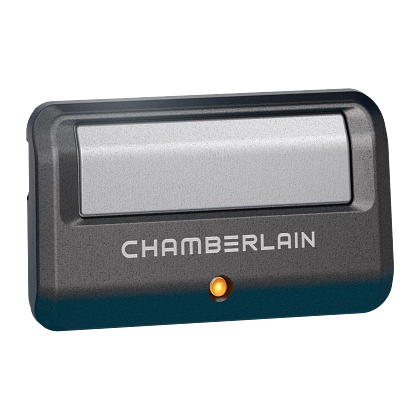
- Buy a new Chamberlain remote online or at a hardware store (make sure it matches your Learn button color).
- Use the MyQ app if your model supports smart features.
Caution: Don’t force the garage door open by hand unless you know how to disconnect the opener safely.
Dealing With Rare Reset Problems
A few issues are less common but important to know:
- Keypad blinks but doesn’t program: Try changing the keypad battery or moving closer to the opener.
- Remotes program but don’t work from outside: The antenna wire may be damaged or your garage has metal siding that blocks signals.
- Learn button doesn’t work: The circuit board may be faulty. Replacement is usually needed.
If you keep having problems, check the official Chamberlain support page or see this Chamberlain reset guide for up-to-date instructions.
Frequently Asked Questions
Why Does My Chamberlain Opener Need To Be Reset After A Power Outage?
A power outage can cause the opener’s memory to glitch or lose saved codes. Resetting restores normal function and lets you reprogram remotes if they stop responding.
How Many Remotes Can I Program After A Reset?
Most Chamberlain openers can store up to 8 remotes and 1-2 keypads. Check your manual for the exact number for your model.
What If My Learn Button Is Stuck Or Broken?
If the Learn button is stuck, try gently cleaning around it. If it’s broken, you’ll need a new circuit board or motor unit. This is usually a job for a professional repair service.
Can I Reset My Chamberlain Garage Door Opener From The Myq App?
You can clear Wi-Fi and app settings from the MyQ app, but you must still press the physical Learn button on the opener to erase remotes and keypads.
Is There A Way To Reset Only One Remote Without Erasing All Codes?
No. Pressing and holding the Learn button erases all remotes. To add a new remote, just use the press-and-release method without holding to avoid deleting all codes.
Resetting your Chamberlain garage door opener is a smart way to solve remote problems, update security, or fix smart system errors. By following the right steps for your model, preparing carefully, and reprogramming all remotes and keypads, you can restore full function in less than an hour. Always pay attention to safety, keep your system up-to-date, and don’t hesitate to call for help if you hit a snag. With these tips, your garage door opener will stay reliable and secure for years to come.