
Now Reading: How to Pair Garage Door Opener: Easy Step-by-Step Guide
- 01
How to Pair Garage Door Opener: Easy Step-by-Step Guide

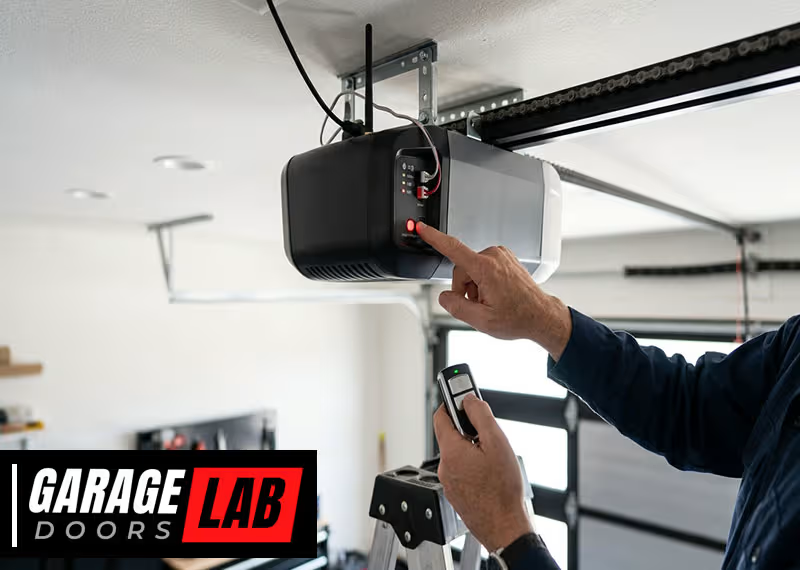
Pairing a garage door opener can be simple if you follow the right steps. However, many people struggle because each brand and model can be a little different. Whether you are adding a new remote, syncing a keypad, or connecting with a smart home system, it’s important to understand the basics, avoid common mistakes, and know what to do if things go wrong.
This guide will walk you through everything you need to know about how to pair a garage door opener, giving you practical tips, troubleshooting advice, and answers to common questions.
Understanding Garage Door Opener Pairing
Pairing a garage door opener means connecting a remote control, keypad, or other device to the opener unit so you can open and close your garage door wirelessly. Most modern garage openers use rolling code technology for better security. This means each time you press your remote, the code changes automatically, making it harder for someone to steal your code.
There are three main types of devices you may need to pair:
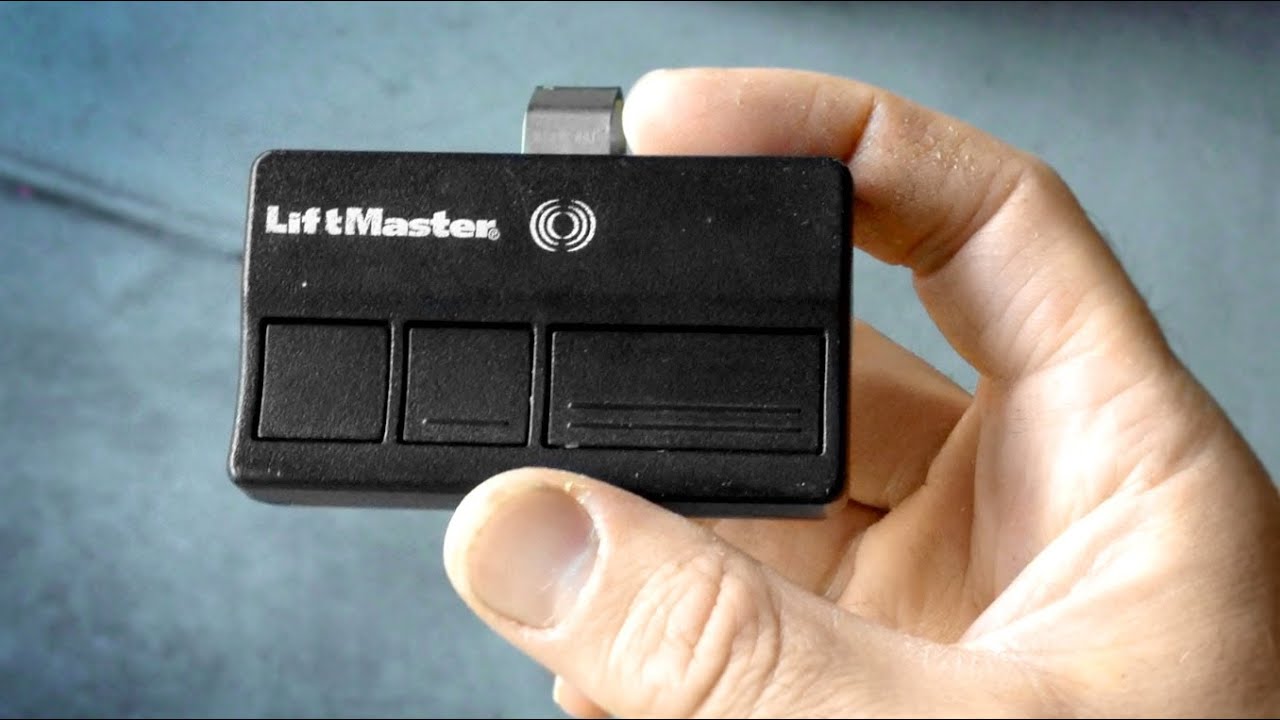
- Remote controls—small devices you keep in your car or on your keychain.
- Wireless keypads—mounted outside your garage for PIN code entry.
- Smart home systems—using Wi-Fi or Bluetooth for phone and voice control.
Before you start, it’s good to check your garage door opener’s brand and model. Most brands, like Chamberlain, LiftMaster, Genie, and Craftsman, follow similar pairing steps, but button locations and terms may differ.
What You Need Before You Start
Pairing a garage door opener is usually quick, but you should have everything ready before you begin. Here’s a checklist to help you prepare:
- The garage door opener unit (usually on the ceiling of your garage)
- The remote control or keypad you want to pair
- A ladder (if your opener unit is mounted high)
- A small screwdriver (sometimes needed for battery covers)
- The owner’s manual for your opener (if you have it)
- New batteries for the remote or keypad
- Your Wi-Fi network name and password (for smart openers)
It’s also helpful to clear the area around your opener and make sure your garage door works smoothly before pairing. Problems with the door mechanism can make pairing fail.
Step-by-step: How To Pair A Garage Door Remote
Pairing a standard remote control is the most common task. While details can vary, most openers use a similar process.
1. Locate The Learn Button
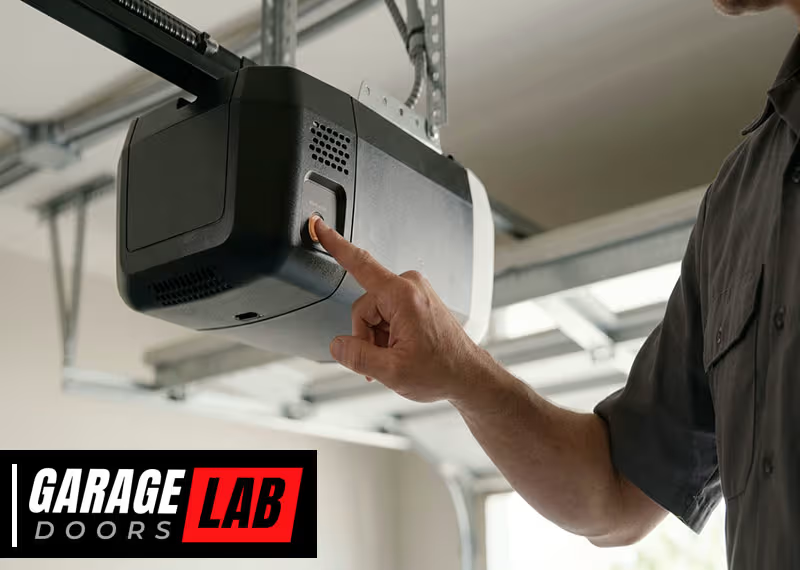
The Learn button is the key to pairing. It’s usually found on the back or side of the opener unit, near the antenna wire or light bulb. The button may be labeled “Learn,” “Program,” or “Set.” The color of the button can also matter, as different colors indicate different programming steps for some brands.
- Chamberlain/LiftMaster: The button is often yellow, red, orange, green, or purple.
- Genie: The button may say “Learn Code.”
- Craftsman: Usually similar to Chamberlain, as they share designs.
Check your manual or look for a small circular or square button.
2. Prepare The Remote Control
Make sure your remote has fresh batteries. Old batteries can cause pairing to fail. Also, if you’re pairing multiple remotes, do them one at a time to avoid confusion.
3. Enter Pairing Mode
Press and release the Learn button on your opener. A light next to the button will often turn on or blink, showing the opener is ready to learn a new device. You usually have 30 seconds to pair before the opener exits pairing mode.
> Non-obvious tip: If you hold the Learn button too long (more than 6 seconds), you might erase all paired remotes. Only press and release—do not hold.
4. Pair The Remote
While the opener is in pairing mode, press the main button on your remote control. You may need to press and hold for a couple of seconds. Most openers will flash their lights or make a clicking sound to confirm pairing.
Some openers need you to press the button twice—watch for feedback.
5. Test The Remote
Stand clear of the door and press the remote button. The door should open or close. If it doesn’t, repeat the pairing process.
Example: Chamberlain/liftmaster Remote Pairing
- Climb the ladder and locate the yellow Learn button.
- Press and release the button—an LED light turns on.
- Within 30 seconds, press and hold your remote button.
- The opener light blinks, confirming the remote is paired.
- Test the remote.
Pairing A Garage Door Keypad
Wireless keypads let you open your garage with a PIN code. They’re useful for kids, guests, or when you don’t want to carry a remote. The pairing process is similar to remotes but adds a few extra steps.
1. Set Your Keypad Pin
Most keypads have a “Program” or “Learn” button. Open the keypad cover and follow the instructions to set a 4-digit PIN. Some brands require you to press a special sequence (like “Program,” your PIN, then “Enter”).
2. Enter Opener Pairing Mode
Just like with a remote, press and release the Learn button on the opener unit.
3. Sync The Keypad
Within 30 seconds, enter your PIN on the keypad and press the “Enter” or “Send” button. Some models may require pressing a specific sequence (for example, “PIN,” “Enter,” “0”).
4. Wait For Confirmation
The opener light may blink, or you may hear a click, showing the keypad is paired. Test your PIN to make sure it works.
> Non-obvious tip: If you change your keypad PIN later, you do not need to re-pair the keypad with the opener—just follow the keypad’s instructions for changing the PIN.
How To Pair A Smart Garage Door Opener
Many modern openers offer Wi-Fi or Bluetooth pairing. This lets you control your garage door using a smartphone app or voice assistant.
1. Download The App
Most smart openers use an official app (like myQ for Chamberlain/LiftMaster or Aladdin Connect for Genie). Download it from the App Store or Google Play.
2. Create An Account
Open the app and follow prompts to create your account. You’ll need your email and a password.
3. Connect To Wi-fi
The app will guide you to connect your opener to your home Wi-Fi. You may need to press the Learn button or scan a QR code on the opener. Enter your Wi-Fi name and password as prompted.
4. Add The Device
Follow the app instructions to add your specific opener model. The app may ask you to press the opener’s Learn button or enter a code from the opener’s display.
5. Test The Connection
Once connected, you should see your garage door status in the app. Test by opening or closing the door from your phone.
Benefits Of Smart Pairing
- Remote access from anywhere
- Alerts when your door opens or closes
- Integration with Alexa, Google Assistant, or Apple HomeKit
> Insight: If your garage Wi-Fi signal is weak, pairing may fail or the app may lose connection. Consider installing a Wi-Fi extender in your garage.
Pairing Additional Or Replacement Remotes
If you buy a new remote or want to give another family member access, you can pair multiple remotes to most openers.
- Repeat the normal pairing process for each remote.
- Most openers allow up to five remotes and one keypad.
- If you reach the limit, the oldest remote may be deleted when you add a new one.
> Example: If you have a LiftMaster opener and add a sixth remote, the first paired remote may no longer work.
Erasing All Paired Devices
Sometimes, you may want to erase all paired remotes and keypads—for example, after moving into a new home. To do this:
- Press and hold the Learn button for 6–10 seconds.
- The LED light will turn off, indicating all devices are erased.
- Re-pair only the remotes and keypads you want to keep.
> Common mistake: People often erase all devices by accident when trying to add a new remote. Always press and release (not hold) for normal pairing.
Common Problems And Solutions
Pairing doesn’t always go smoothly. Here are frequent problems and how to solve them:
Remote Won’t Pair
- Dead batteries: Replace with new batteries.
- Out of range: Pair the remote close to the opener unit.
- Wrong sequence: Follow the steps carefully—timing matters.
- Already at device limit: Check your opener’s maximum device count.
Keypad Not Working
- Low battery: Keypads usually use a 9V battery.
- Incorrect PIN: Reprogram the PIN if forgotten.
- Keypad not compatible: Some brands require specific keypads.
Smart Opener Not Connecting
- Weak Wi-Fi: Move your router closer or use an extender.
- Wrong app: Use the official app for your opener brand.
- Firmware update needed: Update your opener if the app recommends it.

Comparing Popular Garage Door Opener Brands
Different brands have slightly different pairing steps and features. Here’s a comparison of major brands:
| Brand | Learn Button Location | Max Remotes | Smart Features |
|---|---|---|---|
| Chamberlain/LiftMaster | Back/Side (colored button) | 5 | myQ app, Alexa, Google |
| Genie | Back (“Learn Code”) | 7 | Aladdin Connect, Alexa |
| Craftsman | Back/Side (like Chamberlain) | 5 | myQ app (some models) |
| Overhead Door | Back/Side | 7 | OHD Anywhere app |
Safety Tips When Pairing Garage Door Openers
Safety should always come first when working with garage doors and openers.
- Unplug the opener before replacing batteries or opening covers.
- Keep children and pets away from the door during pairing and testing.
- Never let anyone stand under the door while testing.
- Always use a stable ladder when reaching the opener unit.
- If your opener is older than 20 years, consider upgrading for better safety and reliability.
What If You Lose Your Remote?
Losing a garage door remote is a security risk. Someone could find it and access your garage. Here’s what to do:
- Erase all paired devices (see above).
- Re-pair only the remotes you still have.
- Consider upgrading to a keypad or smart opener for more control.
Adding Multiple Openers To One Remote
Many remotes have multiple buttons, letting you control more than one door (or even gates). Here’s how:
- Pair each button with a different opener, following the normal steps.
- Label each button for clarity (e.g., “Left Garage,” “Right Garage”).
- Not all remotes support multiple doors—check your manual.
> Insight: Universal remotes can control different brands, but setup is more complex. Make sure your opener supports universal remotes.
Troubleshooting Advanced Pairing Issues
Sometimes, a remote or keypad will pair but not work as expected. Here’s what you can do:
- Interference: LED lights, Wi-Fi routers, or other electronics can cause signal problems. Try turning off nearby devices.
- Worn-out opener board: If no remotes will pair, your opener’s circuit board may be failing.
- Obstructions: Make sure nothing blocks the opener’s antenna wire.
- Rolling code mismatch: Rare, but if you buy a very old remote for a new opener, codes may not match. Always buy remotes made for your model year.
Comparing Remote And Smart Control Features
Here is a side-by-side look at features of traditional remotes and smart app controls:
| Feature | Standard Remote | Smartphone App |
|---|---|---|
| Range | Up to 100 feet | Anywhere with Wi-Fi/Cellular |
| Security | Rolling code | Encrypted, multi-factor |
| Notifications | No | Yes (open/close alerts) |
| Voice Control | No | Yes (with Alexa, Google) |
| Setup Complexity | Simple | Moderate |
Understanding Compatibility And Frequency
Garage door openers use different radio frequencies (like 315 MHz or 390 MHz). Using the wrong frequency remote will not work, even if the brand is correct.
- Check your opener’s manual or label for supported frequencies.
- Universal remotes usually have a switch or button to select frequency.
- Older openers (before 1993) may use fixed codes and are less secure.
> Important: If your opener is very old, consider replacing it. Modern openers are safer, quieter, and support more features.
Tips For Pairing In Unusual Situations
Pairing can sometimes be tricky if you have a detached garage, metal walls, or live in a townhouse.
- Detached garage: Wi-Fi signals may not reach. Use a dedicated remote or install a Wi-Fi extender.
- Metal garages: Metal blocks wireless signals. Try placing the opener antenna outside the metal structure.
- Townhouses/condos: Openers may pick up neighbor’s remotes. Always erase all devices before pairing and use unique PINs.
When To Call A Professional
Most people can pair remotes and keypads themselves. But you should call a pro if:
- You feel unsafe on a ladder or working with electronics.
- The opener does not respond after several pairing attempts.
- The door moves erratically or makes strange noises.
- You want to upgrade to a smart system and aren’t comfortable with home networking.
A professional installer can also check your door’s balance, safety sensors, and overall condition.
Maintenance After Pairing
Once your devices are paired, a little maintenance will keep them working reliably.
- Replace remote and keypad batteries every 1–2 years.
- Clean the opener’s antenna with a dry cloth.
- Check for software updates in your smart opener app.
- Test all remotes and keypads every few months.
- Lubricate your garage door tracks and rollers for smooth operation.
> Non-obvious tip: If you move or sell your house, always erase all paired devices before handing over the remotes.
Future Trends: Garage Door Openers
The way we pair and control garage doors keeps evolving. Here’s what’s on the horizon:
- Biometric access: Some new keypads use fingerprints.
- Geofencing: Doors open automatically as you approach with your phone.
- Enhanced security: Cloud-based event logs and alerts.
- Integration with delivery services: Let packages be dropped inside your garage securely.
For more about the latest garage door technology, see Consumer Reports.
Frequently Asked Questions
How Do I Know If My Remote Is Compatible With My Garage Door Opener?
Check your opener’s manual for compatible models and frequencies. Most remotes only work with the same brand and similar production years. Universal remotes may need extra setup.
Can I Pair My Garage Door Opener To My Car’s Built-in Remote System?
Yes. Many cars have a HomeLink or Car2U system. The process usually involves pressing the car’s remote button while the opener is in pairing mode. Check your car and opener manuals for details.
What Should I Do If I Can’t Find The Learn Button?
Look near the opener’s antenna wire, light bulb, or under a small panel. The button may be labeled “Learn,” “Program,” or shown with a symbol. If you still can’t find it, search online for your opener’s model.
How Do I Reset My Garage Door Opener If The Remote Stops Working?
First, replace the remote’s battery. If that doesn’t help, erase all paired devices (hold the Learn button for 6–10 seconds) and re-pair your remotes. If problems continue, your opener may need repair.
Is It Safe To Pair A Smart Garage Door Opener?
Yes, as long as you use secure Wi-Fi and official apps. Smart openers use encryption for safety. Always keep your app and opener firmware updated for best security.
Pairing a garage door opener is a valuable skill that gives you control, security, and convenience. With careful steps and a little maintenance, you can enjoy smooth, reliable access to your home every day.