
Now Reading: Chamberlain Myq Garage Door Opener Not Connecting To Wifi
- 01
Chamberlain Myq Garage Door Opener Not Connecting To Wifi

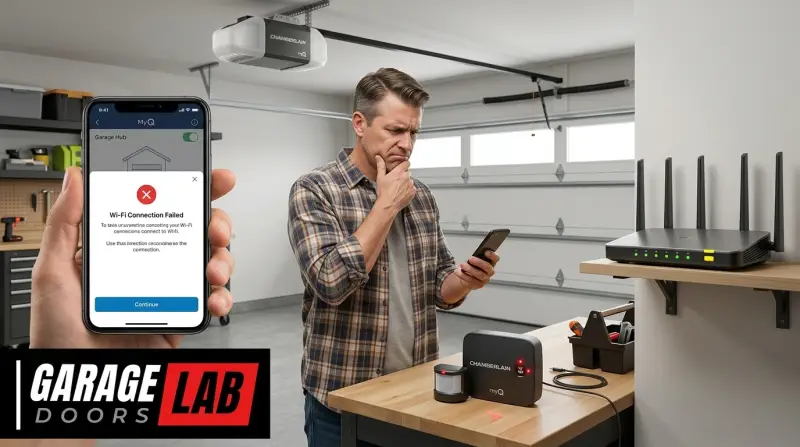
A malfunctioning Chamberlain MyQ garage door opener not connecting to Wi-Fi can be a significant inconvenience, leaving you unable to monitor or control your garage remotely. This smart home integration, designed for convenience and security, can sometimes present connectivity challenges.
Whether you’re trying to open the garage from your smartphone app or receive notifications about its status, a lost Wi-Fi connection renders these features useless.
The troubleshooting process for a Chamberlain MyQ opener can seem daunting, but it often involves a series of logical steps that address common issues. From simple router resets to more involved opener resets, understanding the potential culprits is key to restoring functionality.
This guide aims to demystify the process, providing a comprehensive, step-by-step approach to diagnose and resolve why your Chamberlain MyQ garage door opener is not connecting to your Wi-Fi network, ensuring your smart garage remains smart.
Key Takeaways
- Router and Modem Power Cycle: The most common fix is restarting your home’s internet equipment.
- Wi-Fi Signal Strength: Ensure your garage has a strong enough Wi-Fi signal; consider extenders if needed.
- Network Compatibility: Verify your Wi-Fi network is 2.4 GHz, as most MyQ devices do not support 5 GHz.
- Opener Reset: A hard reset of the garage door opener itself can resolve software glitches.
- MyQ App and Account: Ensure the MyQ app is updated and your account is properly configured.
- Interference: Other electronic devices can interfere with Wi-Fi signals.
- Hardware Issues: In rare cases, the opener’s Wi-Fi module or your router may have a hardware fault.

Credit: support.chamberlaingroup.com
Understanding Chamberlain Myq Connectivity
Chamberlain’s MyQ technology allows users to monitor and control their garage doors, gates, and even lights from anywhere using a smartphone, tablet, or computer. This is achieved through a Wi-Fi connection between the garage door opener and your home’s wireless network.
The opener communicates with Chamberlain’s cloud servers via your Wi-Fi, and the MyQ app on your device then connects to these servers to relay commands and status updates. This seamless integration, however, relies heavily on a stable and correctly configured Wi-Fi connection.
The MyQ-enabled garage door opener acts as the bridge. It contains a Wi-Fi module that needs to be paired with your home’s Wi-Fi network during the initial setup. Once paired, it periodically checks in with the MyQ cloud. If this connection is lost, the opener can no longer communicate with the cloud service, and subsequently, your app. Common reasons for this disconnection include changes to your home Wi-Fi network (like a new password or router), signal degradation, or internal software glitches within the opener itself. Understanding this architecture is the first step in diagnosing why your Chamberlain MyQ garage door opener is not connecting to Wi-Fi.
The Role Of Your Home Wi-fi Network
Your home Wi-Fi network is the backbone of your MyQ system’s connectivity. The garage door opener needs to be within the range of your router and able to establish a strong, stable connection. Factors such as router placement, the number of devices connected to your network, and potential wireless interference can all impact the opener’s ability to connect. Most smart home devices, including garage door openers, are designed to operate on the 2.4 GHz Wi-Fi band, not the 5 GHz band. If your router broadcasts both, or if you’ve inadvertently set your opener to connect to the wrong band, this can cause connectivity issues.
Myq Cloud Service And App Interaction
The MyQ cloud service acts as an intermediary. Your opener sends its status to the cloud, and your MyQ app requests this information from the cloud. For this to work, both the opener and the app need to be able to reach the MyQ servers.
If your opener cannot connect to your home Wi-Fi, it cannot reach the MyQ cloud. Similarly, if there are issues with your MyQ account or the app itself (e. g. , outdated app version, incorrect login), it might appear as if the opener isn’t connecting, even if the Wi-Fi link is sound.
Credit: www.youtube.com
Common Causes For Myq Wi-fi Connection Failure
When your Chamberlain MyQ garage door opener refuses to connect to your Wi-Fi, several common culprits are usually at play. Identifying the most likely cause can save you a lot of time and frustration. These issues range from simple, easily fixable problems to more complex network configurations.
Router And Modem Issues
The most frequent cause of connectivity problems for any smart device is an issue with the home’s internet hardware.
- Temporary Glitch: Your router or modem might have encountered a temporary software glitch, requiring a simple restart. This is often the first and easiest troubleshooting step.
- Outdated Firmware: Routers receive firmware updates to improve performance and security. If your router’s firmware is outdated, it might not be compatible with newer smart home devices or could have bugs affecting connections.
- Overloaded Network: If too many devices are connected to your router simultaneously, it can become overloaded, leading to dropped connections for some devices.
Wi-fi Signal Strength And Range
Garages are often located at the farthest point from the home’s router, making Wi-Fi signal strength a critical factor.
- Distance: The physical distance between your router and the garage door opener can weaken the Wi-Fi signal. Walls, especially those made of brick or concrete, can further attenuate the signal.
- Interference: Other electronic devices operating on similar radio frequencies (like microwaves, cordless phones, or even neighboring Wi-Fi networks) can interfere with the signal.
- Obstructions: Metal objects, large appliances, or even vehicles parked in the garage can obstruct or reflect Wi-Fi signals.
Network Configuration And Compatibility
Incorrect network settings or compatibility issues can prevent the MyQ opener from connecting.
- Incorrect Wi-Fi Password: A simple typo during setup or a change in your Wi-Fi password without updating the opener will cause a disconnection.
- Network Band (2.4 GHz vs. 5 GHz): Most Chamberlain MyQ devices are designed to connect exclusively to a 2.4 GHz Wi-Fi network. If your router broadcasts a 5 GHz network and the opener attempts to connect to it, or if your network defaults to 5 GHz, it will fail.
- Network Security Settings: Some advanced router security settings, like MAC address filtering or specific firewall configurations, might inadvertently block the MyQ opener from connecting.
- SSID Broadcasting: If your Wi-Fi network name (SSID) is hidden, the opener might have trouble finding and connecting to it.
Myq App And Account Issues
Problems with the MyQ app or your user account can also mimic Wi-Fi connectivity issues.
- Outdated App Version: An older version of the MyQ app may have compatibility issues with the latest firmware updates from Chamberlain or your opener.
- Account Synchronization Errors: Sometimes, there can be a temporary issue with the synchronization between your app, the MyQ cloud, and your opener.
- Incorrect Login Credentials: While less common for ongoing connectivity issues, ensuring you’re logged into the correct MyQ account is fundamental.
Opener Hardware Or Software Glitches
Occasionally, the issue might lie within the garage door opener itself.
- Internal Software Glitch: Like any electronic device, the opener’s internal software can sometimes encounter errors that disrupt its Wi-Fi functionality.
- Faulty Wi-Fi Module: In rare instances, the Wi-Fi module within the opener might be defective.
Credit: support.chamberlaingroup.com
Step-by-step Troubleshooting Guide
When your Chamberlain MyQ garage door opener isn’t connecting to Wi-Fi, a systematic approach is essential. Start with the simplest solutions and gradually move to more complex ones.
Step 1: Basic Checks And Resets
Before diving deep, perform these fundamental checks.
- Verify Wi-Fi is Working: Ensure your home Wi-Fi is operational for other devices. If not, troubleshoot your internet connection first.
- Check Router Placement: Is the router too far from the garage? Can you temporarily move it closer, or consider a Wi-Fi extender if distance is a likely issue?
- Power Cycle Your Router and Modem: This is the most common fix.
- Unplug both your modem and your router from the power outlet.
- Wait for at least 30-60 seconds.
- Plug in the modem first and wait for it to fully boot up (all lights stable).
- Plug in the router and wait for it to fully boot up.
- Once your home Wi-Fi is back online, try reconnecting your MyQ opener.
Step 2: Verifying Network Settings
Ensure your Wi-Fi network is configured correctly for the MyQ opener.
- Confirm 2.4 GHz Network: Most MyQ devices only support 2.4 GHz Wi-Fi bands. Log into your router’s settings and ensure you are attempting to connect to a 2.4 GHz network. If your router has separate SSIDs for 2.4 GHz and 5 GHz, make sure you select the 2.4 GHz one. If they share the same SSID, you may need to temporarily disable the 5 GHz band in your router settings or create a separate SSID for the 2.4 GHz band.
- Correct Wi-Fi Password: Double-check that you are entering the correct Wi-Fi password. Passwords are case-sensitive. If you recently changed your Wi-Fi password, you *must* update it on the MyQ opener.
- SSID Broadcasting: Ensure your Wi-Fi network name (SSID) is being broadcast and is not hidden.
Step 3: Checking Wi-fi Signal Strength In The Garage
A weak signal is a frequent barrier to connectivity.
- Use a Wi-Fi Analyzer App: Install a Wi-Fi analyzer app on your smartphone. Stand near your garage door opener with your phone and check the signal strength (measured in dBm). A signal strength of -70 dBm or better is generally considered good for stable connections. If it’s weaker, you’ll need to improve the signal.
- Consider a Wi-Fi Extender or Mesh System: If the signal is weak, a Wi-Fi extender placed halfway between your router and the garage can boost the signal. For larger homes or persistent dead zones, a mesh Wi-Fi system offers more robust and seamless coverage.
- Minimize Interference: Identify potential sources of interference near the opener or router. Try temporarily turning off other wireless devices to see if connectivity improves.
Step 4: Resetting The Garage Door Opener
If network settings and signal strength appear fine, the issue might be with the opener itself.
- Resetting the MyQ Wi-Fi Connection: Many Chamberlain openers have a specific process to reset only the Wi-Fi settings without affecting other programming. This usually involves pressing and holding a specific button on the motor unit. Consult your opener’s manual for the exact procedure.
- Performing a Full Factory Reset: If resetting the Wi-Fi doesn’t work, a factory reset of the entire opener may be necessary. This will erase all programmed remotes, keypads, and settings, requiring you to reprogram them afterward. Again, refer to your specific model’s manual for instructions. For example, on some Chamberlain models, you might need to press and hold the Learn button and the Down Arrow button simultaneously for a period.
Pro Tip: Before performing a factory reset, ensure you have your remotes and keypad codes handy, as you’ll need to reprogram them. You can find detailed guides on how to reset various garage door openers, such as how to reset your garage door opener, which might offer model-specific insights.
Step 5: Re-establishing The Myq Connection
After resetting the opener, you’ll need to re-link it to your Wi-Fi and MyQ account.
- Download/Update the MyQ App: Ensure you have the latest version of the MyQ app installed on your smartphone.
- Follow In-App Setup Instructions: Open the MyQ app and navigate to the section for adding a new device. The app will guide you through the process of connecting the opener to your Wi-Fi network. This often involves putting the opener into a pairing mode (usually indicated by a flashing LED) and then selecting your Wi-Fi network and entering the password within the app.
- Check for Opener Firmware Updates: Once connected, the app may prompt you to update the opener’s firmware. Always install these updates as they can resolve bugs and improve performance.
Step 6: Advanced Troubleshooting
If the problem persists after trying the above steps, consider these more advanced solutions.
- Check Router Security Settings: Access your router’s administrative interface. Look for settings like MAC address filtering, firewall rules, or parental controls. Temporarily disable these features to see if they are blocking the opener. If disabling them resolves the issue, you’ll need to configure them to allow the MyQ device. You can find the opener’s MAC address in its manual or sometimes on a sticker on the unit.
- Test with a Different Router (If Possible): If you have access to another compatible router, try setting up your MyQ opener with it. This can help determine if the issue lies with your primary router.
- Contact Chamberlain Support: If all else fails, it’s time to contact Chamberlain’s customer support. They can provide model-specific assistance and may be able to diagnose if there’s a hardware issue with the opener.
Optimizing Wi-fi Performance In The Garage
Ensuring a robust Wi-Fi connection in the garage is crucial for the reliable operation of your Chamberlain MyQ opener. Beyond the initial troubleshooting, several strategies can be employed to optimize the signal and prevent future connectivity drops. These methods focus on strengthening the Wi-Fi signal reaching the garage and minimizing potential disruptions.
Utilizing Wi-fi Extenders And Mesh Systems
When the distance and structural impediments of your home’s layout weaken the Wi-Fi signal in the garage, signal boosting devices become essential.
- Wi-Fi Extenders (Repeaters): These devices capture your existing Wi-Fi signal and rebroadcast it, effectively extending the network’s range. They are relatively inexpensive and easy to set up. For optimal performance, place the extender roughly halfway between your router and the garage, ensuring it receives a strong signal from the router itself. However, extenders can sometimes halve the available bandwidth.
- Mesh Wi-Fi Systems: A more advanced solution, mesh systems consist of a main router and several satellite nodes that work together to create a single, unified Wi-Fi network. These systems intelligently manage device connections, ensuring you get the strongest signal regardless of your location within the house or garage. They are generally more expensive but offer superior performance and seamless roaming.
Strategic Router Placement
The location of your primary router significantly impacts the signal strength throughout your home, including the garage.
- Central Location: Position your router as centrally as possible within your home. Avoid placing it in corners, basements, or near large metal objects that can obstruct signals.
- Elevated Placement: Mounting your router on a shelf or wall, rather than on the floor, can improve signal propagation.
- Minimize Obstructions: Keep the router away from thick walls (especially concrete or brick), large appliances (like refrigerators or microwaves), and other sources of electronic interference.
Minimizing Wireless Interference
The garage environment can be a hotbed for devices that emit electromagnetic signals, potentially disrupting Wi-Fi communication.
- Identify Interfering Devices: Common culprits include microwave ovens, cordless phones, Bluetooth devices, baby monitors, and even some types of fluorescent lighting. If any of these are located near the garage door opener or the path of the Wi-Fi signal, try relocating them or turning them off temporarily to test for improvement.
- Channel Optimization: Routers operate on specific Wi-Fi channels. If your neighbors’ Wi-Fi networks are using the same channel, it can lead to congestion and interference. Access your router’s settings and experiment with different channels within the 2.4 GHz band. Some routers have an “auto” channel selection feature that can dynamically find the least congested channel.
- Consider Wired Connections (If Applicable): While the MyQ opener is Wi-Fi based, if you have other devices in the garage that require a stable internet connection, consider running an Ethernet cable from your router if feasible. This eliminates wireless interference for those specific devices.
Maintaining Your Router
Regular maintenance of your router ensures it functions optimally and remains compatible with your smart devices.
- Firmware Updates: Regularly check for and install firmware updates for your router. These updates often include performance enhancements, bug fixes, and security patches that can improve connectivity and stability. Many modern routers can be configured to update automatically.
- Reboot Schedule: Consider setting up a regular schedule for rebooting your router (e.g., weekly). This can help clear temporary glitches and maintain optimal performance. Some routers have built-in scheduling features for reboots.
By implementing these strategies, you can create a more reliable Wi-Fi environment for your Chamberlain MyQ garage door opener, ensuring consistent connectivity and the full functionality of your smart garage system.
Troubleshooting Specific Chamberlain Myq Models
While the general troubleshooting steps apply broadly, specific Chamberlain MyQ models might have unique characteristics or known issues. Understanding these can sometimes provide a quicker path to resolution. Chamberlain offers several lines of garage door openers, including LiftMaster and Craftsman, which integrate MyQ technology.
Myq-enabled Garage Door Openers (e.g., B550, W650, D250)
These are standalone garage door openers that come equipped with built-in MyQ Wi-Fi connectivity.
- Initial Setup Process: The setup typically involves downloading the MyQ app, creating an account, and then using the app to discover and connect the opener to your home Wi-Fi. This often requires putting the opener into a Wi-Fi pairing mode.
- Common Issues:
- Flashing LED Indicator: Many models have an LED on the motor unit that indicates Wi-Fi status. A solid blue light usually means connected, while a flashing or off light indicates a problem. Refer to your manual to interpret the LED codes.
- Pairing Mode Difficulty: Sometimes, the opener might not enter pairing mode correctly. This could be due to a temporary glitch requiring a power cycle of the opener or a reset.
- Firmware Updates: Ensure your opener’s firmware is up-to-date via the MyQ app. Outdated firmware can cause connectivity issues. For example, if your opener is not updating, you might need to reset it and re-pair it.
Myq Garage Door Controllers (e.g., Myq-g0303, G0402)
These are separate modules that can be added to *older* garage door openers (that are not originally MyQ enabled) to give them smart capabilities.
- Compatibility: It’s crucial to ensure your existing garage door opener is compatible with the MyQ controller. Chamberlain provides compatibility checkers on their website. Older openers with security+ rolling codes might require specific compatibility bridges.
- Installation: The controller usually wires into the wall button terminals of your existing opener. Once installed and powered, you connect the controller to your Wi-Fi network via the MyQ app.
- Common Issues:
- Wiring Errors: Incorrect wiring between the controller and the opener can prevent it from functioning or communicating properly. Double-check the wire connections against the installation manual.
- Controller Not Found: If the app cannot find the controller during setup, ensure it’s powered on and within Wi-Fi range. A power cycle of the controller might be necessary.
- Opener Not Responding: If the controller connects to Wi-Fi but doesn’t operate the door, the issue could be with the opener’s limit settings or the opener’s internal mechanism itself. You might need to check how to adjust your garage door opener for smooth operation.
Liftmaster And Craftsman Myq Devices
Chamberlain also produces openers under the LiftMaster and Craftsman brands, which utilize the same MyQ technology. The troubleshooting steps are largely identical, but the physical location of buttons or specific reset procedures might differ slightly.
- LiftMaster: Often found in professional installations, LiftMaster openers with MyQ will follow similar reset and pairing procedures as Chamberlain. You might need to consult the specific LiftMaster model’s manual. For instance, if you have a LiftMaster remote not working, the reset process might be similar to other Chamberlain devices.
- Craftsman: Craftsman openers with MyQ typically have user-friendly interfaces. The Wi-Fi setup is usually guided by the MyQ app. If you’re having trouble with a Craftsman keypad, refer to guides on how to reprogram it, as this is a separate but related function.
Example Scenario: A Craftsman Opener Not Connecting
Let’s consider a user with a Craftsman garage door opener (model CMXE100) that suddenly stopped connecting to Wi-Fi.
- Initial Check: The user confirmed their home Wi-Fi was working for other devices.
- Router Reboot: They power cycled their router and modem, but the Craftsman opener still wouldn’t connect.
- Network Band: They logged into their router settings and verified they were using the 2.4 GHz band, which was correctly configured.
- Signal Strength: Using a Wi-Fi analyzer app, they found the