
The convenience of modern technology has transformed everyday tasks, and managing your home’s access is no exception. For many homeowners, the garage door is the primary entry point, and the ability to control it remotely offers significant advantages in terms of security, convenience, and even energy efficiency.
The myQ app, developed by Chamberlain Group, has emerged as a leading solution, allowing users to monitor and control their garage doors, as well as other connected devices, directly from their smartphones or tablets. This capability transforms a traditional mechanical barrier into a smart, integrated part of your home’s ecosystem.
Understanding how to effectively use the myQ app to open your garage door can seem daunting at first, but it’s a straightforward process designed for user-friendliness. Whether you’re looking to let a trusted visitor in remotely, ensure your door is closed after leaving, or simply enjoy the ease of opening it as you approach home, the myQ app provides a robust and secure platform.
This guide will walk you through the essential steps, from initial setup to advanced features, ensuring you can leverage the full potential of your smart garage door opener.
Key Takeaways
- App-Based Control: The myQ app allows you to open, close, and monitor your garage door from anywhere using your smartphone.
- Compatibility is Crucial: Ensure your garage door opener is compatible with the myQ system, either by having a built-in myQ receiver or by using a myQ Smart Garage Hub.
- Setup Process: The initial setup involves downloading the app, creating an account, and connecting the app to your garage door opener via Wi-Fi.
- Security Features: MyQ offers features like real-time alerts, activity logs, and guest access to enhance security and peace of mind.
- Troubleshooting: Common issues can often be resolved by checking Wi-Fi connections, app updates, or opener compatibility.
- Beyond the Garage Door: The myQ app can also integrate with other smart home devices for a more connected experience.
Getting Started With The Myq App
The journey to controlling your garage door with your smartphone begins with understanding the fundamental requirements and the initial setup process. This involves ensuring your existing garage door opener is compatible with the myQ system and then proceeding with the app installation and device connection.
Checking Garage Door Opener Compatibility
Before you can start using the myQ app to open your garage door, it’s essential to confirm that your current garage door opener is compatible. Chamberlain Group offers several ways to achieve this:
- Built-in myQ Technology: Many newer garage door openers from brands like Chamberlain, LiftMaster, and Craftsman come equipped with integrated myQ technology. You can usually identify these by a “myQ” logo or a Wi-Fi symbol on the motor unit. If your opener has this, you’ll likely already have the necessary hardware.
- MyQ Smart Garage Hub: For older garage door openers that do not have built-in myQ technology, the myQ Smart Garage Hub (also known as the myQ Garage Door Controller) is the solution. This device acts as a bridge, allowing you to add smart capabilities to your existing opener. It typically consists of a hub that connects to your home’s Wi-Fi and a sensor that attaches to your garage door. The hub communicates with your opener, and in turn, with the myQ app.
To verify compatibility, you can check the Chamberlain Group website or consult your garage door opener’s manual. They often provide lists of compatible models or detailed instructions on how to check. Ensuring compatibility upfront prevents potential frustration and ensures a smooth setup experience.
Downloading And Installing The Myq App
Once you’ve confirmed compatibility, the next step is to download and install the myQ app on your smartphone or tablet. The app is available for both iOS and Android devices and can be found on their respective app stores:
- For iOS users: Search for “myQ” on the Apple App Store.
- For Android users: Search for “myQ” on the Google Play Store.
After downloading, tap the app icon to open it. You will be prompted to create a new account or log in if you already have one. Creating an account is a necessary step as it links your devices to your personal profile, ensuring secure access and personalized settings.
The account creation process typically involves providing an email address and creating a password.
Connecting Your Garage Door Opener To The Myq App
This is the core of the setup process. The exact steps can vary slightly depending on whether you have a built-in myQ opener or are using the Smart Garage Hub, but the general principles are the same.
For Openers with Built-in myQ:
- Initiate Pairing: Open the myQ app and navigate to the “Add Device” or “Link Garage Door Opener” option. The app will guide you through a process that usually involves putting your garage door opener into pairing mode. This often requires pressing a specific button on the motor unit.
- Wi-Fi Connection: The app will then prompt you to connect the opener to your home’s Wi-Fi network. You’ll need to select your network name (SSID) and enter your Wi-Fi password. Ensure your smartphone is connected to the same 2.4 GHz Wi-Fi network you intend to use for the opener.
- Confirmation: Once connected, the app will confirm that your garage door opener is linked to your myQ account. You may be asked to name your garage door for easier identification, especially if you have multiple garage doors or other myQ-enabled devices.
For Openers Using the myQ Smart Garage Hub:
- Set Up the Hub: First, plug in the myQ Smart Garage Hub and follow the app’s instructions to connect it to your home’s Wi-Fi network. This is similar to connecting the built-in opener, requiring your Wi-Fi credentials.
- Install the Door Sensor: Attach the included door sensor to your garage door according to the manufacturer’s instructions. This sensor tells the hub whether the door is open or closed.
- Pair Hub with Opener: The app will then guide you through pairing the Smart Garage Hub with your existing garage door opener. This usually involves pressing a button on the hub and then pressing the learn button on your garage door opener’s motor unit. The hub will then communicate with the opener.
- Confirmation: The app will confirm when the hub is successfully linked to your opener and your myQ account. You can then name your garage door.
Following these steps carefully ensures that your garage door opener is properly connected and ready to be controlled via the myQ app.
Credit: www.myq.com
Using The Myq App To Open Your Garage Door
With the setup complete, you’re ready to experience the convenience of opening your garage door remotely. The myQ app provides a simple and intuitive interface for this primary function, along with several features that enhance its usability and security.
The Basic Open/close Functionality
The core feature of the myQ app is its ability to open and close your garage door with a simple tap.
- Open the App: Launch the myQ app on your smartphone or tablet.
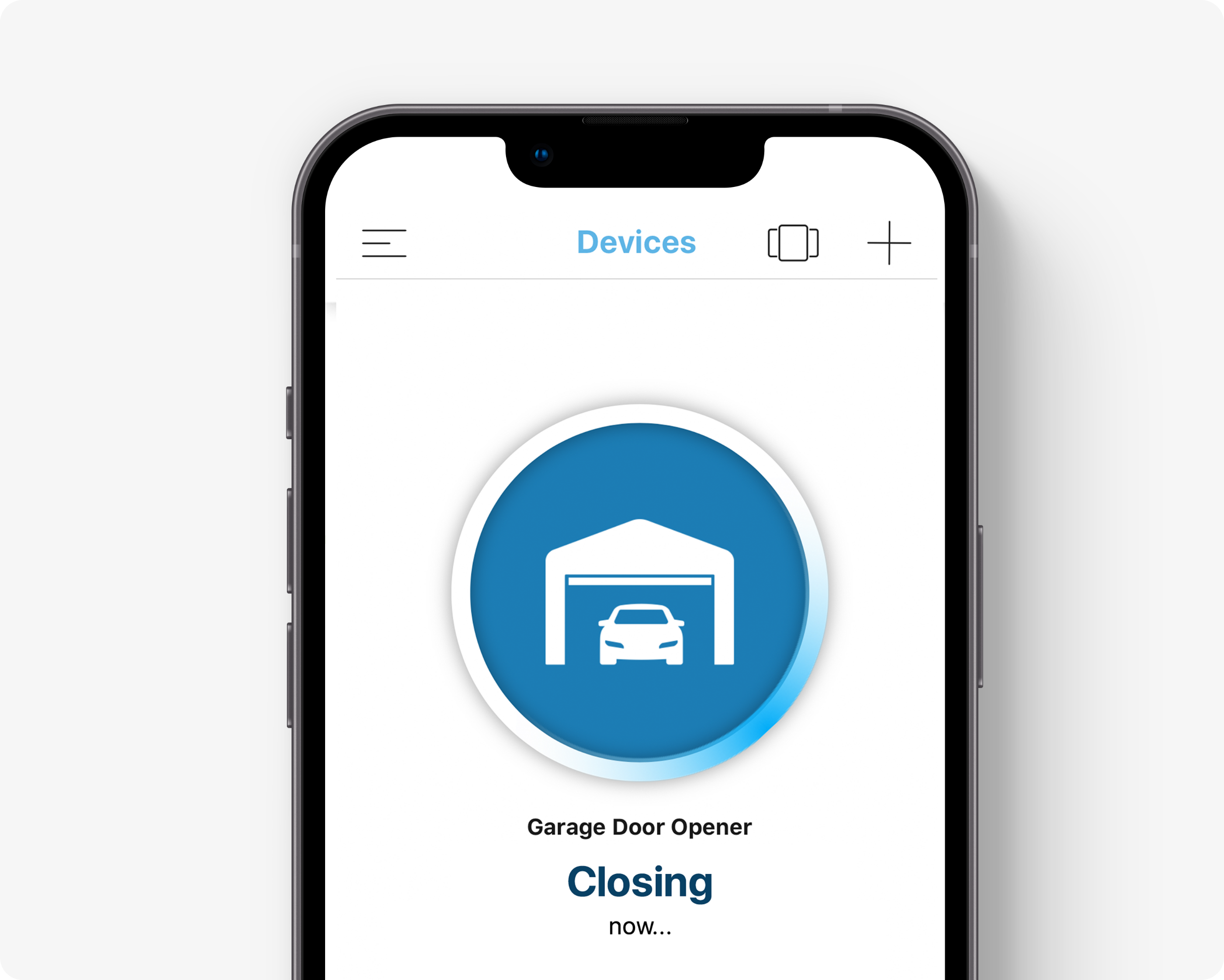
- Locate Your Garage Door: On the main dashboard or device list, you will see your linked garage door opener. It will likely display its current status (e.g., “Closed,” “Open,” “Opening,” “Closing”).
- Tap to Operate: To open the garage door, simply tap the icon or button associated with your garage door. The app will send a command to your opener.
- Monitor Progress: You will see the status update in real-time as the door begins to move. The app will indicate “Opening” and then eventually “Open” once the door has reached its fully open position. The same process applies to closing the door.
This immediate control is invaluable. For instance, if you’re expecting a delivery and need to grant access, you can open the door remotely when the delivery person arrives. Conversely, if you’re rushing out and forget to close the door, a quick check of the app allows you to close it from anywhere, providing peace of mind.
Real-time Status Monitoring And Alerts
Beyond just opening and closing, the myQ app keeps you informed about your garage door’s status at all times.
- Current Status: The app’s dashboard always shows whether your garage door is open or closed. This is crucial for security, as you can quickly verify that your home is secured.
- Push Notifications: You can configure real-time alerts for various events:
- Door Left Open: Receive a notification if your garage door has been left open for a specified period (e.g., 10 minutes, 30 minutes). This helps prevent accidental breaches or unnecessary energy loss if the garage is heated or cooled.
- Door Opened or Closed: Get an alert every time the door is operated, whether by you, a family member, or even unexpectedly. This provides an audit trail and immediate awareness of activity.
- Out of Range Alerts: Some systems can alert you if the opener loses its connection to the Wi-Fi network, indicating a potential issue.
To set up these alerts, navigate to the settings for your garage door within the myQ app. You can usually customize which alerts you receive and set specific parameters (like the time delay for “door left open” notifications).
Activity Log
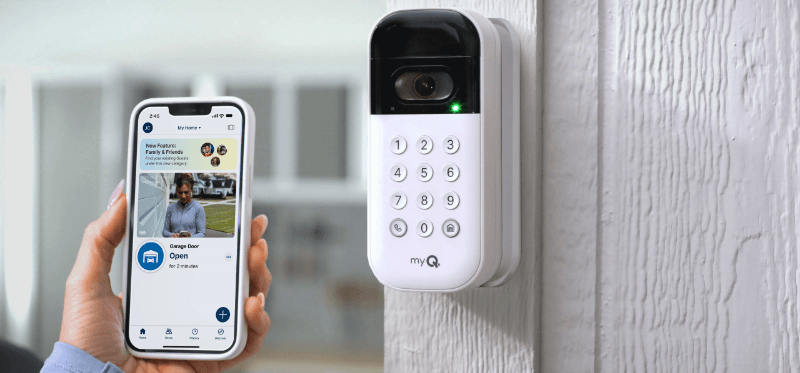
The myQ app maintains an activity log that records every instance your garage door has been opened, closed, or its status has changed. This log is invaluable for:
- Security Audits: Reviewing the log can help you identify when your garage door was accessed, by whom (if multiple users are set up), and at what time.
- Troubleshooting: If there’s ever a question about when a door was operated, the activity log provides a definitive record.
- Peace of Mind: Simply knowing that you can check the history provides an extra layer of security and reassurance.
You can typically access the activity log by selecting your garage door within the app and looking for an “Activity” or “History” tab.
Credit: a1garage.com
Advanced Features And Integrations
The myQ app’s utility extends beyond basic garage door control, offering advanced features and integrations that enhance convenience and smart home capabilities.
Guest Access And User Management
For households with multiple drivers or trusted individuals who need access, the myQ app allows you to grant guest access.
- Adding Users: You can invite family members, friends, or service providers to access your garage door through their own myQ accounts or by granting them limited access via email.
- Permission Levels: Depending on the configuration, you might be able to set different permission levels. For example, a dog walker might only be granted access during specific hours, while a spouse has full control.
- Revoking Access: Easily revoke access for guests or family members if they no longer require it, maintaining complete control over who can operate your garage door.
This feature is particularly useful for service providers like cleaners, contractors, or even neighbors who might need to access your garage temporarily.
Smart Home Integrations
MyQ is designed to be part of a larger smart home ecosystem. It integrates with popular platforms and devices, allowing for more automated and convenient control.
- Voice Assistants: Connect your myQ account to Amazon Alexa or Google Assistant. This enables voice commands to open or close your garage door. For security reasons, most voice assistants require a voice PIN code to open the garage door. For example, you could say, “Alexa, tell myQ to open the garage door,” followed by your PIN.
- IFTTT (If This Then That): MyQ supports IFTTT applets, allowing you to create custom automations. For instance, you could set up an applet that automatically closes your garage door when your phone leaves a designated “home” location, or opens it when you arrive.
- Other Smart Devices: MyQ can also integrate with other smart home devices, such as smart lights or thermostats, allowing for more complex routines. For example, you could have your garage lights turn on automatically when the garage door opens after dark.
To set up these integrations, you typically need to link your myQ account within the respective smart home platform’s app (e. g. , the Alexa app, Google Home app, or the IFTTT app).
Geofencing Capabilities
Geofencing uses your smartphone’s location services to trigger actions when you enter or leave a defined geographical area, often your home.
- Automatic Opening/Closing: With geofencing enabled, your garage door can be programmed to automatically open as you approach home or close as you drive away. This offers a seamless and hands-free experience, eliminating the need to manually open the app or use a remote.
- Configuration: This feature is usually configured within the myQ app’s settings. You’ll define the “home” geofence radius and set the desired actions (open/close) for arrival and departure.
- Safety Considerations: While convenient, it’s crucial to set up geofencing carefully. For opening, it’s often recommended to have a confirmation step or a brief delay to ensure you’re actually at the garage door. For closing, it’s vital to ensure no one is behind your vehicle when the door begins to descend.
In my experience, geofencing significantly enhances the “smart” aspect of a garage door, making daily routines more effortless.

Credit: www.doorsys.com
Ensuring Security With Myq
While the convenience of remote access is a major draw, security is paramount when dealing with garage door openers. The myQ app incorporates several features designed to keep your home and belongings safe.
Secure Communication Protocols
The myQ system utilizes secure communication protocols to protect your data and prevent unauthorized access.
- Encryption: Data transmitted between the myQ app, the cloud servers, and your garage door opener is encrypted. This means that even if intercepted, the information is unreadable without the correct decryption keys.
- Secure Authentication: Your myQ account uses secure authentication methods to ensure that only you can access your devices. This includes strong password requirements and potentially two-factor authentication options.
- Rolling Codes: For compatible garage door openers, myQ systems often leverage the security of the opener’s existing rolling code technology. Each time you operate the door, a new code is generated, making it extremely difficult for potential intruders to “capture” and reuse a code to gain access.
These security measures are vital because the garage is often a primary entry point to a home, and its security directly impacts overall home safety.
Managing Access And Activity
As mentioned in the advanced features section, the ability to manage users and monitor activity logs is a key security component.
- Granular Control: By assigning specific users and monitoring their activity, you maintain a high level of control over who accesses your garage and when.
- Immediate Awareness: Real-time alerts for door operations mean you are immediately aware of any activity, allowing you to respond quickly to suspicious events. For example, if you receive an alert that your garage door opened when you didn’t initiate it, you can take immediate action, such as checking security cameras or contacting authorities if necessary.
- Preventing Unauthorized Access: The guest access feature, when used judiciously, allows you to grant temporary access to trusted individuals without compromising your primary access codes or security.
Best Practices For Security
To maximize the security benefits of the myQ app, adhere to these best practices:
- Strong, Unique Password: Use a strong, unique password for your myQ account. Avoid using easily guessable information like birthdays or common words. Consider using a password manager to generate and store complex passwords.
- Enable Two-Factor Authentication (2FA): If available for your myQ account, enable 2FA. This adds an extra layer of security by requiring a second form of verification (like a code sent to your phone) in addition to your password.
- Secure Your Wi-Fi Network: Your home Wi-Fi network is the backbone of your smart garage system. Ensure it is secured with a strong WPA2 or WPA3 password. Change your router’s default administrator password.
- Keep App and Firmware Updated: Regularly update the myQ app on your smartphone and ensure your garage door opener’s firmware (if applicable) is up to date. Updates often include security patches that protect against emerging threats.
- Review Activity Logs Regularly: Make it a habit to periodically review the activity log for any unusual or unauthorized access.
- Be Cautious with Guest Access: Only grant guest access to individuals you trust implicitly, and revoke access as soon as it’s no longer needed.
- Disable Voice Opening (Optional): If you are particularly concerned about security, you may choose to disable the voice-activated opening feature for your garage door through your voice assistant settings, or ensure a robust voice PIN is always used.
By implementing these security measures, you can confidently use the myQ app to manage your garage door, enjoying convenience without compromising safety.
Troubleshooting Common Myq Issues
Even with advanced technology, users may occasionally encounter issues with the myQ app or their connected garage door opener. Understanding common problems and their solutions can save time and frustration.
Connectivity Problems
Connectivity issues are among the most frequent challenges users face.
- No Wi-Fi Connection:
- Check Router: Ensure your home Wi-Fi router is powered on and functioning correctly. Try restarting your router.
- Network Band: The myQ system typically requires a 2.4 GHz Wi-Fi network. Many modern routers broadcast both 2.4 GHz and 5 GHz bands. Make sure your opener or hub is connecting to the 2.4 GHz band.
- Signal Strength: The garage can be a challenging location for Wi-Fi signals. Ensure the myQ hub (if used) or the opener itself is within a reasonable range of your router, or consider a Wi-Fi extender if the signal is weak.
- Incorrect Password: Double-check that you entered the correct Wi-Fi password during setup. Passwords are case-sensitive.
- App Not Responding:
- Restart App: Close the myQ app completely and reopen it.
- Check Internet Connection: Ensure your smartphone has a stable internet connection (Wi-Fi or cellular data).
- Update App: Verify that you have the latest version of the myQ app installed. Outdated versions can sometimes cause performance issues.
Device Not Responding To Commands
If the app shows the door is connected but doesn’t respond to open/close commands:
- Opener Power: Ensure the garage door opener unit itself is plugged in and has power. Check your circuit breaker.
- Sensor Issues (for Hub users): If you’re using the Smart Garage Hub, ensure the door sensor is properly attached to the door and is communicating with the hub. Check the sensor’s battery.
- Re-Pairing Device: Sometimes, re-pairing the opener or hub with the app can resolve communication glitches. You may need to go through the setup process again within the app.
- Opener Limit Settings: In rare cases, the opener’s physical limit settings might be misadjusted, preventing it from moving. This is less common with app control but worth considering if the door doesn’t move at all. Refer to your opener’s manual for adjusting limit settings.
Inaccurate Door Status
If the app incorrectly shows the door as open when it’s closed, or vice-versa:
- Door Sensor Alignment (for Hub users): The door sensor is critical for accurate status reporting. Ensure it is correctly positioned on the door and that the opener is within its detection range. If the sensor has shifted or the door has been modified, it might need recalibration or reinstallation.
- Firmware Glitch: A temporary glitch in the opener’s firmware or the hub’s software could cause status inaccuracies. A power cycle of the opener or hub (unplugging it for 30 seconds and plugging it back in) might resolve this.
- App Refresh: Sometimes, simply pulling down on the app screen to refresh the status can correct a minor display error.
Account And Login Issues
- Forgot Password: Use the “Forgot Password” link on the login screen to reset your myQ account password via email.
- Account Locked: If you’ve made too many unsuccessful login attempts, your account might be temporarily locked for security. Wait a period or contact myQ support if the issue persists.
Pro Tip: Always refer to the official myQ support website or your specific garage door opener’s manual for the most accurate and detailed troubleshooting steps. For persistent issues, contacting myQ customer support is recommended.
Maintaining Your Myq System
To ensure the continued reliable operation of your myQ app and connected garage door opener, regular maintenance is key. This involves both app-level checks and physical maintenance of the garage door opener itself.
App And Firmware Updates
- App Updates: As mentioned in troubleshooting, always keep the myQ app updated to the latest version. App updates often include bug fixes, performance enhancements, and new features, alongside crucial security patches. Enable automatic updates for the app if your device allows.
- Firmware Updates: For openers with built-in myQ or the Smart Garage Hub, firmware updates are sometimes released to improve functionality and security. The myQ app will typically notify you when a firmware update is available. Follow the in-app prompts to install these updates, ensuring your device remains current.
Garage Door Opener Maintenance
The myQ system relies on a functioning garage door opener. Regular maintenance of the opener and the door itself ensures smooth operation and longevity.
- Lubrication: Moving parts like rollers, hinges, and tracks can benefit from periodic lubrication. Use a silicone-based lubricant or