
Connecting a Chamberlain garage door opener is a task many homeowners face, whether setting up a brand-new unit or upgrading an older system. With smart home features becoming popular, more people want to control their garage doors using smartphones, keypads, or remote controls.
But the setup process can feel overwhelming, especially if you’re not used to home improvement projects. If you want to avoid frustration, it’s important to follow the right steps and understand common mistakes. This guide will walk you through everything you need to connect your Chamberlain garage door opener—whether it’s the first installation, adding smart features, or troubleshooting connections.
You’ll learn about the tools you need, the different Chamberlain models, and step-by-step instructions for connecting remotes, keypads, and smart devices. We’ll also explain safety tips, common mistakes to avoid, and how to fix problems if your opener won’t connect.
By the end, you’ll be confident you can connect your Chamberlain garage door opener like a pro.
Understanding Chamberlain Garage Door Opener Models
Before you start, it’s important to know which Chamberlain model you have. Chamberlain offers a variety of openers, each with unique features. Some are basic, while others include Wi-Fi and smart home compatibility. The main types are:
- Chain drive openers: Known for durability; a bit noisy but reliable.
- Belt drive openers: Quieter, suitable for garages near living areas.
- Smart Wi-Fi openers: Let you control the door from your phone.
- Wall-mounted openers: Save ceiling space, ideal for special layouts.
Each model may have different connection steps. For example, Wi-Fi models require network setup, while older ones use dip switches for remotes.
Why Model Matters
Knowing your model ensures you:
- Use the right parts and instructions.
- Avoid damaging the opener.
- Connect smart features correctly.
Always check the serial number and model code (often on the main unit’s side or back). If you’re unsure, visit the official Chamberlain website or check your manual.
Tools And Materials Needed
Gathering the right tools before starting can save time and reduce mistakes. Here’s what you’ll typically need:
- Step ladder: To reach the opener and ceiling.
- Screwdriver (Phillips and flathead): For panels and mounting.
- Drill and bits: If you need to install brackets.
- Wire stripper: For wiring accessories.
- Smartphone or tablet: For Wi-Fi setup.
- Garage door remote or keypad: For programming.
You might also want:
- Safety glasses: To protect your eyes.
- Manual: Original or downloaded from Chamberlain’s site.
Having everything ready makes the process smoother.
Preparing For Installation And Connection
Preparation is a key step many overlook. Don’t skip these:
- Disconnect power: Unplug the opener before working on it.
- Clear the area: Remove vehicles and obstacles from the garage.
- Check Wi-Fi signal: For smart models, ensure your Wi-Fi is strong near the opener. Weak signal leads to setup failures.
- Read the manual: Each model has unique steps. Skimming the manual helps avoid surprises.
A common beginner’s mistake is not checking the Wi-Fi strength, causing the smart opener to fail during setup. If your Wi-Fi is weak, consider a Wi-Fi extender.
Step-by-step: Connecting The Main Chamberlain Garage Door Opener
Now let’s get into the core steps. While details can vary by model, the general process is similar.
1. Mounting The Opener
If your opener isn’t already installed:
- Assemble the opener: Follow the manual for your model.
- Attach the rail and trolley: These move the door up and down.
- Secure to ceiling joists: Use the included brackets.
- Install safety sensors: Place these 6 inches from the floor on each side of the garage door.
- Connect the power: Plug into a grounded outlet.
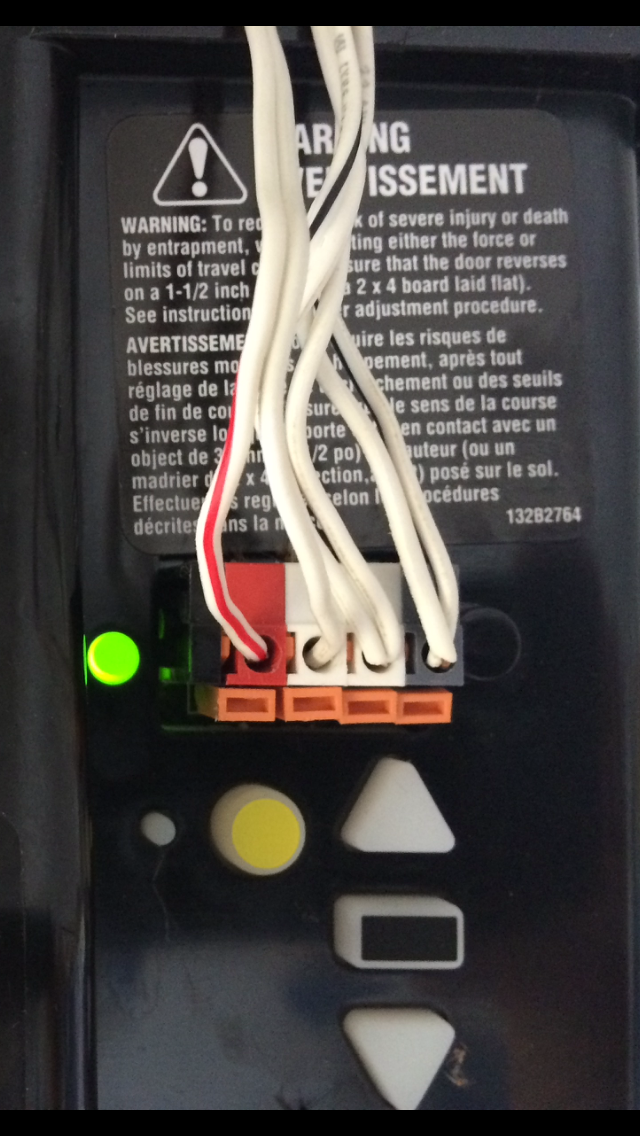
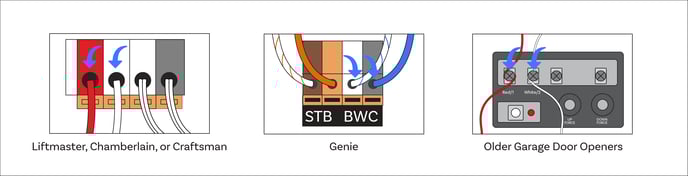
2. Wiring The Wall Control Panel
Most Chamberlain openers come with a wall-mounted button:
- Run the wire: From opener to wall.
- Strip the wire ends: About 1/2 inch.
- Insert wires into terminals: Match colors if present.
- Secure the panel to the wall.
3. Testing The Basic Operation
Before connecting remotes or smart features:
- Plug in the opener.
- Test the wall panel: The door should open and close smoothly.
- Check safety sensors: The door should reverse if something blocks the beam.
If the door doesn’t move, check the wiring and power.
Programming And Connecting Remotes
Connecting a remote is simple but must be done correctly. Modern Chamberlain openers use a “Learn” button for this process.
- Locate the Learn button: Usually on the back or side of the main unit, under a light cover. It may be yellow, red, orange, or purple.
- Press and release the Learn button: An indicator light will turn on.
- Within 30 seconds, press the remote button: Hold for a second, then release.
- Watch for confirmation: The opener light will flash or you’ll hear a click. This means the remote is programmed.
Tip: If you have multiple remotes, repeat these steps for each one.
Common Remote Programming Mistakes
- Holding the Learn button too long: This erases all codes instead of programming a new one.
- Waiting too long between steps: You have about 30 seconds to press the remote after the Learn button.
- Mixing different brands: Only Chamberlain or compatible remotes work.
Adding A Wireless Keypad
A wireless keypad lets you open the garage without a remote. Here’s how to connect it:
- Open the keypad cover: Insert batteries if needed.
- Press the Learn button on the opener.
- Within 30 seconds, enter a PIN on the keypad: Then press the Enter button.
- Look for confirmation: The opener light flashes or you hear a click.
For some models, you’ll need to enter the PIN, then press the Learn button, then Enter again. Always check your manual for the correct order.
Pro tip: Choose a PIN that’s easy for you but hard for others to guess. Avoid common numbers like “1234.”
Setting Up Myq Smart Features
Many Chamberlain openers support MyQ technology, which lets you control your garage door from your phone. This is one of the most popular features for modern homes.
What Is Myq?
MyQ is Chamberlain’s smart garage door system. It connects your opener to your home Wi-Fi and syncs with the MyQ app on your phone. With MyQ, you can:
- Open or close the door from anywhere.
- Get alerts if the door is open.
- Set schedules (like closing the door every night at 10 pm).
- Share access with family or guests.
How To Connect Myq
- Download the MyQ app: Available for both iOS and Android.
- Create an account: Use your email and a secure password.
- Plug in the opener and ensure it’s in range of Wi-Fi.
- Press the Learn button on the opener: Some models have a Wi-Fi button instead.
- Follow the app instructions: The app will guide you through connecting the opener to your Wi-Fi.
- Name your garage door: This helps if you have more than one.
Troubleshooting Myq Setup
- Wi-Fi won’t connect: Move your router closer or use a Wi-Fi extender.
- App doesn’t detect opener: Make sure Bluetooth and Location are enabled on your phone.
- Opener not compatible: Some older models need a MyQ Smart Garage Hub, sold separately.
Insight: Many users forget that not all Wi-Fi networks are compatible. Chamberlain openers often need a 2.4 GHz Wi-Fi network, not 5 GHz. If your phone connects to 5 GHz and setup fails, try switching your phone to the 2.4 GHz band during setup.
Connecting To Home Automation Systems
Chamberlain’s MyQ also works with other smart home platforms. This adds features like voice control or automation routines.
Popular Integrations
- Amazon Key: In-garage delivery for Amazon packages.
- Google Assistant: Control with voice commands.
- IFTTT: Create custom automation (for example, close the door when you leave home).
- Apple HomeKit: Some models or with an adapter.
How To Connect
- Open the MyQ app.
- Go to “Works With” or “Partners” section.
- Choose your platform.
- Follow on-screen instructions: Usually involves logging in and granting permissions.
Non-obvious tip: Not all integrations are free. For example, Google Assistant may require a subscription. Always check before connecting.
Safety And Security Tips
Garage doors are heavy and can be dangerous if not handled correctly. Keep these safety tips in mind:
- Unplug the opener before any wiring.
- Test the safety sensors monthly.
- Teach children to keep hands and objects away from moving parts.
- Change PINs and passwords regularly for smart features.
- Use rolling code remotes: Chamberlain’s Security+ feature makes it harder for hackers to copy your remote signal.
Troubleshooting Connection Problems
Even with careful setup, you might face issues. Here’s how to fix the most common ones:
Remote Won’t Connect
- Check the battery: A dead battery is often the problem.
- Reprogram the remote: Repeat the Learn button steps.
- Make sure it’s a compatible remote.
Keypad Not Working
- Replace batteries.
- Re-enter the programming steps.
- Reset the keypad: Usually by pressing a reset button inside.
Myq/smart Feature Issues
- Check Wi-Fi strength.
- Restart your router and opener.
- Update the app.
- Factory reset the opener if nothing else works.
Safety Sensor Problems
- Clean the lenses: Dust or spider webs can block them.
- Align the sensors: Both LEDs should be solid, not blinking.
- Check wiring: Look for loose or broken wires.

When To Call A Professional
You can do most connections yourself, but sometimes expert help is needed:
- The door won’t move at all after setup.
- You hear grinding or see sparks.
- You can’t get the opener to connect despite many attempts.
Professional installers can quickly spot problems and save time. In some areas, Chamberlain offers certified technicians who can help.
Comparing Chamberlain Models For Connectivity
To help you understand the differences, here’s a comparison of popular Chamberlain models and their connectivity features:
| Model | Drive Type | MyQ Support | Compatible Remotes | Wi-Fi Built-In |
|---|---|---|---|---|
| B970 | Belt | Yes | Yes | Yes |
| C450 | Chain | Yes (with hub) | Yes | No |
| B550 | Belt | Yes | Yes | Yes |
| RJO20 | Wall Mount | Yes | Yes | Yes |
Example: Connecting A Chamberlain B970 With Myq
Let’s walk through connecting a B970, a popular smart model:
- Install the opener hardware as per manual.
- Connect the wall control and safety sensors.
- Power on the unit and test door operation.
- Press the yellow Learn button to program remotes and keypad.
- Install the MyQ app, create an account.
- Follow the app’s Wi-Fi setup: The opener’s LED will blink blue during pairing.
- Name your door and test app control.
If something fails, check that your Wi-Fi signal is strong and your phone is on the correct band.
Chamberlain Vs. Other Garage Door Openers
How does Chamberlain connectivity compare to other brands? Here’s a quick overview:
| Brand | Smartphone Control | Voice Assistant Support | Ease of Setup | Price Range |
|---|---|---|---|---|
| Chamberlain | Yes (MyQ) | Yes (with partners) | Easy/Moderate | $$ |
| Genie | Yes (Aladdin Connect) | Limited | Moderate | $$ |
| LiftMaster | Yes (MyQ) | Yes | Moderate | $$$ |
| Craftsman | Some models | Limited | Moderate/Hard | $$ |
Insight: Chamberlain’s MyQ platform is one of the most reliable for smart features. However, not all features are free, and some integrations (like Google Assistant) may require extra steps or fees.
Maintenance Tips After Connection
Once your Chamberlain garage door opener is connected, regular maintenance helps avoid problems:
- Test remotes and keypads monthly.
- Inspect and clean safety sensors.
- Update MyQ app and firmware regularly.
- Lubricate moving parts every 6 months.
- Change PINs and passwords yearly.
Non-obvious tip: Many people forget to check the backup battery (if your model has one). Replace it every 1-2 years to ensure the opener works during a power outage.
Common Mistakes To Avoid
Even experienced DIYers make these errors:
- Skipping the manual: Each model can be slightly different.
- Not checking Wi-Fi compatibility: 2.4 GHz is required for most.
- Programming remotes with the wrong sequence.
- Forgetting to secure all wires: Loose wires can cause intermittent problems.
- Ignoring firmware updates: These add new features and improve security.
If you make a mistake, don’t panic—most issues can be fixed by resetting and repeating the steps.
Chamberlain Support And Resources
If you get stuck, Chamberlain offers help:
- Official support website: Guides and troubleshooting.
- Customer service phone/email: For complex issues.
- Video tutorials: Helpful for visual learners.
- MyQ app help center: For smart features.
You can also find guides and user experiences on community forums or YouTube. For official resources, visit the Chamberlain Support Center.
Frequently Asked Questions
How Do I Reset My Chamberlain Garage Door Opener?
To reset, unplug the opener, wait 30 seconds, then plug it in. For remotes, hold the Learn button until the LED turns off (about 6-10 seconds). This erases all programmed remotes and keypads. You’ll need to reprogram each one after resetting.
Can I Connect My Chamberlain Opener To Alexa Or Google Home?
Chamberlain MyQ works with Google Assistant and Amazon Alexa (with third-party workarounds or subscriptions). For direct integration, follow instructions in the MyQ app under “Works With. ” Some features may require a paid subscription.
Why Won’t My Remote Or Keypad Connect?
The most common reasons are dead batteries, incorrect programming sequence, or incompatible devices. Always use Chamberlain-approved remotes/keypads and follow the Learn button steps. If the problem continues, reset the opener and try again.
What Should I Do If Myq Won’t Connect To Wi-fi?
Check that your Wi-Fi is 2. 4 GHz (not 5 GHz), move your router closer, and ensure you’re entering the correct Wi-Fi password. Restart your opener and router, and try again. If you still have trouble, a Wi-Fi extender may help.
Is It Safe To Connect My Garage Door Opener To The Internet?
Yes, as long as you use strong passwords and keep the MyQ app and firmware updated. Chamberlain uses encryption and rolling codes for security. Avoid sharing your account credentials and change passwords regularly for best safety.
Connecting a Chamberlain garage door opener doesn’t have to be confusing. By following the steps above, preparing properly, and avoiding common mistakes, you can set up your system with confidence. Whether you’re using remotes, keypads, or smart features like MyQ, the key is patience and attention to detail.
Regular maintenance and updates will keep your opener running smoothly and securely. If you need extra help, Chamberlain’s support resources are always available. With your opener connected, you’ll enjoy the convenience, safety, and peace of mind that comes from having full control over your garage—wherever you are.