
The convenience of a smart garage door opener is undeniable, offering remote access, enhanced security, and seamless integration with your home’s network. However, when your MyQ garage door opener not connecting to WiFi, that convenience can quickly turn into frustration. This common issue can stem from a variety of factors, ranging from simple network glitches to more complex hardware or software problems. Understanding the potential causes and systematically troubleshooting them is key to restoring your smart garage door opener’s connectivity.
This comprehensive guide will walk you through the most common reasons why your MyQ opener might be offline and provide actionable steps to get it back online. We’ll cover everything from checking your router settings and Wi-Fi password to performing resets and understanding compatibility.
Whether you’re a seasoned tech enthusiast or new to smart home devices, this guide aims to demystify the troubleshooting process, ensuring you can once again enjoy the benefits of a connected garage.
Key Takeaways
- Check Basic Connectivity: Ensure your Wi-Fi router is on, broadcasting, and that your internet connection is active. Verify the Wi-Fi password is correct.
- Router Proximity & Signal Strength: The garage door opener needs a strong Wi-Fi signal. Move your router closer or consider a Wi-Fi extender if the signal is weak.
- 2.4 GHz vs. 5 GHz Networks: Most MyQ openers exclusively use the 2.4 GHz band. Ensure your router is broadcasting this band and that the opener is attempting to connect to it.
- Device and App Updates: Outdated firmware on the opener or an outdated MyQ app can cause connectivity issues. Check for and install available updates.
- Router Settings: Certain router settings like MAC filtering, firewalls, or specific port blocking can prevent connection. Temporarily disabling these for testing can help diagnose the issue.
- Reboot and Reset: Often, a simple reboot of both the opener and your router can resolve temporary glitches. A factory reset of the opener is a more drastic step but can fix persistent software issues.
- Compatibility: Ensure your garage door opener model is compatible with the MyQ system and that your Wi-Fi network meets the requirements.

Credit: support.chamberlaingroup.com
Understanding Myq Connectivity: How It Works
The MyQ system, developed by Chamberlain Group, allows users to monitor and control their garage doors, gates, and even lighting from anywhere using a smartphone, tablet, or computer. At its core, the system relies on a Wi-Fi-enabled garage door opener or a separate MyQ gateway that connects to your home’s wireless network. This connection enables two-way communication: the opener sends status updates to the MyQ cloud server, and you send commands through the MyQ app, which are then relayed to your opener.
The process typically involves these steps:
- Initial Setup: You connect the MyQ-enabled opener or gateway to your home Wi-Fi network, usually through the MyQ mobile app. This involves entering your Wi-Fi network name (SSID) and password.
- Cloud Connection: Once connected to your Wi-Fi, the device establishes a connection with the MyQ cloud servers. This allows for remote access and control.
- App Communication: When you use the MyQ app, it communicates with the MyQ cloud. The cloud server then sends the relevant command or status request to your specific garage door opener via the internet.
- Opener Action: Your garage door opener receives the command (e.g., open, close, check status) and performs the action. It also sends confirmation back to the cloud, which is then reflected in your app.
Understanding this flow is crucial because any break in this chain, from your Wi-Fi network to the MyQ servers or the opener itself, can lead to connectivity problems. The most common point of failure is the initial Wi-Fi connection between the opener and your home network.
Credit: support.chamberlaingroup.com
Common Reasons For Myq Wifi Connection Failure
When your MyQ garage door opener loses its Wi-Fi connection, it’s usually due to one or more of the following common culprits. Addressing these systematically can help pinpoint the exact cause.
Weak Wi-fi Signal Strength
Garages are often located at the far end of a house, and the concrete and metal construction can significantly impede Wi-Fi signals. If your opener is too far from your router, or if there are many obstructions, the signal may be too weak to maintain a stable connection.
- Symptoms: Intermittent connectivity, slow response times, or complete inability to connect.
- Troubleshooting:
- Check the Wi-Fi signal strength indicator on your MyQ app or the opener itself (if available).
- Temporarily move your router closer to the garage to see if the connection improves. This is a good diagnostic step, though not a permanent solution.
- Consider using a Wi-Fi range extender or a mesh Wi-Fi system to boost signal strength in the garage.
Incorrect Wi-fi Network Or Password
This is perhaps the most frequent reason for connection failure, especially after a router change, password update, or initial setup. A single typo in the network name or password will prevent the opener from authenticating and connecting.
- Symptoms: The opener repeatedly fails to connect during setup or shows as “offline” in the app.
- Troubleshooting:
- Double-check that you are selecting the correct Wi-Fi network name (SSID).
- Ensure you are entering the Wi-Fi password precisely as it is, paying attention to capitalization and special characters.
- Try connecting another device to your Wi-Fi network using the same credentials to confirm they are correct.
Router Band (2.4 Ghz Vs. 5 Ghz) Issues
Many smart home devices, including older or basic MyQ models, are designed to operate exclusively on the 2.4 GHz Wi-Fi band. This band offers better range and penetration through walls but has slower speeds compared to the 5 GHz band. If your router is only broadcasting a 5 GHz network, or if your opener is trying to connect to the 5 GHz band, it will fail.
- Symptoms: The opener connects to the network but shows an error, or it simply cannot find or connect to the network during setup.
- Troubleshooting:
- Check your garage door opener’s manual or specifications to confirm it requires a 2.4 GHz network.
- Access your router’s settings and ensure that the 2.4 GHz band is enabled and broadcasting.
- If your router uses band steering (combining 2.4 GHz and 5 GHz under one SSID), try disabling it temporarily or creating a separate SSID for the 2.4 GHz band. Then, ensure your opener is configured to connect to the 2.4 GHz network.
Router Settings And Firewalls
Advanced router settings can sometimes inadvertently block smart home devices. Features like MAC address filtering, firewall rules, or specific port blocking can prevent the MyQ opener from communicating with the MyQ cloud servers.
- Symptoms: The opener shows as connected to Wi-Fi but is unresponsive or offline in the app.
- Troubleshooting:
- Access your router’s administrative interface.
- Temporarily disable any MAC filtering settings to see if that resolves the issue.
- Check your router’s firewall settings. While generally not recommended for security reasons, you might need to temporarily disable it to test. If disabling the firewall solves the problem, you’ll need to re-enable it and configure it to allow traffic for your MyQ device. Consult your router’s manual or ISP for specific instructions on configuring firewall exceptions.
- Ensure that your router is not blocking the specific ports required by MyQ. These typically include UDP/TCP ports 80, 443, and 17000.
Outdated Firmware Or Software
Like any electronic device, both your MyQ garage door opener and the MyQ app require occasional updates to ensure optimal performance, security, and compatibility. Outdated firmware on the opener or an outdated app can lead to connection issues.
- Symptoms: Connectivity problems that arise suddenly, or inability to connect after a period of successful operation.
- Troubleshooting:
- MyQ App: Open the MyQ app on your smartphone and check for any available updates in your device’s app store (Google Play Store or Apple App Store).
- Opener Firmware: Within the MyQ app, navigate to the device settings for your garage door opener. There should be an option to check for and install firmware updates. Ensure your opener is powered on and connected to Wi-Fi (if it was previously connected) for the update to download and install. If it’s currently offline, this step might be impossible until connectivity is restored.
Credit: support.chamberlaingroup.com
Step-by-step Troubleshooting Guide
When your MyQ garage door opener refuses to connect to Wi-Fi, a methodical approach is best. Start with the simplest solutions and progressively move towards more complex ones.
Step 1: Verify Basic Internet And Router Functionality
Before touching your MyQ opener, ensure your home network is functioning correctly.
- Check Internet Connection: Use another device (phone, laptop) connected to the same Wi-Fi network to browse the internet. If you can’t access websites, the problem lies with your internet service provider (ISP) or your modem. Contact your ISP.
- Reboot Your Router and Modem: This is a universal fix for many network issues.
- Unplug the power cords from both your modem and your Wi-Fi router.
- Wait for at least 30 seconds.
- Plug the modem back in first and wait for its lights to stabilize (usually 1-2 minutes).
- Plug the Wi-Fi router back in and wait for its lights to stabilize.
- Once the network is back online, try connecting your MyQ opener again.
Step 2: Check Wi-fi Signal Strength In The Garage
As mentioned, the garage is often a Wi-Fi dead zone.
- Use a Wi-Fi Analyzer App: Download a Wi-Fi analyzer app on your smartphone. While standing near your garage door opener, check the signal strength (usually measured in dBm). Values closer to -30 dBm are excellent, -67 dBm is good, and anything below -70 dBm can indicate weak signal issues.
- Relocate Router (Temporary Test): If possible, bring your router closer to the garage temporarily. If the connection is established, you know signal strength is the primary issue.
- Consider a Wi-Fi Extender or Mesh System: For a permanent solution, invest in a Wi-Fi extender placed midway between your router and the garage, or a mesh Wi-Fi system for broader coverage. Ensure the extender/mesh node provides a strong 2.4 GHz signal to the garage.
Step 3: Confirm Network Band And Credentials
Ensure you’re using the correct network and password on the correct band.
- Verify Network Band: Access your router settings and confirm that the 2.4 GHz band is active. If you have separate SSIDs for 2.4 GHz and 5 GHz, make sure you are attempting to connect your MyQ opener to the 2.4 GHz network.
- Re-enter Wi-Fi Credentials: Using the MyQ app, go through the process of connecting your opener to Wi-Fi again. Carefully re-enter your Wi-Fi network name (SSID) and password. Pay close attention to case sensitivity.
Step 4: Perform A Power Cycle On The Myq Opener
Sometimes, the opener’s internal electronics can get into a confused state.
- Locate Power: Find the power cord for your garage door opener and unplug it from the electrical outlet.
- Wait: Leave it unplugged for at least 60 seconds.
- Reconnect: Plug the power cord back in.
- Attempt Connection: Once the opener powers up, try connecting it to your Wi-Fi network again via the MyQ app.
Step 5: Reset The Myq Connectivity Module
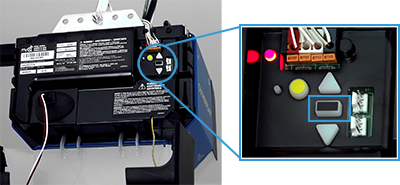
If a simple power cycle doesn’t work, you might need to reset the Wi-Fi settings on the opener itself. The exact procedure varies by model, but it often involves pressing and holding a specific button on the motor unit.
- Consult Your Manual: Refer to your specific MyQ garage door opener model’s manual for instructions on how to reset the Wi-Fi or connectivity settings.
- Common Reset Procedure: Typically, you’ll need to locate the “Learn” button on the motor unit. Press and hold the “Learn” button for about 10-15 seconds until the indicator light flashes or turns off. This usually clears the saved Wi-Fi credentials.
- Reconfigure: After the reset, you will need to go through the Wi-Fi setup process in the MyQ app from the beginning, as if it were a new device.
Step 6: Factory Reset The Garage Door Opener (more Drastic)
If resetting the connectivity module doesn’t help, a full factory reset of the opener might be necessary. This will erase all programmed settings, including remotes, keypads, and Wi-Fi configurations.
- Warning: This is a more involved process and will require you to reprogram all your accessories afterward.
- Procedure: Again, consult your opener’s manual. Factory resets often involve pressing and holding a combination of buttons on the motor unit for an extended period.
- Reprogramming: After a factory reset, you’ll need to re-establish the Wi-Fi connection via the MyQ app and then reprogram any remotes or keypads you use. You may find this guide helpful for general garage door opener resets: How Do I Reset My Garage Door Opener: Step-by-Step Guide.
Advanced Troubleshooting Techniques
If the basic steps haven’t resolved your MyQ connectivity issue, it’s time to explore more advanced troubleshooting. These methods require a bit more technical understanding of your home network and router settings.
Checking Router Settings In Detail
Beyond basic band and password checks, several other router settings can interfere with MyQ connectivity.
- DHCP Settings: Ensure your router’s DHCP server is enabled and has available IP addresses to assign to new devices. The MyQ opener needs an IP address from your router to communicate. Most routers have a limit on the number of devices they can support via DHCP. If your network is saturated, the opener may not receive an IP address.
- Action: Access your router settings and check the DHCP client list. If it’s full, consider increasing the limit or removing unused devices.
- MAC Address Filtering: Some users enable MAC address filtering on their routers for added security. This means only devices with pre-approved MAC addresses can connect to the network. If this feature is enabled, you’ll need to add the MyQ opener’s MAC address to the allowed list.
- Action: Find the MAC address of your MyQ opener (usually printed on the device itself or found in its settings). Access your router’s security settings, locate MAC filtering, and add the opener’s MAC address to the allow list.
- Firewall Configuration: While mentioned earlier, a deeper dive might be needed. Your router’s firewall might be configured too strictly, blocking the specific ports MyQ uses for communication.
- Action: Consult your router’s manual or your ISP’s support documentation to understand how to configure firewall rules or port forwarding. MyQ typically requires ports 80 (HTTP), 443 (HTTPS), and potentially others for communication. Check the official MyQ support documentation for the most current port requirements.
- Guest Networks: Ensure you are not trying to connect the MyQ opener to a guest Wi-Fi network. Guest networks are often isolated from the main network and may have restrictions that prevent smart home devices from functioning correctly or communicating with the internet.
Testing With A Different Router Or Hotspot
To definitively rule out your router as the source of the problem, you can try connecting the MyQ opener to a different network.
- Use a Mobile Hotspot: Temporarily enable the personal hotspot feature on your smartphone. Create a Wi-Fi network using your phone’s data connection and try to connect the MyQ opener to this hotspot.
- Pro Tip: Ensure your phone plan has sufficient data, as the setup process and initial connection might use a noticeable amount.
- If it connects: This strongly suggests your home router’s settings or capabilities are the issue. You’ll need to focus on reconfiguring your home router.
- If it doesn’t connect: This could indicate a problem with the MyQ opener itself or a more fundamental network configuration issue with your phone’s hotspot.
Checking For Interference
Electronic devices operating on the 2. 4 GHz frequency can sometimes interfere with Wi-Fi signals.
- Common Sources: Microwave ovens, cordless phones, Bluetooth devices, baby monitors, and even some older wireless security cameras can cause interference.
- Action: Try temporarily turning off or moving potential sources of interference away from the garage door opener and your Wi-Fi router. See if this improves the connection stability.
Ensuring Compatibility And Understanding Limitations
Not all garage door openers are compatible with the MyQ system, and even compatible ones have certain requirements.
Myq Compatibility Check
Chamberlain Group (the maker of MyQ) has a compatibility checker on its website.
- Action: Visit the official Chamberlain or LiftMaster website and use their compatibility tool. Enter the model number of your garage door opener to confirm if it supports MyQ connectivity or if you need a separate MyQ Smart Garage Hub or gateway.
- Older Openers: Many garage door openers manufactured before 2012 are not MyQ compatible. If yours isn’t, you might need to purchase a MyQ hub or consider upgrading your opener entirely. A new opener can range from $200 to $500 depending on features and brand, with installation costs adding to the total. See How Much for a Garage Door: Costs, Factors, and Savings Tips for more details.
Myq App And System Requirements
The MyQ system and app also have specific requirements.
- App Updates: Ensure you are using the latest version of the MyQ app. Older versions may not be supported or may have bugs that affect connectivity.
- Account Requirements: You need a MyQ account to use the app and connect your device. Ensure your account is active and you are logged in correctly.
- Internet Connection: As established, a stable internet connection is paramount. MyQ relies on cloud servers, so your home internet must be operational.
Understanding Network Requirements
- SSID Broadcast: Your Wi-Fi network name (SSID) must be set to broadcast. Hidden networks can cause issues with device discovery and connection.
- Security Protocol: MyQ typically supports WPA2 security protocols. Older protocols like WEP are generally not supported and are also less secure. Ensure your router is using WPA2 or WPA3 encryption.
When To Seek Professional Help
If you’ve gone through all the troubleshooting steps and your MyQ garage door opener still won’t connect to Wi-Fi, it might be time to call in the experts.
Contacting Myq/chamberlain Support
The manufacturer’s support team is an excellent resource for specific model issues.
- Information to Have Ready: When you contact them, be prepared to provide:
- Your MyQ garage door opener model number.
- The serial number of the device.
- Details about your Wi-Fi network (router model, security type, ISP).
- A summary of the troubleshooting steps you’ve already taken.
- Support Channels: Check the Chamberlain Group or LiftMaster website for their customer support phone numbers, email addresses, or online chat options.
Consulting A Local Garage Door Technician
For complex issues, especially those involving the opener’s hardware, a professional garage door technician can be invaluable.
- Hardware Malfunctions: If the Wi-Fi module within the opener itself has failed, a technician can diagnose and potentially replace it.
- Network Expertise: Some technicians specialize in smart home installations and can help optimize your home network for reliable connectivity of devices like your MyQ opener.
- When to Call: If you suspect a hardware failure, or if you’re uncomfortable making advanced router configuration changes, it’s best to schedule a service call.
Frequently Asked Questions
Why Does My Myq Opener Keep Disconnecting From Wi-fi?
This usually points to an unstable Wi-Fi signal, interference, or a router configuration issue. Ensure your router is broadcasting a strong 2. 4 GHz signal to the garage, check for interference from other devices, and review your router’s settings for any restrictions.
Regularly rebooting your router and opener can also help maintain a stable connection.
Can I Use A 5 Ghz Wi-fi Network For My Myq Opener?
Most MyQ garage door openers are designed to work exclusively on the 2.4 GHz Wi-Fi band. While some newer models or hubs might support 5 GHz, it’s crucial to check your specific device’s manual or specifications. If your opener only supports 2.4 GHz, you must ensure your router is broadcasting this band and that the opener is attempting to connect to it.