
Now Reading: How to Link Liftmaster Garage Door Opener in Easy Steps
- 01
How to Link Liftmaster Garage Door Opener in Easy Steps

Opening your garage door should be simple, safe, and reliable. With modern technology, garage door openers like those from LiftMaster offer much more than just a button on the wall. They connect to your car, your phone, and your smart home system. But many homeowners find themselves confused when it’s time to link their LiftMaster garage door opener with a remote, keypad, or smart device.
If you have just installed a new LiftMaster opener, or you are updating your system, you probably want to know how to link it to all your controls. Maybe you want to add a new remote, integrate with your smartphone, or pair with a home automation device.
This process can be easy if you have the right steps. In this guide, you will learn everything you need to link your LiftMaster garage door opener, avoid common mistakes, and make the most of its features.
Whether you are a first-time user or you want to update your setup, this article will walk you through the process in clear, simple language. You will find step-by-step instructions, practical tips, and answers to common questions. By the end, you will feel confident in linking your LiftMaster opener—no professional needed.
Understanding Your Liftmaster Garage Door Opener
Before you start linking devices, it helps to know what you are working with. LiftMaster is a leading brand in garage door openers, known for reliability and smart features. Most modern units have a control panel, safety sensors, and wireless connection options. However, not all LiftMaster models are the same.
Main Types Of Liftmaster Openers
- Chain Drive: These use a metal chain to lift the door. They are strong and affordable but can be noisy.
- Belt Drive: These use a rubber belt instead of a chain. They run quietly and are ideal for garages near living spaces.
- Wall Mount (Jackshaft): These mount on the wall beside your garage door. They save ceiling space and are very quiet.
- Smart Openers: These connect to Wi-Fi and can be controlled from your smartphone.
Knowing your model helps because the linking process can be different. For example, some older units use dip switches, while newer ones use a learn button and wireless technology.
Key Components You May Link
- Remote controls (handheld, built-in car remotes)
- Wireless keypads
- Smartphones (using the myQ app)
- Home automation systems (like Amazon Alexa, Google Home)
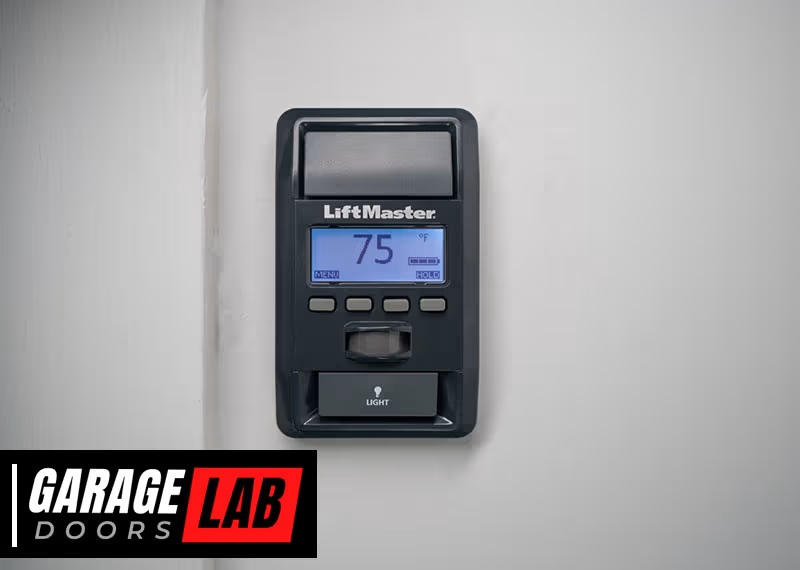
- Wall control panels
Each device has a unique linking process, but the basics stay similar.
Safety Precautions Before You Begin
Linking your LiftMaster opener is usually safe, but there are a few things you should always do first:
- Unplug the opener when working with wiring.
- Keep ladders stable and don’t overreach.
- Clear the garage door area so pets and kids stay safe.
- Read your manual for specific warnings about your model.
A common mistake is forgetting to check the batteries in remotes and keypads. Make sure all devices have fresh batteries before you start.
Tools And Information You Need
Before starting, gather these items:
- Your LiftMaster manual (or find the model number on the unit)
- A step ladder
- New batteries for remotes/keypads
- Smartphone (if linking smart features)
- Wi-Fi password (for smart openers)
- Small screwdriver (if needed for battery covers)
Having everything ready will save you time and frustration.
How To Link A Standard Remote Control
Most people start by linking a handheld remote to their LiftMaster opener. This is what lets you open or close the garage door from your car or driveway.
Step-by-step Linking Process
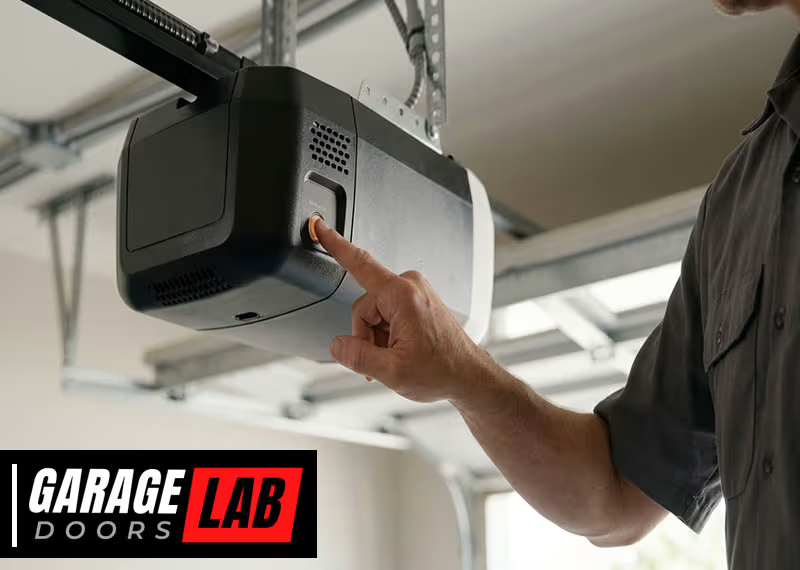
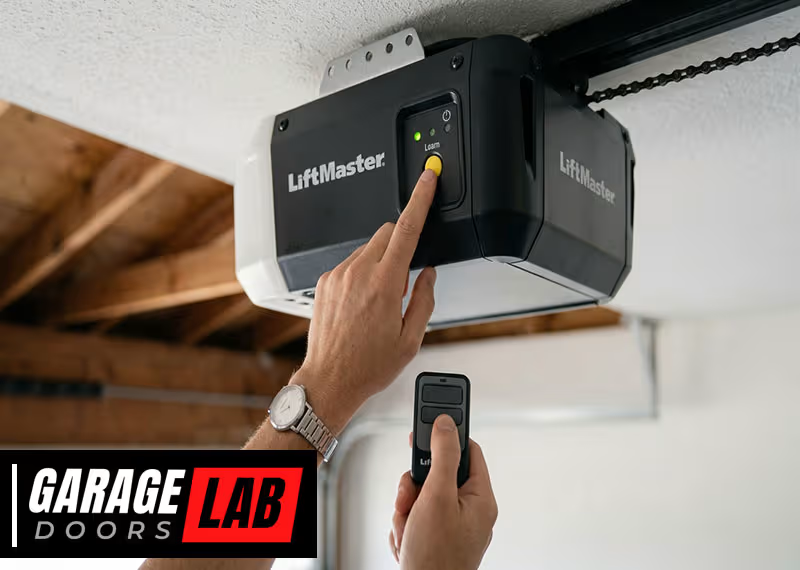
- Find the Learn Button
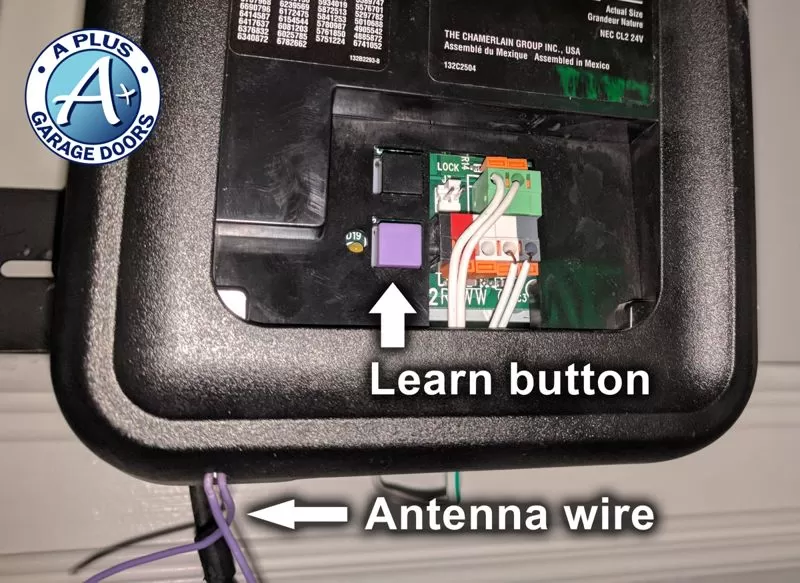
- This button is usually on the back or side of the opener’s main unit, near where the antenna hangs down.
- The color of the learn button matters: Yellow, red/orange, purple, or green. This affects which remotes are compatible.
- Press the Learn Button
- Press and release the learn button. A small LED will light up, usually for about 30 seconds.
- Press the Remote Button
- Within those 30 seconds, press the button on your remote you want to program.
- The opener’s light might flash or you may hear a click—this means it worked.
- Test the Remote
- Press the button again. The garage door should move.
Troubleshooting Tips
- If the remote does not work, try again, making sure to press the learn button firmly.
- If the opener’s memory is full, you may need to erase old codes (hold the learn button for 6 seconds until the LED turns off, then re-link your remotes).
- Some remotes only work with specific colored learn buttons. Check your manual if you have an older opener.
Example
Sarah just bought a new LiftMaster remote for her 2017 belt drive opener. She finds the yellow learn button, presses it, then presses her remote. The light blinks, and the remote works on the first try.
Linking A Wireless Keypad
A wireless keypad lets you open your garage door with a code, usually mounted outside the garage.
How To Program The Keypad
- Locate the Learn Button
- As with remotes, find the learn button on your opener.
- Enter the Code on the Keypad
- Enter your desired 4-digit code on the keypad.
- Press the Learn Button
- Press and release the learn button. You now have 30 seconds to finish.
- Enter the Code and Press Enter
- On the keypad, enter the code again and press the ‘Enter’ key.
- Confirmation
- The opener light should flash or you’ll hear a click.
- Test the Keypad
- Try your code. The door should open or close.
Practical Tips
- If you have two or more garage doors, set a unique code for each.
- Replace batteries in the keypad every 1–2 years.
- For older models, you may need to press the learn button before entering the code.
Common Mistakes
- Not pressing the keys firmly enough.
- Waiting too long between pressing the learn button and entering the code.
Integrating With Your Car’s Built-in Remote (homelink)
Many newer cars have a HomeLink button built into the visor or dashboard. You can program this to open your garage without a separate remote.
Steps To Program Homelink
- Clear Previous Codes
- Hold the first and third HomeLink buttons together until the indicator blinks (about 20 seconds).
- Hold the Remote Near HomeLink
- With the car in park, press and hold your garage remote button near the HomeLink buttons.
- Press Desired HomeLink Button
- Hold both buttons until the HomeLink light changes from slow to fast blinking (about 30 seconds).
- Press the Learn Button on the Opener
- Within 30 seconds, go to your garage and press the opener’s learn button.
- Press the HomeLink Button in Your Car
- Go back to your car and press the programmed HomeLink button up to three times. The door should move.
Data Table: Homelink Compatibility By Model Year
| Car Model Year | HomeLink Version | LiftMaster Compatibility |
|---|---|---|
| Before 2012 | Version 3 | May need “bridge” repeater |
| 2012–2016 | Version 4 | Works with most units |
| 2017–Present | Version 5 | Full compatibility |
Non-obvious Insights
- Some older HomeLink systems need a bridge device to work with rolling code LiftMaster openers. This device is sold separately.
- If your car battery dies, you usually won’t lose the HomeLink programming.
Linking Your Liftmaster To The Myq App (smartphone Control)
Many LiftMaster openers made after 2012 support myQ, a cloud service that lets you control your garage from your phone.
Benefits Of Myq
- Open or close your door from anywhere.
- Get alerts if your door is left open.
- Set schedules for automatic closing.
How To Link Myq
- Check Wi-Fi Signal
- Make sure your garage has strong Wi-Fi. Stand by the opener with your phone and check the signal.
- Download the myQ App
- Get the myQ app from the Apple App Store or Google Play.
- Create a myQ Account
- Open the app and set up a free account.
- Press the Learn Button
- On the opener, press and release the learn button. The LED will blink.
- Add Device in the myQ App
- In the app, tap “Add Device.” Follow prompts to connect the opener.
- Connect to Wi-Fi
- Enter your Wi-Fi password when asked.
- Test the Connection
- Use the app to open or close the door.
Data Table: Myq Features Vs Standard Remotes
| Feature | myQ App | Standard Remote |
|---|---|---|
| Open/Close from Anywhere | Yes | No |
| Activity History | Yes | No |
| Integrate With Smart Home | Yes | No |
| Works Without Internet | No | Yes |
Hidden Tips
- The myQ app supports multiple users, so your whole family can have access.
- You can set up alerts if your garage door is open longer than 10 minutes.
Common Issues
- Weak Wi-Fi is the top cause of connection failures.
- Some openers need a separate myQ Wi-Fi hub—check your model.
Linking Your Opener To A Home Automation System
If you use Amazon Alexa, Google Home, Apple HomeKit, or IFTTT, you can link your LiftMaster opener for voice control and automation.
General Linking Steps
- Confirm Compatibility
- Not all LiftMaster models support every smart home system. Check the myQ website for your model.
- Link myQ to Your Home System
- In your smart home app (like Alexa), search for the myQ skill or service.
- Log in With Your myQ Account
- Authorize the connection.
- Discover New Devices
- Your garage door should appear in your smart home app.
Example Automation
- “Alexa, close the garage door.”
- Receive alerts on your phone if the door opens unexpectedly.
Caution
- Most smart home platforms do not allow voice opening for security reasons—only closing.
Adding Or Replacing A Wall Control Panel
Your LiftMaster opener may have a wired or wireless wall control panel. These let you open/close the door, turn on lights, or lock out remotes.
How To Link Or Replace A Wall Control Panel
- Turn Off Power
- Unplug the opener before removing the old panel.
- Remove the Old Panel
- Use a screwdriver to disconnect wires (if wired).
- Connect the New Panel
- Match wires to terminals. Screw them in place.
- Plug In and Test
- Restore power. Test the new panel.
Important Details
- Some panels have extra features like motion detection or timers.
- If your panel does not work, check the wiring and fuse.
Linking Multiple Remotes And Devices
You can link up to 8–12 remotes or keypads (depending on your model). If you reach the limit, adding a new device will erase the oldest one.
How To Manage Linked Devices
- Write down which remotes are linked, especially for large families.
- If you lose a remote, erase all codes and re-link only your trusted devices.
Security Tip
- Regularly review who has access to your garage. If you move or sell your car, delete old codes.

Troubleshooting Problems When Linking
Sometimes, things do not work as planned. Here are some quick fixes:
- Remote Not Responding
- Check the battery. Try re-linking.
- Keypad Will Not Program
- Reset the keypad by removing batteries for 30 seconds.
- MyQ App Cannot Find Opener
- Restart your Wi-Fi router. Move your phone closer to the opener.
- Car Remote (HomeLink) Fails
- Try a bridge device if you have an older car.
Data Table: Common Issues And Solutions
| Problem | Possible Cause | Solution |
|---|---|---|
| Remote does not work | Dead battery | Replace battery, re-link |
| Cannot link myQ | Poor Wi-Fi signal | Move router, add Wi-Fi extender |
| Keypad not accepted | Wrong code sequence | Re-enter code, follow correct steps |
| Car remote fails | Compatibility issue | Use bridge/repeater device |
Advanced Tips For A Better Experience
- Change your remote codes every few years for security.
- Add a battery backup to your opener for power outages.
- Use the myQ guest feature to give temporary access to visitors.
Two Insights Many People Miss
- Garage doors can be hacked if you use very old remotes. Upgrade to rolling code technology for better security.
- LED light bulbs in your opener can sometimes interfere with remote signals. If you have range problems, try a different bulb type.

When To Call A Professional
Linking your LiftMaster opener is usually a DIY task. However, call an expert if:
- The opener will not respond after several attempts.
- You see sparking, smoke, or hear strange noises.
- You need to wire a new wall panel and are not comfortable with electricity.
Professional help is also wise if you want to install advanced smart home integrations or need to replace the main logic board.
Keeping Your Opener Secure
Garage door openers are a target for thieves. Keep your system secure by:
- Using rolling code remotes (most LiftMaster models since 1993).
- Erasing all codes if you move to a new home.
- Never leaving your remote in an unlocked car.
- Regularly updating your myQ app and software.
Where To Find More Help
For official manuals, troubleshooting guides, and support, visit the LiftMaster Support Site. This site has up-to-date information and videos for every model.
Frequently Asked Questions
How Many Remotes Can I Link To My Liftmaster Garage Door Opener?
Most LiftMaster openers allow 8–12 remotes and keypads. If you try to add more, the oldest one will be removed from memory.
Why Won’t My New Remote Link To My Opener?
The most common reasons are a dead battery, using the wrong type of remote, or not pressing the learn button correctly. Check your opener’s learn button color and match it with a compatible remote.
Can I Link My Liftmaster Opener To More Than One Smartphone?
Yes, the myQ app allows multiple users. You can invite family members to share control, and each person can set their own alerts.
Will Linking My Opener To A Smart Home System Make It Less Secure?
No, as long as you use strong passwords and update your app, myQ and most smart home platforms are safe. For extra security, enable two-factor authentication.
What Should I Do If I Lose My Garage Remote?
Erase all old codes from your opener (hold the learn button for 6 seconds until the LED turns off), then re-link only the remotes you still have. This prevents lost remotes from working.
Opening and closing your garage should never be a hassle or a worry. By following these steps, you can link your LiftMaster garage door opener to every device you need, enjoy modern convenience, and keep your home secure. Take your time, use these tips, and you’ll have a smarter, safer garage in no time.