
Syncing a garage door opener is a task many homeowners face, whether moving into a new home, replacing an old remote, or adding another family member’s access. While it may sound technical, the process is usually simple and doesn’t require special tools.
The feeling of your garage door smoothly opening and closing with a single button is not just about convenience—it’s also about security and peace of mind. Understanding how to sync your garage door opener means you can quickly handle issues, reduce service calls, and keep your property safe.
This guide will help you master the process from start to finish, whether you have a modern smart opener or an older model. You will learn the exact steps, find out how to troubleshoot common problems, and discover tips that even many experienced users miss.
By the end, you’ll feel confident about syncing any garage door opener and know what to do if things don’t go as planned.
Why Syncing Your Garage Door Opener Matters
Most people think syncing a garage door opener is just about making the remote work. But syncing is more than that—it’s about security, convenience, and control.
When your opener and remote are properly synced, only your remotes can open the door. This keeps out uninvited guests and avoids accidental openings by neighbors with similar devices. It also means you don’t have to leave your car to open the door, which is especially important during rain, snow, or late-night arrivals.
If you change remotes, move into a new house, or suspect someone else has your code, syncing lets you reset everything and take control. For smart garage door openers, syncing often connects your door to your phone or smart home system, making it possible to check and control your garage from anywhere.
How Garage Door Openers Work
Before you start syncing, it helps to know the basics of garage door opener technology.
Most openers work with a radio frequency signal. The remote sends a coded signal to the opener’s receiver. When the codes match, the opener activates the motor and opens or closes the door. Newer openers use rolling codes (the code changes with every use) for better security. Older models may use fixed codes and dip switches.
Some openers now connect to Wi-Fi, letting you control them with a smartphone app or smart home device. Each system has a slightly different syncing process, but all follow the same basic idea: pairing a control device with the opener.
Understanding which type you have will save you time and help you follow the right steps.
Types Of Garage Door Openers And Their Syncing Methods
Garage door openers come in several types. Here’s a breakdown of the most common systems and how syncing works for each.
| Type | Typical Sync Method | Common Brands |
|---|---|---|
| Traditional Remote-Controlled | Physical button on opener unit (learn button) | Chamberlain, LiftMaster, Genie |
| Smart/Wi-Fi Enabled | Mobile app pairing via Wi-Fi | MyQ, Aladdin Connect |
| Fixed Code (Dip Switch) | Set switches to match opener and remote | Older Genie, Craftsman |
| Keypad Entry | Program code, then pair with opener | Chamberlain, Linear |
Traditional Remote-controlled Openers
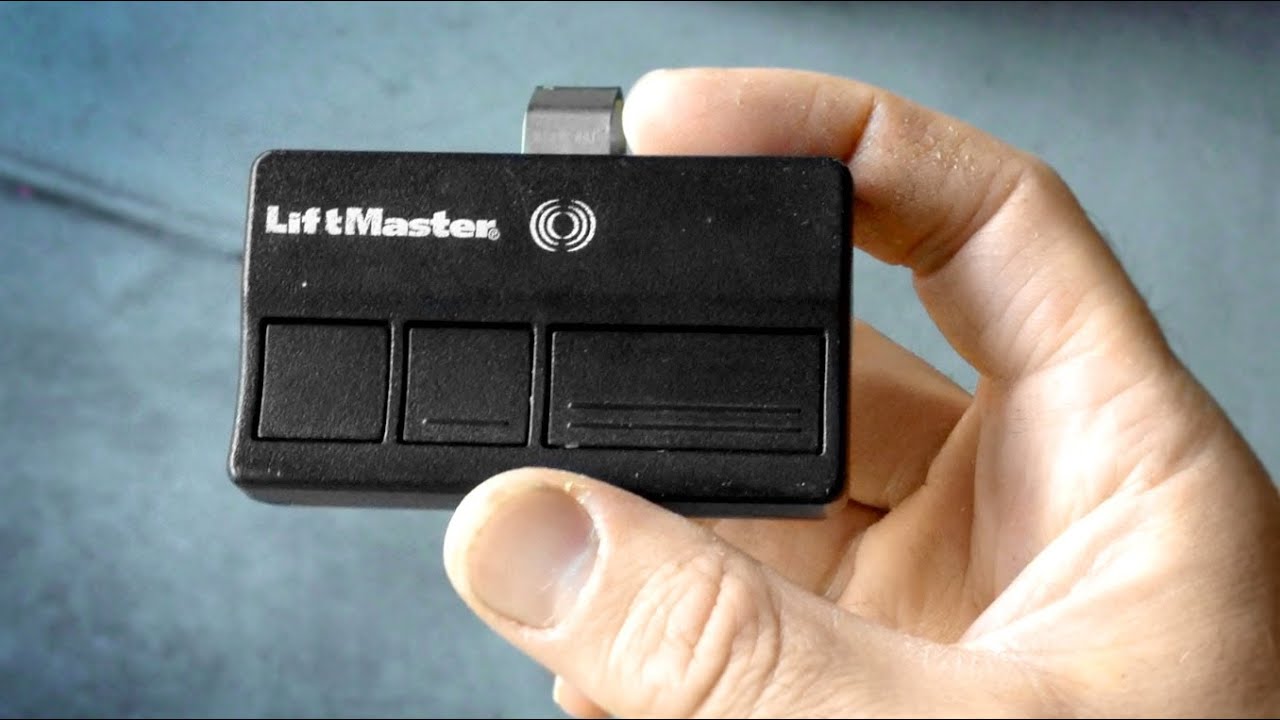
These are the most common. Syncing involves pressing a “learn” or “program” button on the main opener unit, then pressing a button on your remote.
Smart/wi-fi Enabled Openers
These let you control your garage with a phone app. Syncing usually means connecting the opener to your home Wi-Fi and following steps in the app. Many support multiple users.
Fixed Code/dip Switch Openers
Older models use a set of small switches (dip switches) inside both the remote and the opener. They must match exactly for the remote to work.
Keypad Entry Systems
These let you open the garage by entering a PIN. Syncing involves programming the keypad and pairing it with the main opener, usually using the learn button.
Tools And Preparation Before Syncing
You don’t need many tools to sync a garage door opener, but a little preparation can save headaches.
- A sturdy ladder: You’ll need to reach the opener unit on the ceiling.
- The remote or keypad: Have the device you want to sync nearby.
- Garage door opener manual: If you have it, keep it handy for model-specific instructions.
- Smartphone: For smart openers, you’ll need your phone and the correct app installed.
- Pen and paper: To jot down codes, especially for keypads.
Before you start, make sure the garage door is closed and the area is well lit. For safety, keep children and pets away from the door during testing.
Step-by-step Guide: How To Sync A Garage Door Opener
Let’s get practical. The steps below cover the main systems you’ll see. Follow the section that matches your opener.
1. Syncing A Standard Remote-controlled Opener (learn Button Method)
This is the most common way, used by brands like Chamberlain, LiftMaster, and Genie.
- Find the Learn Button
- The learn button is usually on the back or side of the opener unit (mounted on the ceiling).
- It may be labeled Learn, Program, or simply be a colored button (often yellow, purple, red, or orange).
- You might need to remove a light cover to see it.
- Press the Learn Button
- Use a ladder to safely reach the opener.
- Press and release the learn button. A small indicator light should turn on or blink.
- You now have 30 seconds (sometimes less) to complete the next step.
- Press the Remote Button
- With the opener in “learn” mode, press the button on the remote you want to sync.
- The opener light may blink or you may hear a click, showing the pairing was successful.
- Test the Remote
- Move off the ladder and press the remote button again. The door should open or close.
- Repeat for Additional Remotes
- If you have more remotes, repeat steps 2–4 for each one.
Practical Tip: If you hold the learn button too long (usually over 6 seconds), it may erase all remotes from memory. Use this only if you want to reset everything.
2. Syncing A Smart/wi-fi Enabled Garage Door Opener
For brands like MyQ, Genie Aladdin Connect, or Nexx Garage, you’ll need your phone and the correct app.
- Download the App
- Download the official app for your opener (e.g., MyQ for Chamberlain/LiftMaster, Aladdin Connect for Genie).
- Create or Log in to Your Account
- Most apps require an account. Sign up or log in.
- Put the Opener in Pairing Mode
- Usually, you press a button on the opener to start Wi-Fi setup. Check the manual for the exact button and timing.
- Connect to Wi-Fi
- The app will guide you to connect the opener to your home Wi-Fi network. You may need your Wi-Fi password.
- Complete Pairing in the App
- Follow the app’s instructions to finish setup. Name your device and test the door through the app.
- Add Additional Users
- Most apps let you share access with family members. Send invites from the app.
Non-Obvious Insight: Use a 2.4 GHz Wi-Fi network if possible. Many openers don’t support 5 GHz networks.
3. Syncing Fixed Code/dip Switch Remotes
These are less common now but still found in older homes.
- Open the Remote and Opener Case
- Find the dip switches inside both the remote and the opener (or wall control panel).
- Match the Switches
- Use a small tool to set the switches in the remote to match exactly those in the opener.
- Close the Cases and Test
- Close both devices and test the remote. The door should respond.
Practical Tip: If your remote works intermittently, worn contacts or loose switches can be the cause. Clean and secure them.
4. Syncing A Keypad Entry System
Keypads can be universal or brand-specific. The basic process is similar to remotes but uses a PIN.
- Enter Programming Mode
- Press the learn button on the opener.
- You’ll have 30 seconds to finish the next steps.
- Enter PIN and Confirm
- On the keypad, enter your desired PIN (usually 4 digits).
- Press the program button on the keypad (often the “Enter” or “Send” button).
- Test the Keypad
- Wait a few seconds, then try your PIN. The door should open.
Non-Obvious Insight: If your keypad is exposed to weather, use a weatherproof cover. Moisture can cause syncing failures or random codes.
Syncing Multiple Garage Door Openers
Some homes have more than one garage door. Most remotes can control two or three openers.
- Choose the Button
- Many remotes have two or three buttons. Each can be synced to a different opener.
- Repeat the Syncing Process
- For each opener, repeat the standard syncing steps, using a different button.
- Label Remotes
- For clarity, label each button or remote with the door it controls.
Practical Tip: If you have multiple openers from different brands, universal remotes can be programmed to each, but always check compatibility.
Troubleshooting Syncing Problems
Even with clear steps, syncing sometimes fails. Here’s how to fix common issues.
Remote Won’t Program
- Check the battery: Weak or dead batteries are the most common cause.
- Get closer: Program the remote while standing under the opener.
- Erase and reset: If you suspect memory is full or codes are mixed, hold the learn button for 6–10 seconds to erase all remotes, then start over.
- Check compatibility: Older openers (before 1993) may not work with newer remotes.
Smart Opener Won’t Connect
- Wi-Fi issues: Ensure your network is 2.4 GHz and has good signal in the garage.
- App updates: Update the garage door app to the latest version.
- Factory reset: If all else fails, reset the opener and follow the setup from scratch.
Keypad Not Working
- Battery: Most keypads run on a 9V battery. Replace it.
- Reprogram: Keypads lose codes if batteries die or after power surges. Re-sync using the steps above.
- Weather damage: Inspect for corrosion or water damage.
Door Opens/closes On Its Own
- Interference: Rare, but strong radio signals or a neighbor with the same code (fixed code openers) can trigger your door. Change codes or upgrade to a rolling code opener.
Safety And Security Considerations
Syncing isn’t just about convenience—it’s also about keeping your home secure.
- Erase old remotes: If you move into a new home or lose a remote, erase all devices and re-sync only your own.
- Change codes regularly: For keypads, update your PIN every few months.
- Upgrade to rolling code: Fixed code openers are less secure. Consider upgrading if your system is over 20 years old.
- Monitor app access: For smart openers, remove old users from the app if they no longer need access.
Stat: According to the FBI, about 9% of home burglaries occur through the garage. Keeping your opener synced and secure makes a real difference.
When To Call A Professional
Most syncing issues can be fixed at home, but some situations require expert help.
- Opener won’t enter programming mode: Internal electronics may be damaged.
- Frequent syncing failures: If remotes or keypads won’t stay synced, the receiver board may be failing.
- Motor problems: If the door doesn’t move when testing, there may be a mechanical issue.
Professional garage door technicians can repair or replace components and ensure your system is safe.
Comparison: Diy Syncing Vs. Professional Service
Sometimes you might wonder if it’s worth calling a professional. Here’s a quick look at the main differences:
| DIY Syncing | Professional Service |
|---|---|
| Usually free (except for new remotes) | Service fee (typically $75–$150) |
| Takes 5–15 minutes | May require scheduling, but includes full inspection |
| Good for standard remotes and smart openers | Best for complex issues, wiring, or opener replacement |
| Requires basic tools and ladder | Technician brings all equipment |
Key Advice: Try DIY first—it covers most syncing needs. Call a pro if the opener is unresponsive, if you’re uncomfortable with ladders, or if the system is very old.
Advanced Syncing: Universal Remotes And Home Automation
If you want more flexibility, you might use a universal remote or connect your garage door to a smart home system.
Universal Remotes
Universal remotes can control different brands and models. Programming them is similar, but you may need to enter specific codes or follow special steps.
- Find the right code: Check the universal remote manual for your opener’s brand.
- Enter pairing mode: Usually, you press and hold buttons on the remote, then sync as you would with a standard remote.
- Test all functions: Make sure open, close, and light functions work.
Common Mistake: Not all universal remotes work with all openers, especially older or very new models. Always check compatibility before buying.
Smart Home Integration
Many modern openers can be linked to systems like Amazon Alexa, Google Home, or Apple HomeKit.
- Follow the app instructions: Most smart openers guide you step-by-step to connect with your smart home system.
- Set up routines: You can set your garage to open when you arrive home or close at a certain time every night.
- Monitor status: Smart home apps let you check if your garage is open or closed from anywhere.
Non-Obvious Insight: Some insurance companies give discounts for homes with smart garage door monitoring.
Best Practices For Smooth Syncing
Syncing is easier when you follow a few simple tips:
- Work systematically: Sync one device at a time and test before moving on.
- Keep records: Write down codes and PINs in a safe place.
- Replace batteries regularly: Weak batteries can cause inconsistent performance.
- Stay up to date: Update smart opener firmware and apps for the best security.

Common Myths About Garage Door Opener Syncing
Many homeowners believe syncing is risky or complicated. Here are facts to clear up confusion.
- Myth: Syncing can erase all settings and break the opener.
- Fact: Normal syncing only adds or removes remotes. You must hold the learn button to erase all devices.
- Myth: Only professionals should sync remotes.
- Fact: Most people can sync remotes in minutes with basic instructions.
- Myth: Universal remotes always work.
- Fact: Compatibility depends on the opener’s brand, age, and technology.
- Myth: Smart openers are always secure.
- Fact: You must manage app access and update passwords to keep your system safe.
Environmental And Energy Considerations
Modern openers use very little electricity—usually about 5 watts in standby mode. Smart openers may use a bit more, but the difference is small. Syncing your opener doesn’t change energy use, but regular updates and good battery management help reduce waste.
If you want to save even more energy, look for Energy Star certified openers and use LED bulbs in opener light fixtures.
Upgrading Your Garage Door Opener: When Syncing Isn’t Enough
If your opener is more than 20 years old, you might run into problems that syncing can’t solve. Here’s when to consider an upgrade:
- No rolling code support: Old fixed code openers are less secure.
- No smart features: You can’t control or monitor the door from your phone.
- Frequent breakdowns: Motor or electronics fail regularly.
- No safety sensors: Modern codes require sensors to prevent accidents.
Upgrading usually means you’ll need to sync new remotes and devices, but the process will be more secure and convenient.
Syncing For Renters And Property Managers
If you rent or manage property, controlling garage access is even more important. Always erase remotes and change codes between tenants. Use smart openers to give and revoke access remotely, and keep logs for added security.
The Future Of Garage Door Opener Syncing
Technology is moving fast. Soon, more openers will offer Bluetooth syncing, voice control, and advanced security features. The basics will stay the same: pairing a device with your opener for easy, secure access.
For the latest official standards, visit the Wikipedia: Garage Door Opener page.
Frequently Asked Questions
How Many Remotes Can I Sync To My Garage Door Opener?
Most modern garage door openers can sync up to five remotes and one or two keypads. Some smart systems support even more users through their app. Check your opener’s manual for exact limits.
What Should I Do If My Remote Suddenly Stops Working?
Start by replacing the remote battery and re-syncing the remote using the steps above. If it still doesn’t work, try erasing all remotes from the opener and re-pairing them. If problems continue, the receiver or remote may need replacement.
Can I Use My Smartphone To Open My Garage Door?
Yes, if you have a smart/Wi-Fi enabled opener. Download the official app (like MyQ or Aladdin Connect), follow pairing steps, and you can open or close your garage from your phone. Some systems also work with smart home assistants.
Is It Safe To Sync A Universal Remote To My Garage Door Opener?
Yes, as long as the universal remote is compatible with your opener model and uses rolling code technology. Always erase old remotes when switching to a new one for better security.
How Do I Erase All Remotes And Start Fresh?
Hold the learn button on your opener for 6–10 seconds until the indicator light turns off. This erases all synced remotes and keypads. You can then sync new devices one by one.
Syncing your garage door opener is a straightforward task that brings both convenience and security. With the right steps and a little care, you can control who comes and goes, solve most issues yourself, and keep your home protected. Whether you’re using a classic remote, a smart opener, or a keypad, following these tips will make syncing quick, easy, and reliable.