
Now Reading: How to Connect Myq Garage Door Opener: Step-by-Step Guide
- 01
How to Connect Myq Garage Door Opener: Step-by-Step Guide

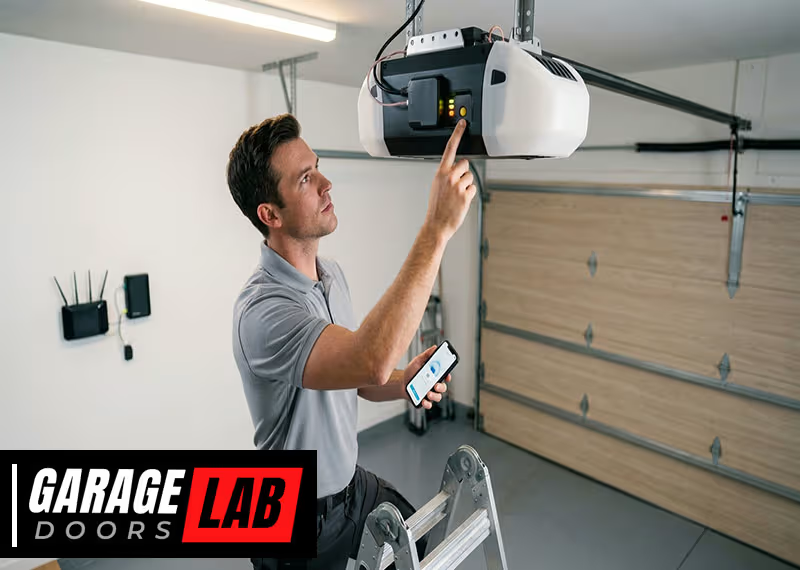
Connecting a smart garage door opener like MyQ can make your daily routine smoother and your home more secure. Many people want to control their garage door from anywhere, get alerts, or link the door to their smart home system. However, the setup process can be confusing if you’re new to smart devices or not very technical. This guide explains everything you need to know about connecting your MyQ garage door opener, whether you’re installing it for the first time or adding it to your existing smart home network.
You’ll learn how to prepare your garage, set up the MyQ hardware, connect with the mobile app, solve connection problems, and get the most out of your device. We’ll also cover common mistakes, share real-world examples, and answer the questions people ask most.
This way, you’ll avoid frustration and feel confident about making your garage smarter.
Understanding Myq Garage Door Opener
MyQ is a smart garage door system made by Chamberlain and LiftMaster. It lets you open, close, and monitor your garage door using your phone, tablet, or voice assistant. Some MyQ models come built into new garage openers, while others are small modules that connect to your existing opener. The system works with most brands made after 1993.
Key Features
- Remote access: Open or close your garage from anywhere.
- Real-time alerts: Get notifications when the door opens, closes, or stays open.
- Scheduling: Set times for the door to close automatically.
- Guest access: Share limited access with friends or family.
- Integration: Works with Amazon Key, Google Assistant, Apple HomeKit (with special hub), and more.
Models And Compatibility
There are several MyQ models. Some require a Wi-Fi connection, while others use Bluetooth or need a special hub. Not all garage openers are compatible, so you need to check before buying.
Here’s a quick look at common MyQ types:
| Model | Type | Needs Hub? | Wi-Fi Built-in? | Works With |
|---|---|---|---|---|
| Chamberlain B970 | Garage Door Opener | No | Yes | Most smart home systems |
| MyQ Smart Garage Hub | Retrofit add-on | Yes | No | Existing openers (1993+) |
| LiftMaster 8500W | Garage Door Opener | No | Yes | Amazon Key, Google, Apple HomeKit* |
*Apple HomeKit requires a special MyQ Home Bridge.
Preparing For Myq Setup
Before connecting your MyQ garage door opener, a little preparation will save time and prevent mistakes.
Check Compatibility
First, make sure your garage door opener is compatible. Most openers made after 1993 with safety sensors (photo eyes) will work. Look for a “Learn” button on your opener motor. If you’re unsure, check the MyQ compatibility tool on the official website or your device’s manual.
Gather What You Need
You’ll need:
- MyQ device (built-in or retrofit hub)
- Smartphone (iOS or Android)
- Wi-Fi network (2.4 GHz, strong signal in garage)
- Ladder or safe way to reach the opener
- Screwdriver (if mounting is needed)
- Power outlet near the opener
Tip: Write down your Wi-Fi password before starting.
Improve Wi-fi Signal
A weak Wi-Fi signal causes most MyQ setup problems. Test your phone’s Wi-Fi in the garage. If the signal is poor, use a Wi-Fi extender or move your router closer before setup.
Update The Myq App
Download the latest MyQ app from the App Store or Google Play. Updates fix bugs and make setup smoother.
Plan For Safety
Always unplug the garage door opener before touching any wires. Keep the area clear, and don’t let children play near the door during setup.
Installing The Myq Hardware
How you install MyQ depends on your model. If you bought a garage door opener with MyQ built-in, you can skip most of this section. If you have a MyQ Smart Garage Hub or similar add-on, follow these steps:
Mount The Door Sensor
The door sensor tells MyQ if your garage is open or closed.
- Find the top panel inside your garage door.
- Clean the area where you’ll mount the sensor.
- Attach the sensor using the included double-sided tape or screws (tape is easier but screws are more secure).
- Make sure the sensor’s arrow points up.
Tip: The sensor must stay still when the door moves. Don’t mount it on a window or loose panel.
Install The Myq Hub
The hub connects to your Wi-Fi and controls the opener.
- Pick a spot on the ceiling or wall near your garage door opener (within 5 feet).
- Plug in the hub to a power outlet.
- Mount the hub using the included bracket and screws.
- Make sure the hub’s warning light and speaker are not blocked.
The hub needs a clear line of sight to the door sensor.
Power Up And Test
Plug the opener back in. The hub should light up or beep. If not, double-check the power outlet and connections.
Connecting Myq To Your Wi-fi Network
Once the hardware is installed, you need to link MyQ to your Wi-Fi and the mobile app.
Start The Myq App
Open the app and create an account if you don’t have one. Use a strong password and correct email, as you’ll get alerts and security notices.
Add A New Device
Tap the “+” or “Add Device” button in the app. Choose Garage Door Opener or Smart Garage Hub (depending on your device).
Put The Hub In Setup Mode
Press and hold the “Settings” or “Learn” button on your hub until the light blinks blue. This means it’s ready to connect.
Connect To Wi-fi
Follow the app’s instructions:
- Select your home Wi-Fi network (must be 2.4 GHz).
- Enter your Wi-Fi password.
- Wait for the light to turn solid green (or as directed in the app).
If the light turns red or blinks, check your Wi-Fi password, move closer to the router, or restart your phone.
Link The Door Sensor
The app will ask you to pair the door sensor. Usually, you press a button on the sensor or remove a battery tab. The app shows when pairing is successful.
Add Your Garage Door Opener
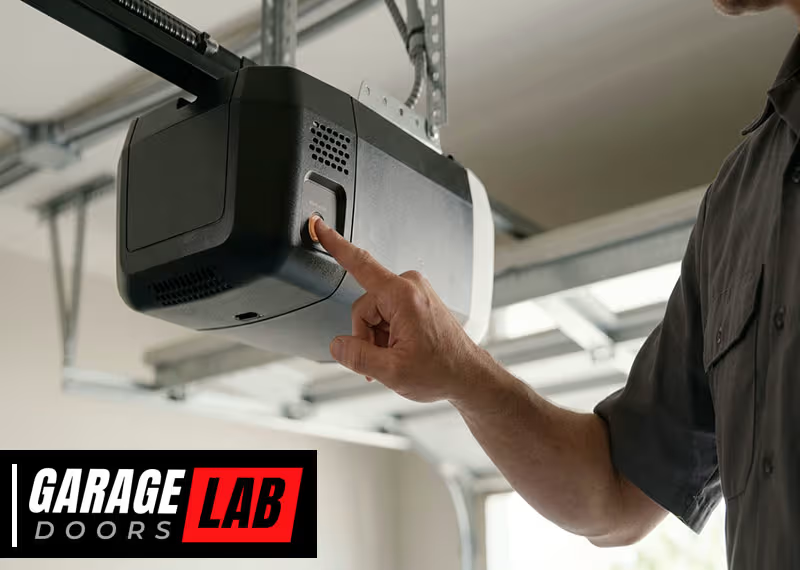
If you have a MyQ Hub, the app will guide you to press the “Learn” button on your garage opener motor (not the hub). This lets MyQ control the opener.
- Tap “Add Garage Door” in the app.
- Press the opener’s “Learn” button (often yellow, orange, purple, or red).
- The app will confirm when pairing is complete.
Tip: If you have a wall-mounted opener, the “Learn” button is usually behind a light cover.
Name Your Door
Give your door a simple name like “Main Garage” or “Shop Door. ” This helps if you add more doors later.
Testing Your Myq Setup
After setup, always test your MyQ system to make sure everything works.
Open And Close The Door
Use the MyQ app to:
- Open the door (watch for the warning beeps and lights)
- Close the door (the app should show real-time status)
The door should move smoothly, and the app should update within a few seconds.
Test Alerts And Notifications
Close the door, then open it manually. The app should send you a notification. If not, check your phone’s notification settings and MyQ app permissions.
Try Guest Access
Invite a family member to use the door through the app’s sharing feature. They should get an email or text with a link to join.
Test Voice Assistant Integration
If you connected MyQ to Google Assistant, Amazon Alexa, or Apple HomeKit, try opening or closing the door with your voice. Some voice assistants require extra steps or a paid subscription for remote commands.
Connecting Myq To Other Smart Home Devices
One big advantage of MyQ is its ability to work with other smart home systems. But setup can be tricky, and not all features are free.
Google Assistant
You can connect MyQ to Google Home for voice control. In the Google Home app:
- Tap “Add” > “Set up device”.
- Search for MyQ.
- Log in with your MyQ account.
You can ask Google to check if the door is open or close it, but opening by voice may require extra security steps.
Amazon Alexa
Official MyQ support for Alexa is limited. You can close the door using Alexa routines if you use IFTTT or third-party skills. Opening the door by voice is not supported for safety reasons.
Apple Homekit
To use MyQ with HomeKit, you need the MyQ Home Bridge. This adds HomeKit support, allowing you to control the door in the Apple Home app and with Siri. The bridge is a separate device that plugs into your network.
Amazon Key
With MyQ and Amazon Key, you can let Amazon drivers deliver packages inside your garage. Connect your MyQ account in the Amazon Key app. This service is available in select cities in the US.
Ifttt
IFTTT (If This Then That) lets you make custom automations. For example, you can set the door to close when you leave home or send a text if the door stays open for 10 minutes.
Common Integration Limitations
- Some features, like voice opening or advanced routines, may require a paid MyQ subscription.
- Not all smart home systems support all MyQ models.
- You may need to update device firmware for full compatibility.

Troubleshooting Common Myq Connection Problems
Even with the best preparation, you might hit some snags. Here’s how to solve the most frequent MyQ setup problems.
Wi-fi Connection Fails
- Check that your Wi-Fi is 2.4 GHz (not 5 GHz).
- Move the hub or router closer together.
- Restart your router and the MyQ hub.
- Double-check your Wi-Fi password.
- Avoid special characters in network names or passwords.
Door Sensor Not Detected
- Make sure the sensor battery tab is removed.
- Re-mount the sensor securely.
- Restart the MyQ hub and try pairing again.
App Can’t Find The Opener
- Press the “Learn” button on the opener at the right time (follow the app’s countdown).
- Clear any existing codes or MyQ links in your opener’s memory.
- Check for firmware updates in the MyQ app.
Can’t Control Door Remotely
- Check your phone’s internet connection.
- Make sure the MyQ hub’s light is solid green.
- Log out and back into the MyQ app.
Voice Assistant Not Working
- Re-link your MyQ account in your smart home app.
- Check for paid features or regional restrictions.
- Update your voice assistant device.
Door Opens But Won’t Close
- Make sure the safety sensors (photo eyes) are clean and aligned.
- Remove any objects blocking the door.
- Test closing with the wall button—if it works, the problem is with MyQ setup.
Security And Privacy Concerns
Some users worry about remote hacking or unauthorized access. To reduce risk:
- Use a strong, unique password for your MyQ account.
- Enable two-factor authentication if available.
- Only share guest access with trusted people.
- Regularly check for app and firmware updates.
Real-world Examples And Practical Tips
Learning from actual users can help you avoid headaches. Here are practical examples and advice you won’t find in the quick-start guide.
Example 1: Poor Wi-fi Stops Setup
A homeowner tried to set up MyQ but kept failing at the Wi-Fi step. The problem? The garage was at the edge of their router’s range. Adding a $30 Wi-Fi extender solved the issue instantly.
Tip: If your garage Wi-Fi signal is low, you’ll struggle with setup and daily use. Test with your phone first—if YouTube works smoothly, MyQ probably will, too.
Example 2: Battery Issues
One user found that their MyQ door sensor worked fine for months, then stopped. The sensor battery had died. Replacing the battery fixed the issue.
Tip: The sensor uses a common coin cell battery (like CR2450). Keep a spare handy, especially in cold climates where batteries drain faster.
Example 3: Lost After Power Outage
After a power outage, the MyQ hub lost Wi-Fi and wouldn’t reconnect automatically. The fix was to unplug the hub, wait 30 seconds, and plug it back in. Sometimes you must repeat Wi-Fi setup in the app.
Tip: Write down your setup steps or save screenshots for quick recovery after a power cut.
Example 4: Multiple Family Members
A family wanted everyone to get door alerts. Each person needed their own MyQ account and had to be invited using the app’s sharing feature.
Tip: Set up all users at the start to avoid confusion.
Example 5: Integration Confusion
A user thought MyQ would work with Alexa out of the box. In reality, only closing is supported (and only through workarounds). Opening the door by voice isn’t allowed for safety.
Tip: Check the latest MyQ and smart home integration limits before buying, as they can change with updates or subscriptions.
Maximizing Myq’s Features
After setup, you can unlock more value by using MyQ’s advanced features.
Scheduling
You can program your garage door to close at certain times (for example, every night at 10 PM). This prevents you from forgetting the door open overnight—a common security risk.
Activity History
The MyQ app keeps a log of every open and close action, including who triggered it and when. This is useful for tracking deliveries or checking if your kids came home on time.
Package Delivery
With Amazon Key, you can get packages delivered inside your garage. This reduces theft and weather damage. Check if your city supports this feature.
Guest And Temporary Access
MyQ lets you give guests access for a limited time. For example, you can let a dog walker in between 2 and 3 PM, then remove their access later.
Multiple Door Control
You can add more than one garage door to your MyQ account. This is helpful if you have a detached garage or multiple properties.
Geofencing (with Ifttt)
Set up IFTTT to close your garage door automatically when you leave home, or open it when you arrive. This saves time and keeps your home secure.
Data And Privacy Settings
Review and adjust your notification, sharing, and privacy settings in the app. Make sure only trusted devices have access.
Comparing Myq To Other Smart Garage Solutions
If you’re considering MyQ, you might wonder how it stacks up against competitors like Nexx Garage or Garadget.
Here’s a simple comparison:
| Feature | MyQ | Nexx Garage | Garadget |
|---|---|---|---|
| Works with most openers | Yes (1993+) | Yes | Yes |
| Native Alexa support | Limited | Yes | Yes |
| Amazon Key delivery | Yes | No | No |
| HomeKit support | Yes (with bridge) | No | No |
| Subscription needed for full features | Sometimes | No | No |
While MyQ is the most popular, some users prefer alternatives with fewer restrictions or more open integrations.

Security Tips For Myq Garage Door Opener
A smart garage door is convenient, but it’s important to keep it secure. Here’s how:
- Change default passwords: Use a unique password for your MyQ account.
- Enable two-factor authentication: Adds an extra security layer.
- Monitor sharing: Only give guest access to people you trust.
- Check app and firmware updates: Updates often fix security holes.
- Review access logs: Regularly check who opened your garage and when.
Myq Subscription Services And Costs
Some MyQ features are free, but others require a subscription. This surprises many new users.
Free Features
- Open/close and monitor door from app
- Notifications and activity history
- Basic scheduling
- Guest access
Paid Features
- Integration with Google Assistant (for some models)
- Amazon Key In-Garage Delivery (in select locations)
- Advanced integrations (like IFTTT applets in some regions)
The cost is usually $1-$3 per month, depending on features. Always check the latest information, as pricing and features can change.
Common Mistakes To Avoid
Many beginners make the same errors. Here are two that are easy to miss:
- Forgetting about Wi-Fi range: Most issues come from weak Wi-Fi in the garage. Test before buying and use an extender if needed.
- Assuming all features are free: Some integrations, like voice control or delivery, may need a paid plan. Read the MyQ app details and user reviews for the latest rules.
Frequently Asked Questions
What If My Garage Opener Is Older Than 1993?
Most MyQ products need an opener with safety sensors, which became standard in 1993. If your opener is older, you’ll need to upgrade the opener itself or use a universal retrofit kit, but full smart features may still not work.
Can I Use Myq Without A Smartphone?
You need a smartphone or tablet to set up MyQ and use most features. After setup, you can control the door from a web browser, but mobile access is much easier.
Does Myq Work During A Power Outage?
No. Both the garage opener and the MyQ hub need power and Wi-Fi. If the power or internet goes out, you’ll have to open the door manually with the wall button or physical key.
Is Myq Secure From Hackers?
MyQ uses encrypted connections and secure accounts, but no smart device is 100% hack-proof. Use strong passwords, enable two-factor authentication, and update your app regularly to stay safe. For more on smart home security, see the official Chamberlain MyQ site.
Can I Install Myq Myself, Or Do I Need A Professional?
Most people can install MyQ themselves in about 30–60 minutes. You only need simple tools and basic tech skills. If you’re not comfortable with ladders or wiring, you can hire a professional installer.
Connecting a MyQ garage door opener is one of the best ways to add smart features to your home. With the right preparation, strong Wi-Fi, and careful setup, you’ll enjoy remote control, alerts, and extra convenience for years to come. Avoid common mistakes, check compatibility, and don’t hesitate to use support resources if you get stuck. A smart garage not only makes life easier but also adds a layer of security and peace of mind every time you leave home.