
Now Reading: How To Open Myq Garage Door With Google Assistant
- 01
How To Open Myq Garage Door With Google Assistant

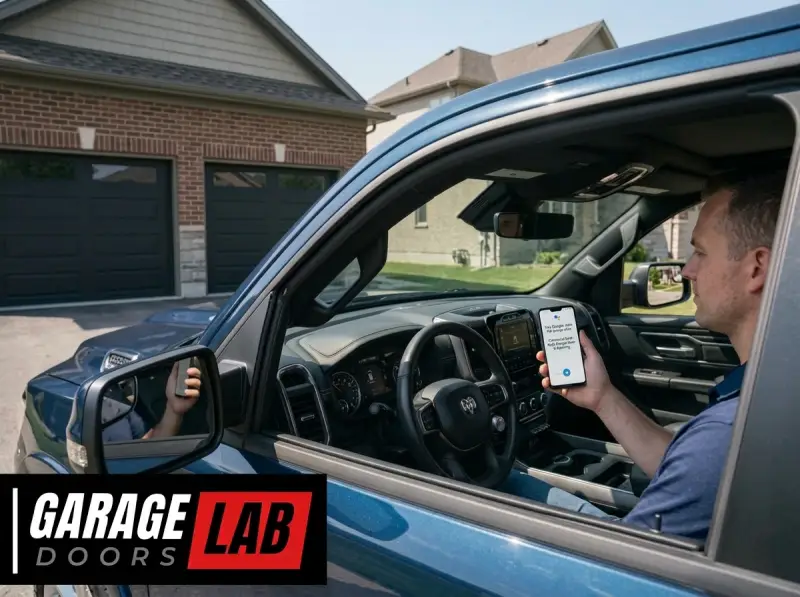
The convenience of voice control has revolutionized how we interact with our homes, and your garage door is no exception. Imagine arriving home with your hands full of groceries, needing to open the garage. Instead of fumbling for your remote or phone, a simple voice command to your Google Assistant can do the trick.
Integrating your MyQ garage door opener with Google Assistant offers a seamless, hands-free experience, enhancing both security and accessibility. This guide will walk you through the entire process, from ensuring compatibility to troubleshooting common issues, empowering you to harness the full potential of your smart home technology.
Key Takeaways
- Compatibility is Key: Not all MyQ garage door openers are compatible with Google Assistant. You’ll need a MyQ-enabled opener or a MyQ Smart Garage Hub and a compatible garage door opener.
- The MyQ App is Central: The MyQ app is the bridge between your garage door opener and Google Assistant. You’ll need to set it up and connect it to your Google Home app.
- Security is Paramount: Due to the security implications of a voice-controlled garage door, Google Assistant will require a voice PIN for opening commands to prevent unauthorized access.
- Linking Process: The connection involves linking your MyQ account within the Google Home app, followed by specific device setup and voice command configuration.
- Troubleshooting Common Issues: Problems can arise from network connectivity, account linking errors, or incorrect voice command phrasing.

Credit: blumine.com.br
Understanding Myq And Google Assistant Integration
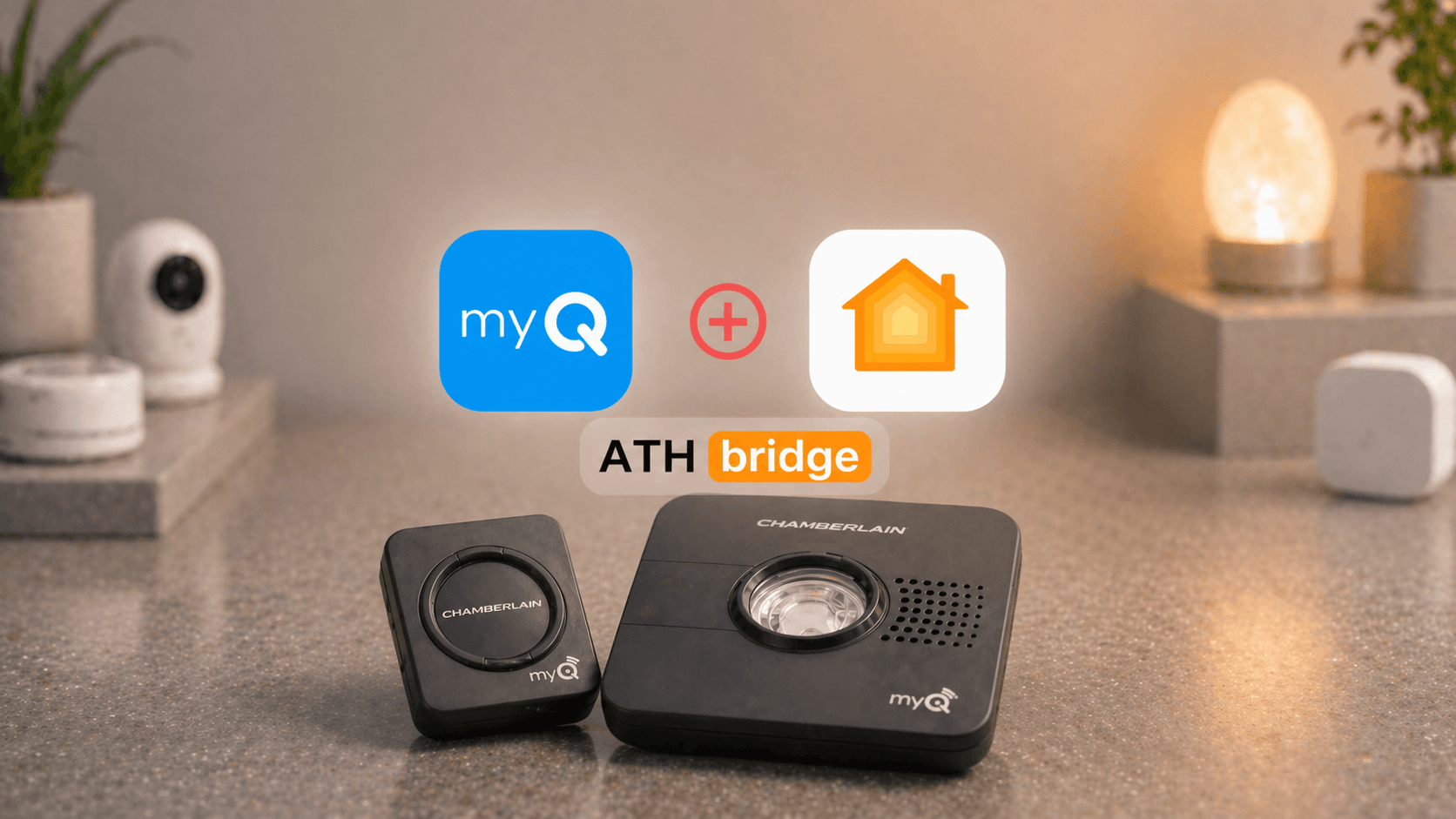
The ability to control your garage door with your voice hinges on the connectivity between your MyQ system and Google Assistant. MyQ, developed by Chamberlain Group, is a technology platform that allows users to monitor and control their garage doors and gates remotely via a smartphone app.
Google Assistant, on the other hand, is Google’s AI-powered virtual assistant that can be accessed through various devices like smartphones, smart speakers (Google Home, Nest Mini), and smart displays. When these two technologies are linked, your Google Assistant can send commands to your MyQ system, which then translates them into actions for your garage door opener.
What Is Myq Technology?
MyQ technology is essentially the “brain” that makes your garage door opener smart. Older garage door openers operate solely with a physical remote or a wall-mounted button. MyQ adds an internet-connected component, allowing for remote operation and monitoring. This is typically achieved through a built-in MyQ receiver in newer openers or by adding a separate MyQ Smart Garage Hub to an existing compatible opener. The core functionality of MyQ includes:
- Remote Operation: Open, close, and check the status of your garage door from anywhere using the MyQ app.
- Notifications: Receive alerts on your smartphone when your garage door opens or closes, or if it’s left open for an extended period.
- Activity Log: View a history of when your garage door was operated.
- Integration: Connect with other smart home platforms and devices.
How Google Assistant Works With Smart Devices
Google Assistant acts as a central hub for controlling a wide array of smart home devices. It uses natural language processing to understand your spoken commands. When you link a compatible smart device, like your MyQ garage door opener, to the Google Home app, you enable Google Assistant to communicate with it. The process typically involves:
- Discovery: The Google Home app discovers compatible devices on your network or linked through a cloud service.
- Linking Accounts: You authorize Google Assistant to access and control your smart device by linking your account from the device’s manufacturer (in this case, MyQ) to your Google account.
- Command Execution: When you issue a voice command (e.g., “Hey Google, open the garage door”), Google Assistant processes the request and sends the appropriate command to the linked device.
Ensuring Compatibility: Myq And Google Assistant
Before you begin the setup process, it’s crucial to confirm that your MyQ system and garage door opener are compatible with Google Assistant. Not all MyQ-enabled devices support this integration directly.
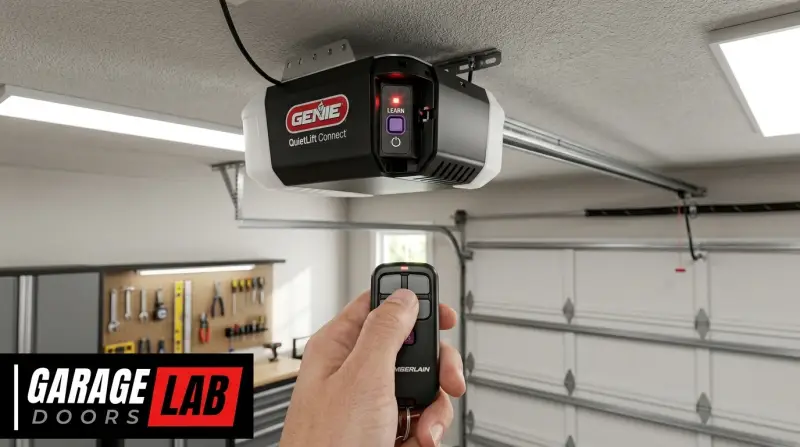
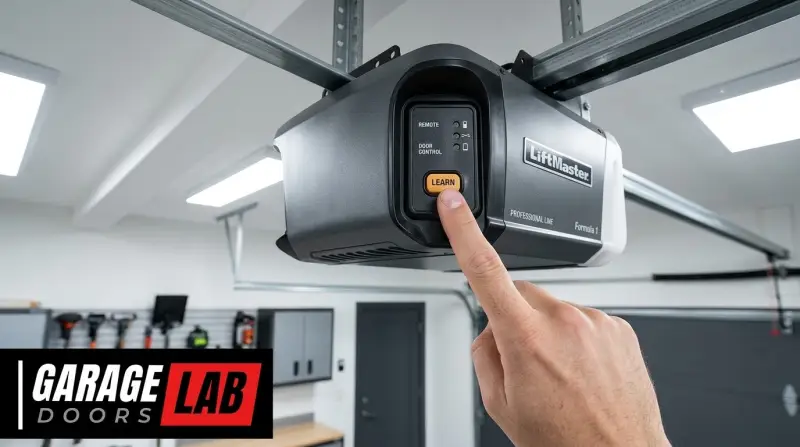
MyQ Garage Door Openers: Many newer Chamberlain and LiftMaster garage door openers come with MyQ technology built-in. You can usually find the MyQ logo or Wi-Fi connectivity indicator on the unit. To check if your specific model is compatible with Google Assistant, visit the MyQ compatibility checker or consult your opener’s manual.
MyQ Smart Garage Hub: If you have an older garage door opener that isn’t MyQ-enabled, you might be able to add smart capabilities with the MyQ Smart Garage Hub. This device works by detecting the position of your garage door (open or closed) and can be paired with a compatible door sensor and a smart controller to operate the opener. Again, compatibility with Google Assistant should be verified for the hub and your specific opener model.
Google Assistant Devices: Any device running Google Assistant, such as a Google Home speaker, Nest Mini, Nest Hub, or your Android or iOS smartphone with the Google Assistant app, can be used to control your garage door.
Step-by-step Guide To Connecting Myq To Google Assistant
Connecting your MyQ garage door opener to Google Assistant involves a series of straightforward steps, primarily managed through the MyQ app and the Google Home app. The process is designed to be user-friendly, but attention to detail is important for a smooth setup.
Step 1: Set Up Your Myq Account And App
If you haven’t already, you’ll need to download the MyQ app and create an account.
- Download the App: Search for “MyQ” in your smartphone’s app store (iOS App Store or Google Play Store) and download the official MyQ app.
- Create an Account: Open the app and follow the prompts to create a new MyQ account. You’ll need to provide an email address and create a password.
- Add Your Garage Door Opener:
- In the MyQ app, tap the “+” icon or “Add Device.”
- Select “Garage Door Opener” or “Smart Garage Hub,” depending on your setup.
- Follow the on-screen instructions to connect your opener or hub to your home Wi-Fi network. This usually involves putting the device in pairing mode and entering your Wi-Fi credentials.
- Once connected, you should be able to see and control your garage door within the MyQ app. Test opening and closing it to ensure it’s working correctly.
Step 2: Link Your Myq Account To Google Home
This is the crucial step where you bridge your MyQ system with Google Assistant.
- Open the Google Home App: Launch the Google Home app on your smartphone or tablet.
- Add a Device: Tap the “+” icon in the top left corner of the app.
- Set up New Device: Select “Set up device.”
- Works with Google: Under the “Works with Google” section, tap “Have something already set up?”
- Search for MyQ: In the search bar, type “MyQ” and select it from the list of services.
- Link Your Account: You will be redirected to a MyQ login page. Enter the email address and password for your MyQ account that you created in Step 1.
- Authorize Access: Grant Google permission to access and control your MyQ devices. This is a standard security protocol.
- Device Assignment: Google Home will then discover your linked MyQ devices. You’ll be prompted to assign them to specific rooms in your home (e.g., “Garage Door” in the “Garage” room).
Step 3: Configure Security Features For Voice Control
For security reasons, Google Assistant implements a voice PIN requirement for opening garage doors via voice command. This prevents unauthorized individuals from opening your garage door simply by speaking to your Google Assistant device.
- Voice PIN Setup:
- In the Google Home app, navigate to Settings.
- Scroll down to the Security section and tap on Voice Match.
- You might need to re-enable Voice Match if it’s not active. Follow the prompts to set up or confirm your voice model.
- Look for an option related to “Garage Door” or “Access Control” within the security settings.
- You will be prompted to create a 4-digit Voice PIN. This PIN must be spoken aloud *after* your initial voice command to open the garage.
- Testing the Voice PIN: After setting up your PIN, try a command like, “Hey Google, open the garage door.” Google Assistant should respond by asking for your 4-digit Voice PIN. Say the PIN aloud to confirm.
Step 4: Test Your Voice Commands
Once everything is linked and secured, it’s time to test your voice commands.
- Opening the Garage: Say, “Hey Google, open the garage door.” You will be prompted for your Voice PIN.
- Closing the Garage: Say, “Hey Google, close the garage door.” Closing commands typically do not require a PIN for security reasons, as it’s generally safer to close a garage door than to open it remotely.
- Checking Status: Say, “Hey Google, is the garage door open?” Or “Hey Google, what’s the status of the garage door?”
Pro Tip: Ensure your Google Assistant device and your MyQ opener (or hub) are connected to a stable Wi-Fi network for reliable performance.
Credit: datamaker.com.br
Optimizing Your Smart Garage Door Experience
Beyond the basic setup, there are several ways to enhance your smart garage door experience with Google Assistant, focusing on convenience, security, and automation.
Voice Command Best Practices
Using clear and consistent voice commands is essential for Google Assistant to accurately interpret your requests.
- Be Specific: If you have multiple garage doors or devices, name them clearly in the Google Home app (e.g., “Front Garage Door,” “Back Garage Door”). Then, use these specific names in your commands: “Hey Google, open the Front Garage Door.”
- Use Standard Phrasing: Stick to common phrases like “open,” “close,” and “is [device] open?”
- Speak Clearly: Enunciate your words and speak at a normal pace. Avoid background noise if possible.
Setting Up Routines For Automation
Google Assistant Routines allow you to trigger multiple actions with a single voice command or at a scheduled time. This can significantly enhance convenience.
- “Good Morning” Routine: You could set up a routine where saying “Hey Google, good morning” not only turns on your lights but also opens the garage door (requiring your Voice PIN).
- “Leaving Home” Routine: A routine for when you leave could involve saying “Hey Google, I’m leaving,” which would then close the garage door, lock your smart locks, and turn off lights.
- Scheduled Openings/Closings: While not always recommended for security reasons, you *could* set a routine to close the garage door at a specific time each night, though manual confirmation or a delayed action might be wiser.
To set up a routine:
- Open the Google Home app.
- Tap on “Routines.”
- Tap the “+” icon to create a new routine.
- Choose a starter (e.g., voice command, time of day).
- Add actions, including controlling your garage door. Remember that opening actions will still require the Voice PIN.
Enhancing Security With Voice Control
While voice control offers convenience, it’s paramount to prioritize security.
- Voice PIN is Non-Negotiable: Always use the Voice PIN for opening commands. Never disable this feature.
- Regularly Review Activity: Use the MyQ app to check the activity log for any unexpected or unauthorized garage door operations.
- Secure Your Google Account: Ensure your Google account is protected with a strong, unique password and two-factor authentication. This prevents unauthorized access to your linked smart home devices.
- Network Security: Secure your home Wi-Fi network with a strong password.
Troubleshooting Common Issues
Despite careful setup, you might encounter problems. Here are solutions to common issues:
Garage Door Not Responding To Voice Commands
- Check Wi-Fi Connection: Ensure both your Google Assistant device and your MyQ opener/hub are connected to your Wi-Fi network. Restart your router if necessary.
- Verify Account Linking: Open the Google Home app, go to Settings > Works with Google, and ensure your MyQ service is still linked and active. If not, unlink and relink it.
- Check MyQ App: Can you control the garage door from the MyQ app? If not, the issue lies with your MyQ setup, not Google Assistant.
- Voice PIN Issues: Make sure you are correctly stating your Voice PIN when prompted. Try resetting the PIN in the Google Home app’s security settings.
- Device Naming: Ensure you are using the correct name for your garage door in your voice commands.
Incorrect Voice Recognition
- Retrain Voice Model: In the Google Home app, go to Settings > Voice Match and retrain your voice model.
- Reduce Background Noise: Ensure your commands are given in a quiet environment.
- Speak Clearly: Enunciate your words and use standard command phrasing.
Myq Device Unresponsive In Google Home
- Force Sync: In the Google Home app, go to your MyQ device, tap the gear icon (settings), and look for an option to “Sync device” or “Refresh.”
- Restart Devices: Power cycle your MyQ opener/hub and your Google Assistant device.
- Check MyQ Service Status: Occasionally, the MyQ cloud service might experience outages. Check their support channels.
Advanced Features And Considerations
Once you’ve mastered the basics of controlling your garage door with Google Assistant, you can explore more advanced functionalities and consider important long-term aspects.
Integrating With Other Smart Home Devices
The true power of a smart home lies in the interconnectedness of devices. Your voice-controlled garage door can become part of larger automated scenarios.
- Security Systems: If you have a compatible smart security system, you could integrate it with Google Assistant. For instance, a routine could be set to disarm the security system when you open the garage door.
- Lighting: As mentioned in Routines, lights can be triggered when the garage door opens, providing illumination as you arrive or depart.
- Smart Locks: When leaving, a routine could close the garage door and then lock your smart front door lock.
Understanding Limitations And Security Implications
While convenient, voice control for a garage door isn’t without its potential drawbacks and requires a strong focus on security.
- Accidental Openings: Although the Voice PIN mitigates this for opening, there’s always a slight risk of unintended commands, especially with complex routines or if multiple people in the household have access to Google Assistant.
- Network Vulnerabilities: Like any connected device, your MyQ system and Google Assistant are reliant on your home network’s security. A compromised network could potentially expose your smart home devices.
- Physical Access: Voice control does not bypass the need for physical security measures. Ensure your garage door itself is in good working order and that any entry points from the garage into your home are secure.
- Third-Party Access: Be mindful of who you grant access to your Google Home and MyQ accounts. Unauthorized access to either could lead to control over your garage door.
Maintenance Of Your Smart Garage System
Regular maintenance ensures the longevity and reliability of both your garage door opener and its smart integration.
- Lubrication: Periodically lubricate your garage door’s moving parts, including rollers and hinges, to ensure smooth operation. Refer to guides like How to Lube Garage Door Rollers for Smooth, Quiet Operation for detailed instructions.
- Opener Adjustments: Ensure your garage door opener’s chain or belt is properly tensioned. For guidance, see How to Adjust Chain on Garage Door Opener for Smooth Operation.
- Firmware Updates: Keep both your MyQ app and Google Home app updated to the latest versions. Manufacturers often release firmware updates for MyQ devices to improve performance and security. Check the MyQ app for any available opener firmware updates.
- Wi-Fi Signal Strength: Ensure a strong and stable Wi-Fi signal reaches your garage door opener or MyQ hub. Poor signal strength is a common cause of connectivity issues. You might consider a Wi-Fi extender if the signal is weak.
When To Seek Professional Help
While most setup and troubleshooting can be done DIY, some issues might require professional assistance.
- Persistent Connectivity Problems: If you’ve exhausted all troubleshooting steps and your MyQ system still won’t connect reliably to Wi-Fi or Google Assistant, a professional installer might be able to diagnose network issues or hardware faults.
- Opener Malfunctions: If your garage door opener itself is experiencing mechanical issues (e.g., motor problems, door not moving smoothly), it’s best to contact a qualified garage door technician. This is crucial for safety, as garage doors are heavy and can cause injury if not handled correctly.
- Complex Smart Home Integration: If you’re looking to integrate your garage door into a very complex smart home system with multiple triggers and devices, a smart home professional can help design and implement a robust solution.
Frequently Asked Questions
Is It Safe To Open My Garage Door With Google Assistant?
Yes, it can be safe, provided you follow security best practices. Google Assistant requires a Voice PIN for opening commands, which acts as a crucial security layer against unauthorized access. Always ensure your Google account and home Wi-Fi network are secure. Regularly check the activity log in the MyQ app for any suspicious activity.
Do I Need A Specific Type Of Garage Door Opener For Google Assistant?
You need a MyQ-enabled garage door opener or a MyQ Smart Garage Hub that is compatible with Google Assistant. Not all MyQ openers support this integration. You can check compatibility on the MyQ website or in your opener’s manual. Older openers that are not MyQ-enabled cannot be directly controlled by Google Assistant unless you add a compatible MyQ hub.
What Happens If My Internet Goes Down? Can I Still Open My Garage Door?
If your internet connection is down, Google Assistant will not be able to control your garage door because the command relies on cloud connectivity between Google’s servers and MyQ’s servers. However, you will still be able to operate your garage door using your traditional remote control or the manual release cord (which allows you to open it by hand).
How Do I Reset The Voice Pin For My Garage Door?
To reset the Voice PIN, open the Google Home app, navigate to Settings, then find the Security section. Under Security, tap on Voice Match and look for options related to garage door access or security PINs. You should be able to enter a new 4-digit PIN there.
Can Google Assistant Close My Garage Door?
Yes, Google Assistant can close your garage door. Typically, closing commands do not require a Voice PIN for security reasons, as closing the door is generally considered a safer action than opening it remotely. You can say, “Hey Google, close the garage door.”
The integration of MyQ garage door openers with Google Assistant offers a remarkable blend of convenience and modern technology. By following the setup steps carefully and prioritizing security measures like the Voice PIN, you can enjoy the ease of hands-free garage door operation.
Whether you’re arriving home with your hands full or simply want to streamline your daily routines, voice control adds a new dimension to your smart home experience. Remember to keep your systems updated and maintain your garage door opener for continued reliable performance.