
Syncing your Chamberlain garage door opener can feel confusing, especially if you’re doing it for the first time. With so many models and remote types, the steps can get mixed up fast. But, if you take it step by step, syncing your opener is simple and doesn’t take much time. In this guide, you’ll learn everything you need to sync any Chamberlain opener, from the classic models to the latest smart home versions.
You’ll see why syncing matters, what tools you need, and how to solve problems if things don’t work right away. You’ll get clear instructions for remotes, keypads, HomeLink, and even Wi-Fi setup. By the end, you’ll know how to connect your devices, fix common errors, and keep your garage door running smoothly for years.
Let’s start by understanding why syncing is such an important part of using your Chamberlain opener.
Why Syncing Your Chamberlain Garage Door Opener Matters
When you sync your Chamberlain opener, you create a secure link between your remote, keypad, or smartphone and the opener unit. This ensures only you and those you trust can open the garage door. Unsynced devices can cause security risks, malfunctions, or simply fail to operate the door.
A synced system also lets you use modern features, like opening the garage with your phone or setting temporary codes for guests. If you move to a new home or get a new car, syncing is necessary. Syncing also helps if your remote stops working or you change the batteries.
Security is a key reason to sync correctly. Chamberlain uses rolling code technology so that every time you open the door, a new code is used. This prevents code theft, which can happen with older, fixed code systems.
Tools And Information You’ll Need
Before you start syncing, gather a few tools and bits of information. Being prepared makes the process smoother.
- Chamberlain remote or keypad (the device you want to sync)
- Ladder (to reach the opener on the ceiling)
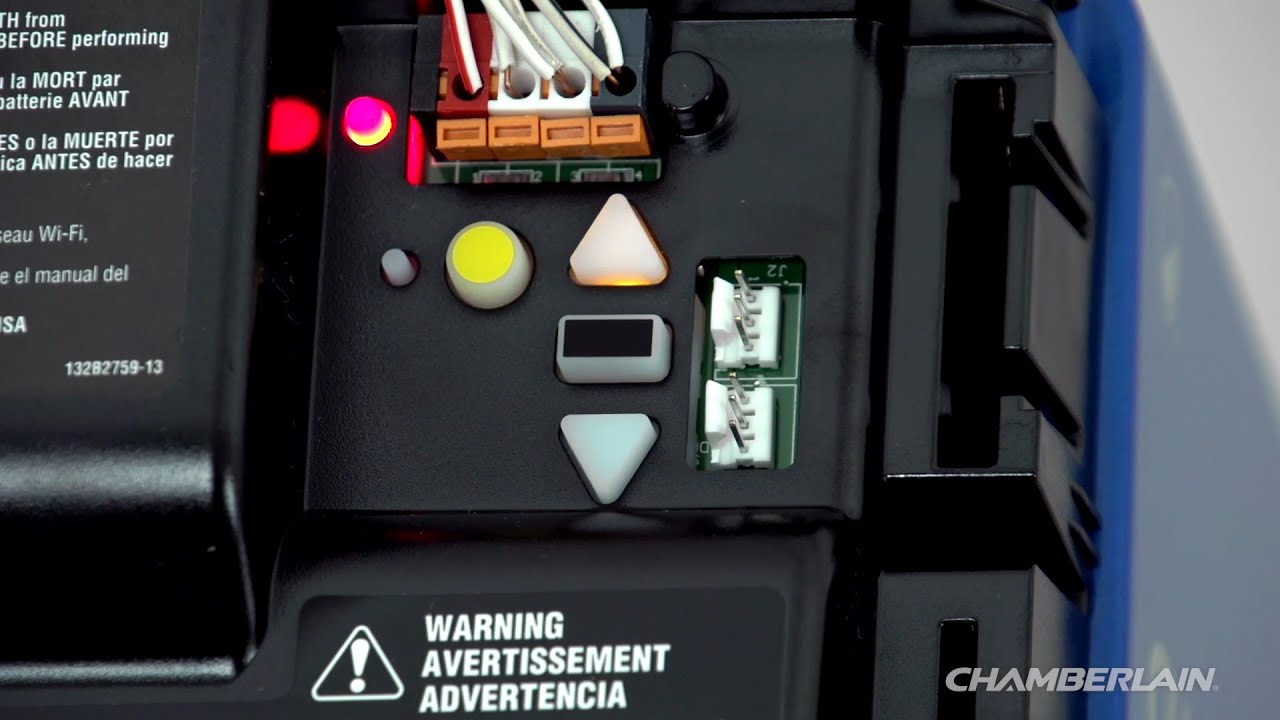
- Working light (the learn button can be hard to see)
- User manual for your model (optional, but helpful)
- Wi-Fi network info (for smart openers)
- Phone (for smart features and troubleshooting)
Tip: Write down your opener’s model number. You’ll find it on a sticker on the main opener unit (often near the light bulb or back panel).
Understanding Chamberlain Garage Door Opener Models
Chamberlain has made many opener types over the years. Most use similar syncing steps, but the color of the learn button matters. This button tells the opener to accept new remotes or keypads.
Here’s a quick overview of the main types:
- Classic openers (yellow, purple, green, or red learn button)
- MyQ smart openers (Wi-Fi connected)
- Belt drive, chain drive, and wall mount units
- Keypad and remote types (one, two, or multi-button remotes)
Let’s compare Chamberlain opener types and what syncing features they support.
| Model Type | Learn Button Color | Remote Types | Wi-Fi/MyQ Support |
|---|---|---|---|
| Classic Chain Drive | Yellow / Purple / Green | 1, 2, 3-Button | No |
| Belt Drive | Yellow / Purple | 1, 3-Button | Some Models |
| MyQ Smart Opener | Yellow | Multi-Button, Keypad | Yes |
| Wall Mount (RJO) | Yellow | Keypad, 3-Button | Yes |
Insight: The learn button color controls which remotes and keypads are compatible. Always check this before buying accessories.
Step-by-step: How To Sync A Chamberlain Remote
Syncing a new or replacement remote is the most common task. Here’s how to do it for almost any Chamberlain model.
Find The Learn Button
- Locate your opener unit on the garage ceiling or wall.
- Remove the light cover if it blocks your view.
- Look for a small button labeled “Learn.” The color is usually yellow, purple, red, or green.
Prepare The Remote
- Check the batteries in your remote. Weak batteries can prevent syncing.
- Clear the area. Make sure nothing blocks the opener’s sensors.
Sync The Remote
- Press and release the learn button (do not hold for more than 1 second).
- Within 30 seconds, press and hold the button on your remote you want to use.
- Watch for the light on the opener to blink or click. This means syncing worked.
- Test the remote by pressing the button again. The door should move.
Common mistake: Holding the learn button too long can erase all synced remotes. Only press and release.
Multiple Remotes
You can sync more than one remote. Just repeat the steps for each remote, using the same learn button.
Advanced tip: If you have a multi-button remote, you can program each button for a different garage door or function.
How To Sync A Keypad To Your Chamberlain Opener
Keypads allow you to open the garage using a code. They’re great for family members, kids, or guests.
Resetting The Keypad
If your keypad is used or you forgot your code, reset it first:
- Press and hold the “” and “#” keys* until the keypad stops blinking (about 5 seconds).
- The keypad is now in program mode.
Programming The Keypad
- Press and release the learn button on the opener.
- Within 30 seconds, enter your desired PIN (4 digits) on the keypad.
- Press and hold the ENTER button.
- Watch for the opener light to blink. This means it accepted the code.
- Test by entering your PIN and pressing ENTER. The door should move.
Insight: Don’t choose an obvious PIN like 1234 or your house number. Pick something unique for better security.
Syncing Chamberlain Opener With Homelink In Your Car
Many modern vehicles have HomeLink, a built-in garage remote system. Syncing this to your Chamberlain opener saves you from carrying a remote.
Preparing Homelink
- Turn on the car’s ignition (do not start the engine).
- Hold the two outer HomeLink buttons until the indicator light begins to flash (about 20 seconds). This clears old codes.
Programming Homelink
- Hold your Chamberlain remote 1–3 inches from the HomeLink buttons.
- Press and hold the HomeLink button you want to program and the opener remote button at the same time.
- Release both buttons when the HomeLink light changes from slow to rapid blinking.
- Go to your garage opener. Press and release the learn button.
- Within 30 seconds, return to the car and press the programmed HomeLink button three times, holding each for about 2 seconds.
The garage door should move. If not, repeat the steps slowly.
Non-obvious tip: Some cars require the gear to be in park for syncing to work.

How To Sync Chamberlain Openers With Myq And Wi-fi
Newer Chamberlain models support MyQ, which lets you open or monitor your garage from your phone. Syncing with MyQ involves connecting to your home Wi-Fi.
Connecting To Wi-fi
- Download the MyQ app on your phone.
- Create a MyQ account if you don’t have one.
- Press and hold the yellow learn button on your opener until the blue Wi-Fi light blinks.
- Follow the app instructions to connect the opener to your home Wi-Fi. You’ll enter your Wi-Fi password.
- Name your garage door in the app for easy access.
Adding Remotes And Keypads
You can still add regular remotes and keypads, even if you use MyQ. Follow the earlier steps for each device.
Pro insight: Place your Wi-Fi router near the garage for a stronger signal. Weak Wi-Fi can cause the MyQ app to lose connection.
Syncing A Replacement Remote Or Keypad
If you buy a new remote or keypad, make sure it’s compatible with your opener’s learn button color. Universal remotes often work, but you may need to follow special syncing steps found in the device’s manual.
Troubleshooting tip: If syncing fails, unplug the opener for 30 seconds, plug it back in, and try again.
Clearing All Synced Devices (factory Reset)
Sometimes you want to remove all existing remotes and start over—like when moving to a new house or after losing a remote.
- Press and hold the learn button (usually for 6–10 seconds) until the indicator light goes out.
- All remotes and keypads are now erased.
- Sync new devices following the earlier instructions.
Warning: This cannot be undone. Only do this if you want to remove all synced devices.
Troubleshooting Syncing Problems
If syncing doesn’t work, try these solutions:
- Check remote batteries. Old batteries cause weak signals.
- Move closer to the opener when syncing.
- Make sure the learn button is not dirty or stuck.
- Do not hold the learn button too long. This erases all devices.
- Confirm remote compatibility with your opener’s learn button color.
- Check for radio interference (LED bulbs, Wi-Fi routers can interfere).
Advanced insight: Metal garage doors can block signals. Try syncing with the car outside the garage if you have connection trouble.
Chamberlain Opener Syncing: Common Questions Answered
People often ask about remote limits, syncing with multiple cars, and security. Here are some quick answers.
- How many remotes can I sync?
- Most Chamberlain openers support up to 8 remote controls and 1–2 keypads.
- Can I sync two cars?
- Yes, just program each car’s HomeLink using the steps above.
- Will syncing erase my old remotes?
- No, unless you do a full reset by holding the learn button for 6+ seconds.
- Is MyQ safe?
- Yes. MyQ uses encrypted Wi-Fi and rolling codes for strong security.
- Can I sync smart home devices like Alexa?
- Yes, with MyQ and a compatible hub, you can connect Alexa, Google Assistant, and more.
Smart Home Integration: Going Beyond Remotes
Many people now use voice assistants or smart home systems for convenience. Chamberlain supports this with MyQ.
Connecting With Alexa Or Google
You’ll need a MyQ Smart Garage Hub or a Wi-Fi-enabled Chamberlain opener.
- Install MyQ and Alexa/Google Home apps.
- Link your MyQ account in the Alexa or Google Home app.
- Follow the prompts to add your garage door as a smart device.
- Use voice commands like “Alexa, open the garage door.”
Insight: For security, voice assistants may require a PIN or confirmation before opening the garage.
Syncing Multiple Garage Doors
If you have more than one garage door, you can sync each to separate buttons on a multi-button remote or set each up in MyQ as a different device.
Programming A Multi-button Remote
- Repeat the remote syncing steps for each garage door opener.
- Assign each opener to a different button.
Example: Button 1 for Door 1, Button 2 for Door 2.
Table: Chamberlain Remote Compatibility By Learn Button Color
Understanding which remotes work with your opener is important. Here’s a quick reference:
| Learn Button Color | Remote Model Prefix | Year Range | Rolling Code? |
|---|---|---|---|
| Yellow | 953EV, 956EV | 2011–present | Yes |
| Purple | 371LM, 373LM | 2005–2011 | Yes |
| Green | 81LM, 83LM | 1993–1997 | No |
| Red/Orange | 61LM, 63LM | 1993–1996 | No |
Tip: Always buy remotes that match your opener’s learn button color for best results.
How To Sync After A Power Outage
Sometimes, a power outage can cause remotes or keypads to lose their sync. Most Chamberlain openers keep codes even after power loss, but if your remote stops working:
- Unplug the opener for 30 seconds.
- Plug it back in and wait for the lights to reset.
- Test your remote. If it fails, re-sync using the steps above.
Advanced insight: If your opener has a backup battery, syncing is rarely lost during outages.
Keeping Your Garage Opener Synced And Secure
Proper syncing is only one part of garage security. Here’s how to keep your system safe:
- Change your keypad PIN regularly.
- Erase all remotes if you lose one.
- Update your MyQ password if you suspect account issues.
- Use rolling code remotes (all Chamberlain openers since 1993).
Extra tip: Write down the date you last synced or changed your codes. This helps you remember to update security if needed.
Maintenance Tips For Reliable Syncing
A well-maintained opener works better and stays synced longer.
- Replace remote batteries every 1–2 years.
- Clean the learn button area to avoid stuck or dirty buttons.
- Check Wi-Fi signal strength for MyQ models.
- Keep sensors clean so the door operates smoothly.
Insight: Most syncing problems are caused by weak batteries or dirty contacts. Fix these first before trying more complex solutions.
Chamberlain Garage Door Opener Syncing: Real-world Example
Let’s walk through a real-world scenario:
John just moved into a house with a Chamberlain opener (yellow button). He has two remotes and a keypad.
- John finds the yellow learn button on his opener.
- He presses and releases it, then quickly presses the button on his first remote. The opener clicks.
- He repeats for the second remote.
- For the keypad, John presses the learn button, enters his new PIN, and presses ENTER.
- John tests all devices—both remotes and the keypad work.
- He downloads the MyQ app and follows the prompts to connect his opener to Wi-Fi.
- John adds MyQ to his Alexa app for voice control.
Now, John has a fully synced, secure system that works with remotes, keypad, phone, and Alexa.
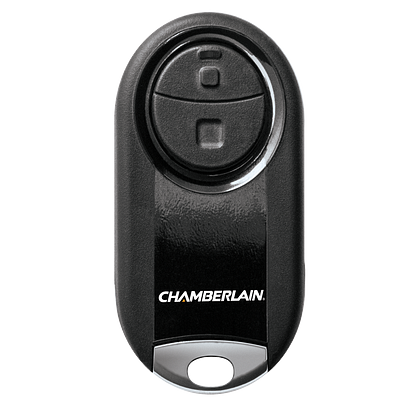
Table: Troubleshooting Common Syncing Problems
Here’s a quick reference for fixing the most common issues.
| Problem | Possible Cause | Solution |
|---|---|---|
| Remote won’t sync | Dead batteries, out of range, wrong remote type | Replace batteries, move closer, check compatibility |
| Keypad doesn’t work | Forgotten PIN, keypad needs reset | Reset keypad, reprogram with new PIN |
| MyQ app loses connection | Weak Wi-Fi, app not updated | Move router, update app |
| Garage door opens by itself | Stuck button, neighbor’s remote interference | Clear remotes, re-sync all devices |
Pro tip: If you can’t fix an issue, contact Chamberlain support or check the official site for troubleshooting guides.
Frequently Asked Questions
How Do I Know My Chamberlain Remote Is Compatible?
Look at your opener’s learn button color. Match your remote to the color using the compatibility tables above. If unsure, check the Chamberlain website or your user manual.
Can I Sync My Chamberlain Opener With My Smartphone?
Yes, if your opener supports MyQ or you have a MyQ Smart Garage Hub. Download the MyQ app and follow the syncing instructions in this guide.
What Should I Do If My Remote Stops Working After Syncing?
First, replace the batteries. If that doesn’t help, erase all remotes and re-sync them. Make sure the remote is compatible and not damaged.
How Many Devices Can I Sync To One Chamberlain Opener?
Most Chamberlain openers support up to 8 remotes and at least one keypad. Some smart models can handle even more devices through the MyQ app.
Is It Safe To Use Chamberlain Myq With Smart Home Systems?
Yes. MyQ uses strong encryption and rolling codes for safety. For more details on smart home integration, see Chamberlain Group on Wikipedia.
Syncing your Chamberlain garage door opener doesn’t have to be hard. With the right steps and a little patience, you’ll enjoy a secure, reliable system that fits your daily life. Whether you use a remote, keypad, car, or smart home device, staying synced means peace of mind and smooth access to your garage—every time.